
Software
Struggling to keep up with group projects or stay organized during the school year? Microsoft Teams transforms how students collaborate, communicate, and manage assignments—without overwhelming technical learning curves. These 10 benefits show how this free tool can simplify your academic life while boosting productivity and teamwork.
Seamless Group Project Collaboration
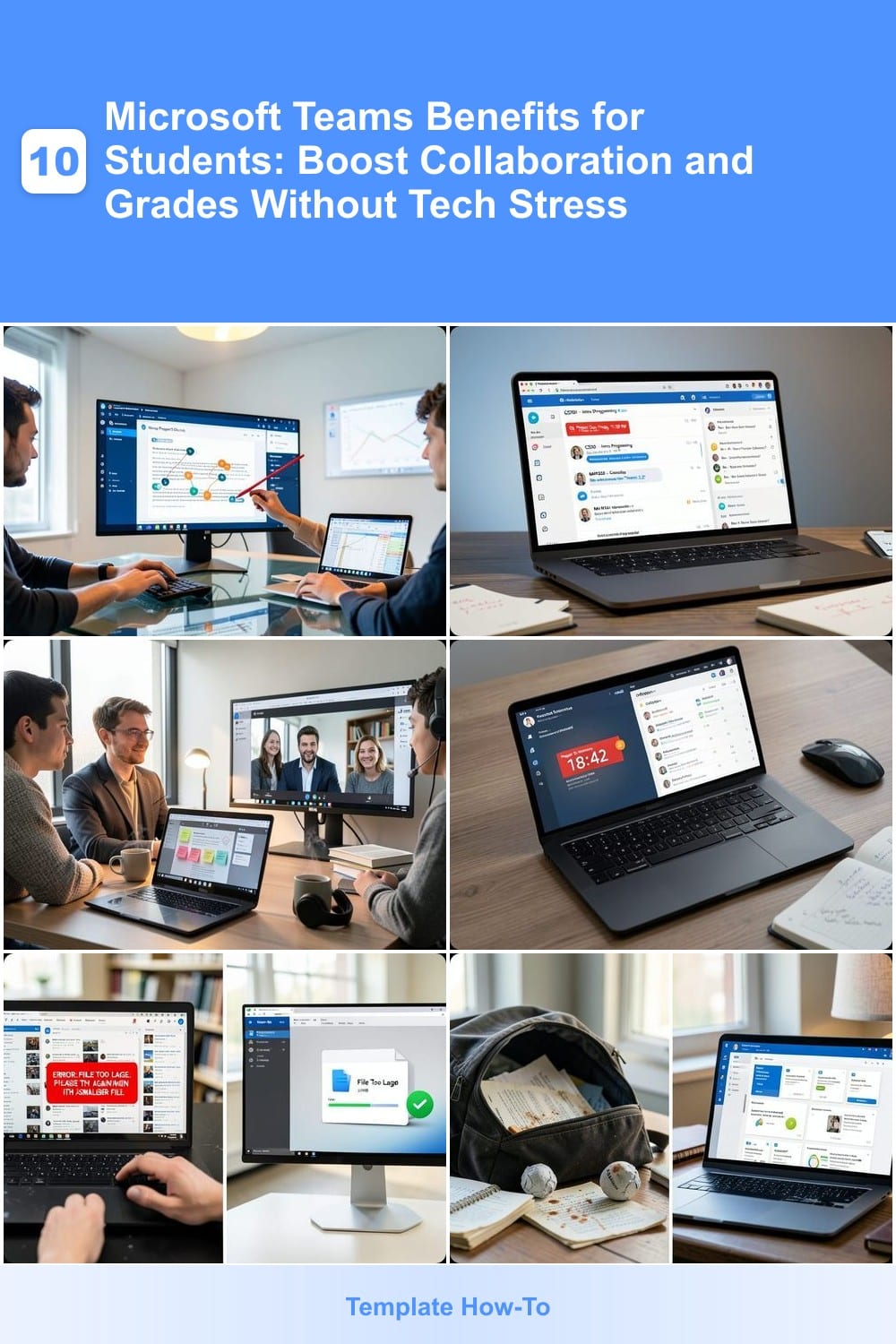
Tired of the endless "FinalVersion3Revised2024.docx" email chain wars? Microsoft Teams’ real-time co-editing in Word, Excel, and PowerPoint turns group projects from chaotic to streamlined—no more version control nightmares or "I didn’t save my changes!" panics.
With live cursors showing who’s editing what, comment threads embedded directly in documents, and automatic save versions, your team can work on the same file simultaneously—whether you’re in the same dorm or across continents. Need to track changes? The version history lets you revert to any previous draft with one click, while @mentions ensure everyone stays looped in without drowning in notifications.
This is your secret weapon for cross-campus or hybrid teams, where deadlines loom and time zones clash. No more lost work or last-minute scrambles—just real-time progress that keeps everyone on the same page. 💻
Built-In Classroom Communication Hub
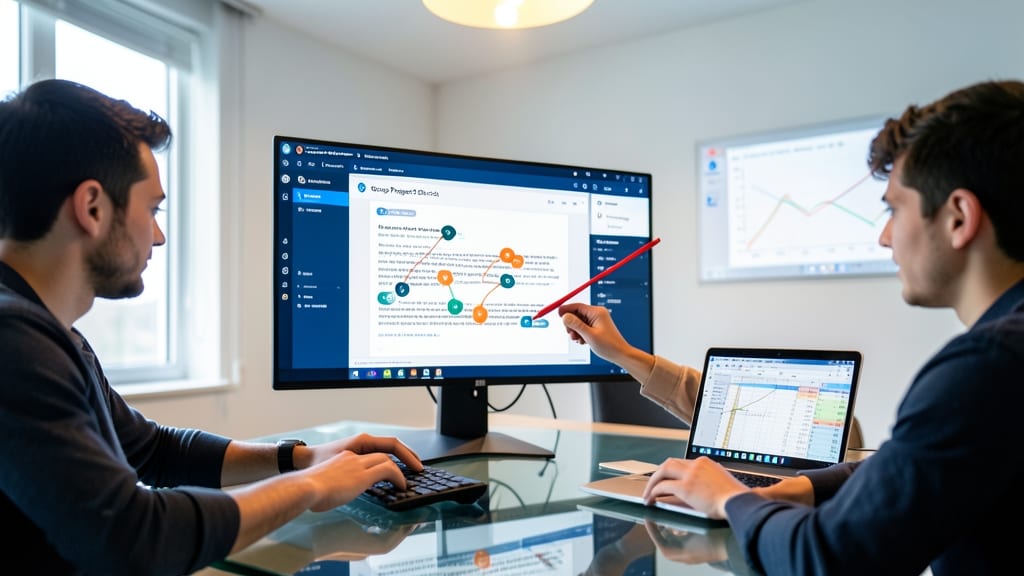
Tired of digging through endless email threads or missed text messages about assignment deadlines? Microsoft Teams’ built-in classroom communication hub replaces the chaos with dedicated channels for each course, where professors pin announcements, post deadlines, and host discussions—all in one searchable space.
Every class gets its own organized channel with tabs for assignments, syllabi, and Q&A, so you never miss a key update. The @mentions feature ensures your team stays on the same page, while pinned posts highlight critical deadlines (like midterm dates) without burying them in a feed. Best of all, it syncs with your school calendar to auto-schedule reminders—no more forgotten submissions.
This is your lifeline for large lecture courses where clarity matters most—whether you’re in a packed auditorium or balancing five classes at once. 💡
Free Video Conferencing for Study Groups

No more scrambling to find a quiet coffee shop or library when your study group’s schedules clash—Microsoft Teams brings the virtual study session right to your screen. With crystal-clear video and audio, even international teams can collaborate as if they’re in the same room, no matter the time zone.
Share your screen to walk through assignments together, record meetings to review later, and use the whiteboard tool for brainstorming without needing physical markers. The background blur feature keeps your workspace tidy while keeping the focus on the discussion—perfect for multitasking between classes and study sessions.
This is your new go-to for hybrid or remote teams, whether you’re balancing online and in-person classes or coordinating with peers across continents. ✨
Automatic Assignment Tracking System
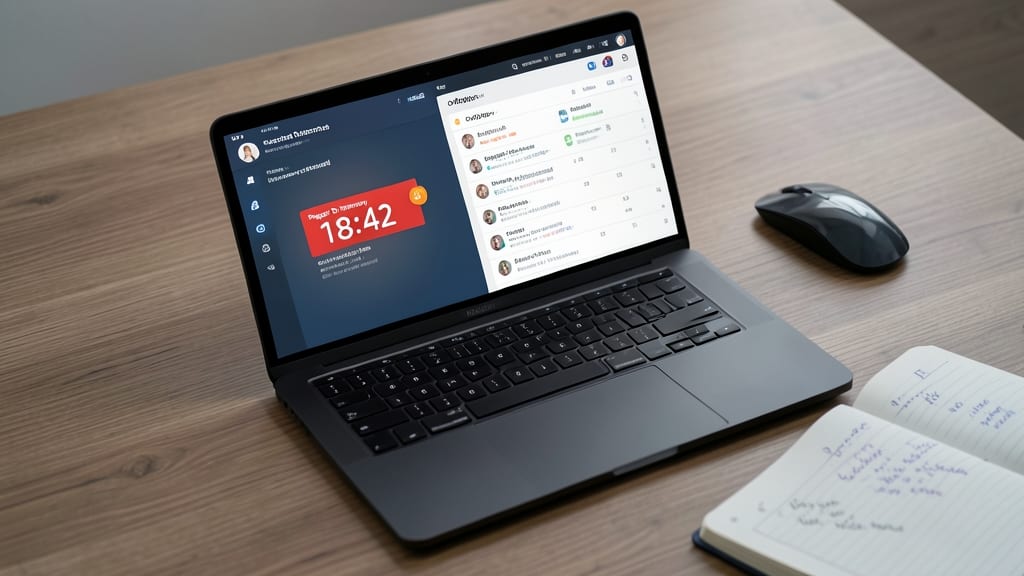
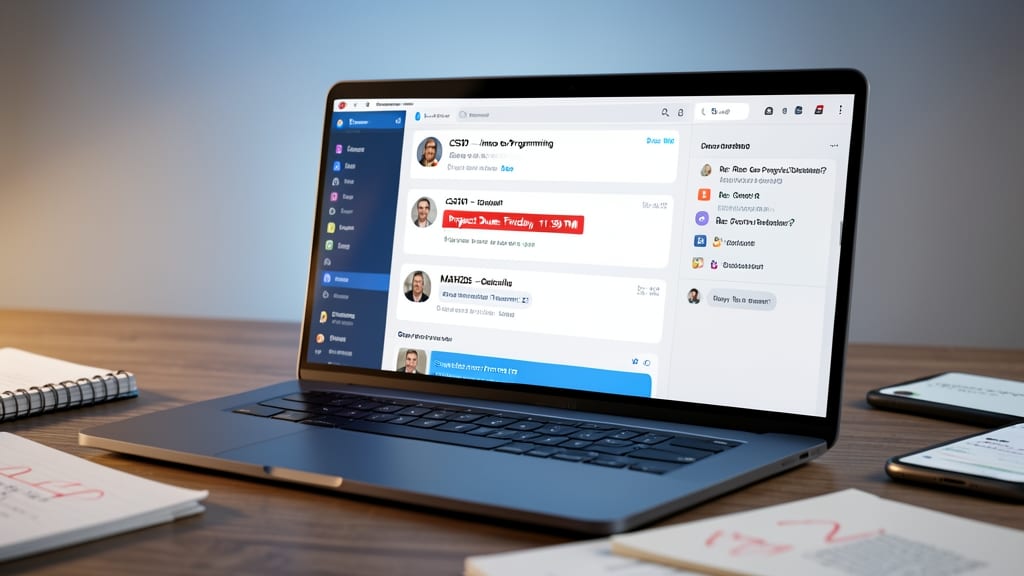
Forget scrambling to remember due dates across five different courses—Microsoft Teams’ automatic assignment tracker syncs directly with your Outlook calendar to create a unified deadline dashboard. Missed a paper due tomorrow? The system flags it in bold, complete with countdown timers and priority alerts.
Add tasks straight from emails or class announcements with one-click integration, then categorize them by course or urgency. The color-coded deadlines (red for urgent, yellow for upcoming) make it impossible to overlook critical submissions, while @mentions ensure your team stays on the same page. Best of all, it’s zero-config setup—just link your school account, and you’re ready.
This is your lifesaver if you’re balancing AP classes, club meetings, and part-time jobs—no more last-minute panic over forgotten deadlines. ✨
Secure File Sharing Without Email Limits
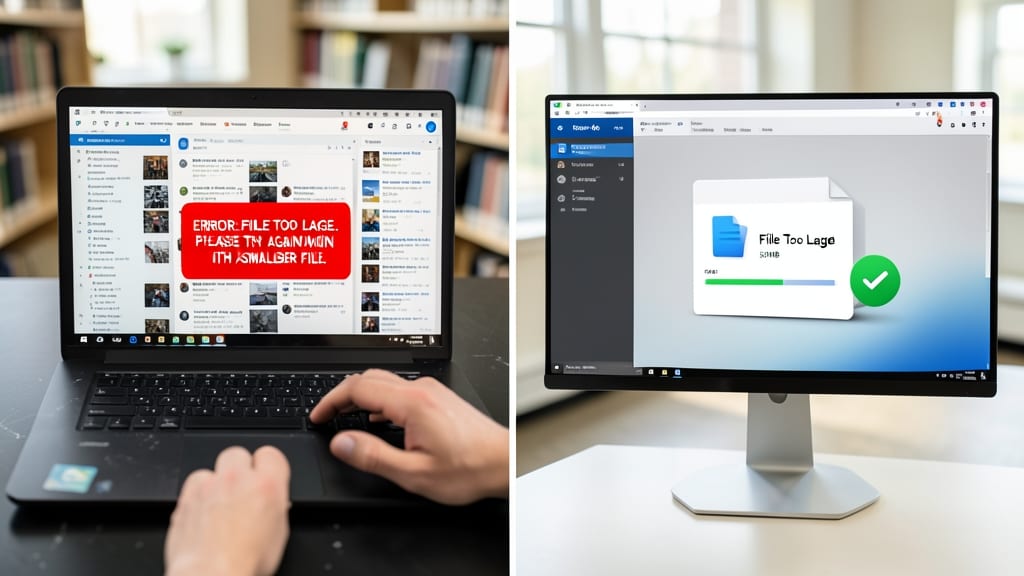
Ever hit "send" on a group email, only to realize your 50MB PowerPoint presentation got rejected for being too large? Microsoft Teams solves this with cloud-based team folders that handle files of any size—no more fragmented emails or lost attachments.
Upload your largest project files directly to shared folders where version history tracks every edit. Need to roll back to an earlier draft? Just click the timeline. Plus, end-to-end encryption keeps sensitive academic work secure while permissions control who can view or edit files—critical for group projects with strict confidentiality requirements.
This is the perfect solution for design teams, research groups, or any team working with large datasets—whether it's a 3D modeling project or a semester-long thesis. 💻
One-Stop Learning Resource Center

Tired of digging through backpacks for lost syllabi or scrambling to find lecture notes during crunch time? Microsoft Teams turns your digital workspace into a searchable, organized "digital backpack" where every course resource lives in one place.
Create dedicated channels for each class to store syllabi, PowerPoint slides, reading lists, and professor feedback—all searchable by keyword. The file tab lets you pin the most important documents, while OneNote integration keeps handwritten notes and digital scribbles in sync. No more "I swear I printed that!" moments when exams roll around.
Perfect for history students organizing primary sources or engineering teams sharing CAD files—this feature saves hours of disorganization per semester. ✨
Accessibility Features for All Learners
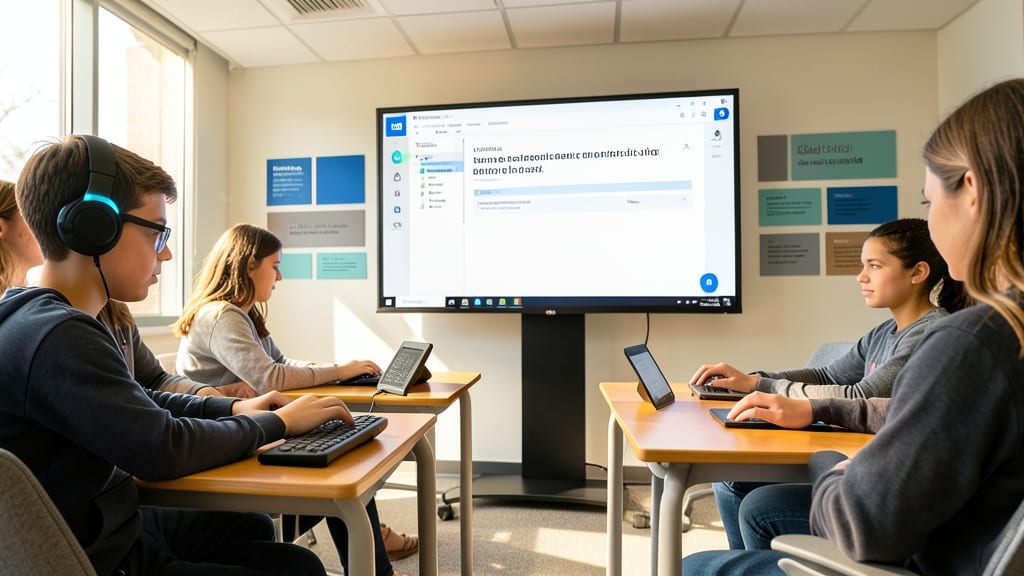
Microsoft Teams isn’t just a collaboration tool—it’s a classroom equalizer. With built-in text-to-speech and screen reader compatibility, students with visual or auditory impairments can engage fully in discussions, lectures, and group work without relying on third-party apps.
The platform’s customizable display options—like high-contrast modes and adjustable font sizes—ensure readability for everyone, while keyboard shortcuts and voice commands accommodate motor impairments. Whether you’re reviewing notes, joining a video call, or submitting assignments, Teams adapts to your needs.
This makes it ideal for students with disabilities, ensuring no one gets left behind in group projects or class discussions. ⚡
Parent-Teacher-Student Communication Bridge
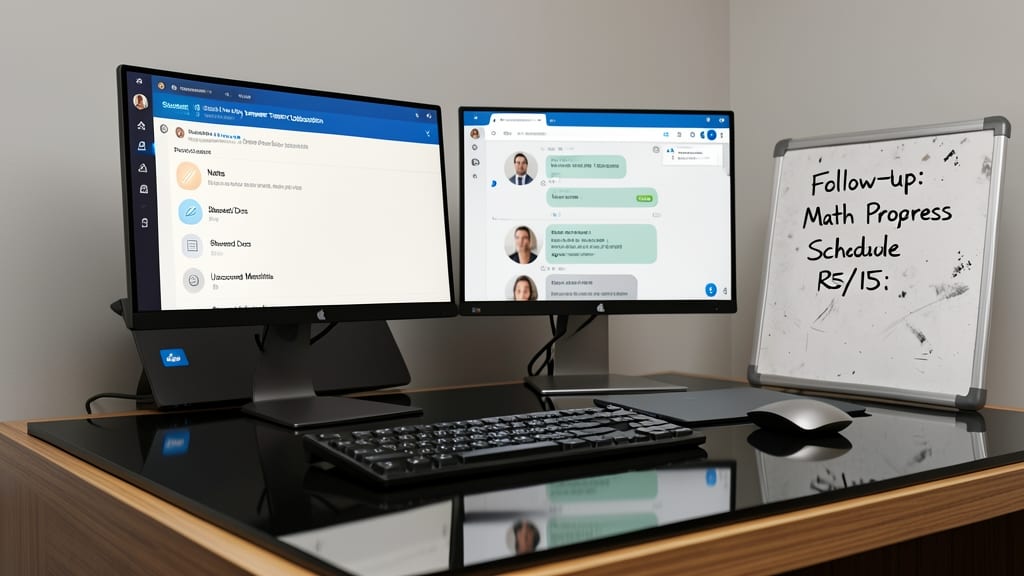
Need a way to keep parent-teacher conferences organized without endless emails or missed calls? Microsoft Teams private channels create secure spaces where educators, parents, and students can collaborate—all while maintaining confidentiality.
Set up a dedicated channel for each student, complete with shared progress reports, meeting notes, and action items. The file-sharing capabilities let teachers upload IEPs or assessment results while parents can add updates like homework challenges or scheduling conflicts. End-to-end encryption ensures sensitive discussions stay private, even in shared school accounts.
Perfect for families navigating special education plans or students with complex schedules, this bridge eliminates the back-and-forth while keeping everyone aligned. 💡
Integration with Other Microsoft Tools
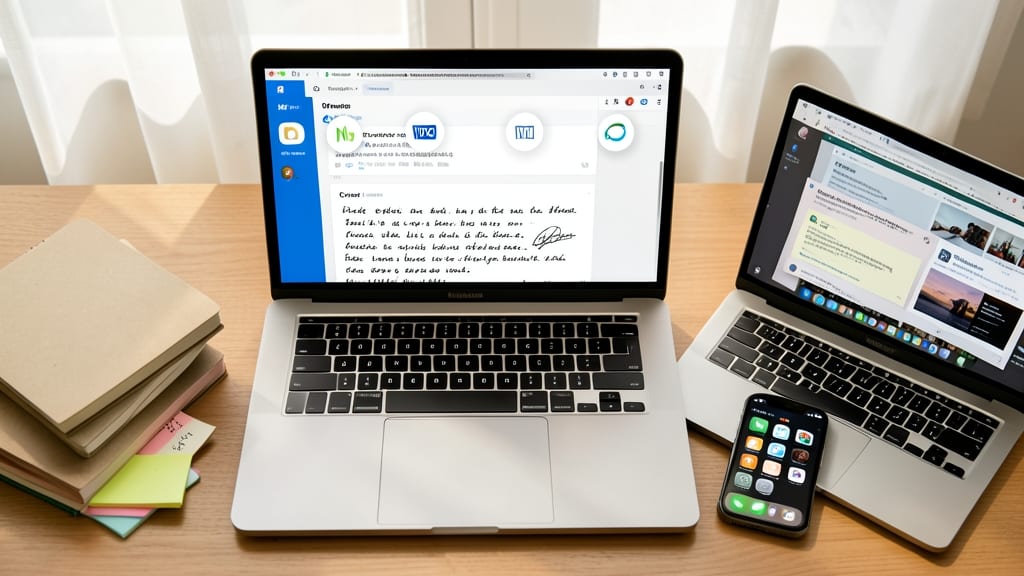
Tired of juggling multiple apps just to stay organized? Microsoft Teams creates a unified workspace by integrating with other Microsoft tools you already use, turning chaos into a streamlined system. With OneNote, you can capture class notes directly in Teams channels, keeping lectures and assignments in one place without switching tabs.
Need to create quizzes or surveys for study groups? Forms lets you design quick assessments and collect responses instantly within Teams, eliminating the need for third-party apps. And with Planner, you can manage personal to-do lists alongside group tasks, ensuring nothing slips through the cracks during busy semesters.
This ecosystem is perfect for students who want zero app overload—whether you're taking notes, organizing projects, or tracking deadlines, everything stays connected in one familiar platform. ✨
Free Education Licensing for Students
Struggling to afford premium collaboration tools while juggling tuition and textbooks? Microsoft’s free education licensing for Teams removes that stress entirely, giving you access to the same professional-grade tools used by businesses worldwide—without a single cent spent.
All you need is a valid student email address (like .edu or your school’s domain) to claim your license through Microsoft’s Education Program. This unlocks full Teams features, including unlimited cloud storage, advanced security, and 24/7 technical support—no hidden fees or subscription traps. Whether you’re working on a group project or managing study groups, you get the same reliability as corporate teams. 💻
This is a game-changer for international students, part-time workers, or anyone on a tight budget. No more compromising on quality just because of cost—your academic success shouldn’t depend on your bank account. ✨