
Software
Microsoft Teams channels can transform collaboration—but only if used strategically. These 10 best practices help teams organize workflows, reduce clutter, and maximize productivity by leveraging channels effectively across projects and departments.
Standardize Channel Naming Conventions

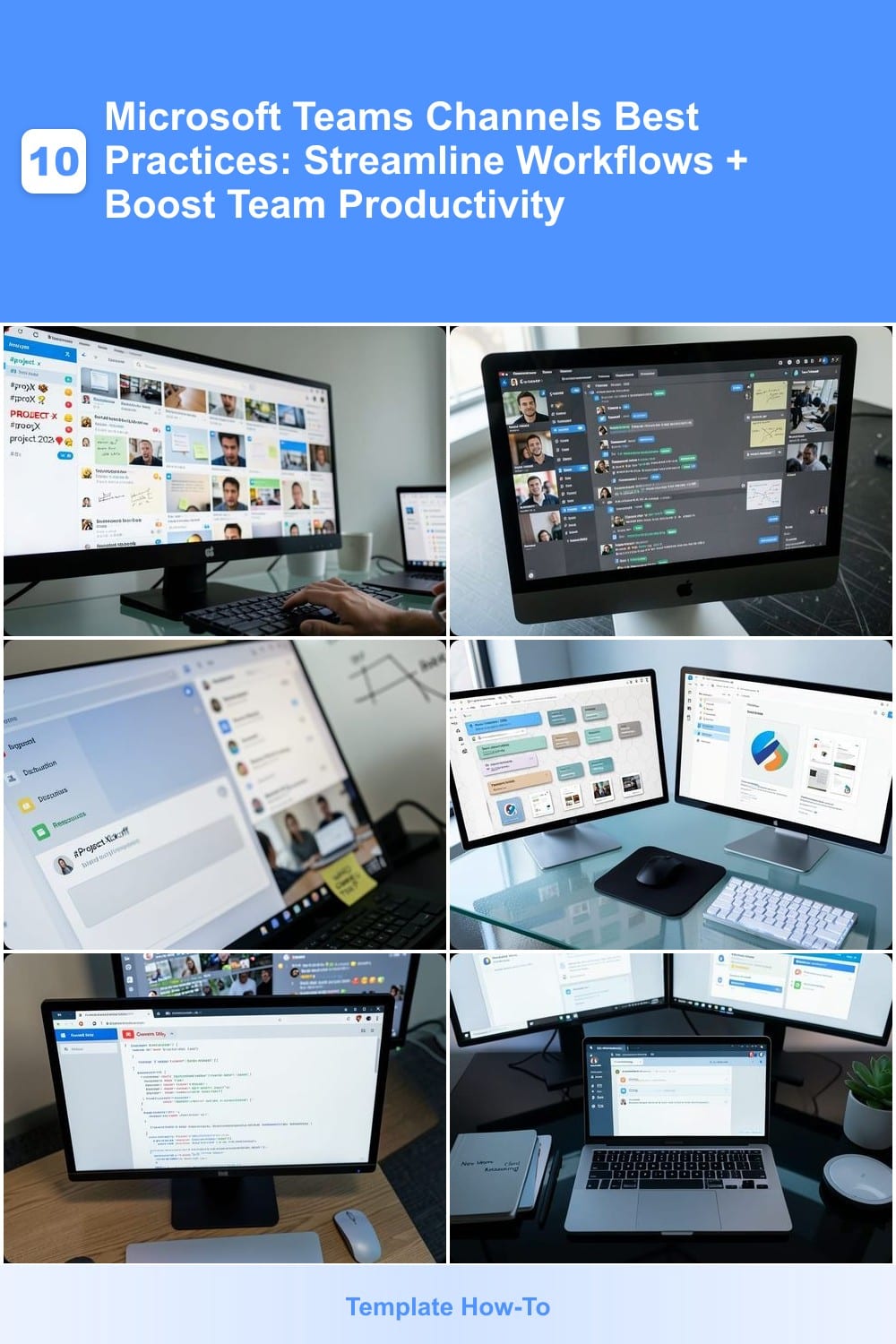
Picture this: You join a new project, and instead of a clear, organized channel list, you’re greeted with a chaotic mix of #project-x, #projX, and PROJECT-X. Without standardized naming, even simple navigation becomes a guessing game—and productivity suffers.
Microsoft Teams lets you solve this with prefix-based naming conventions. Start with clear identifiers like [DEPT]- (e.g., [MKTG]-Q3-Campaign) or [PROJ]- (e.g., [PROJ]-Website-Redesign) to instantly group related channels. This system cuts down on confusion, especially for teams spanning multiple departments or projects. Pro tip: Use all caps for projects and title case for departments to maintain consistency across the board.
This approach is a lifesaver for cross-functional teams or enterprise environments where departments like HR, Marketing, and Engineering all use Teams. A quick glance at the channel list tells everyone exactly where they belong—no more lost messages or misplaced files. 💻
Limit Active Channels to Essential Teams
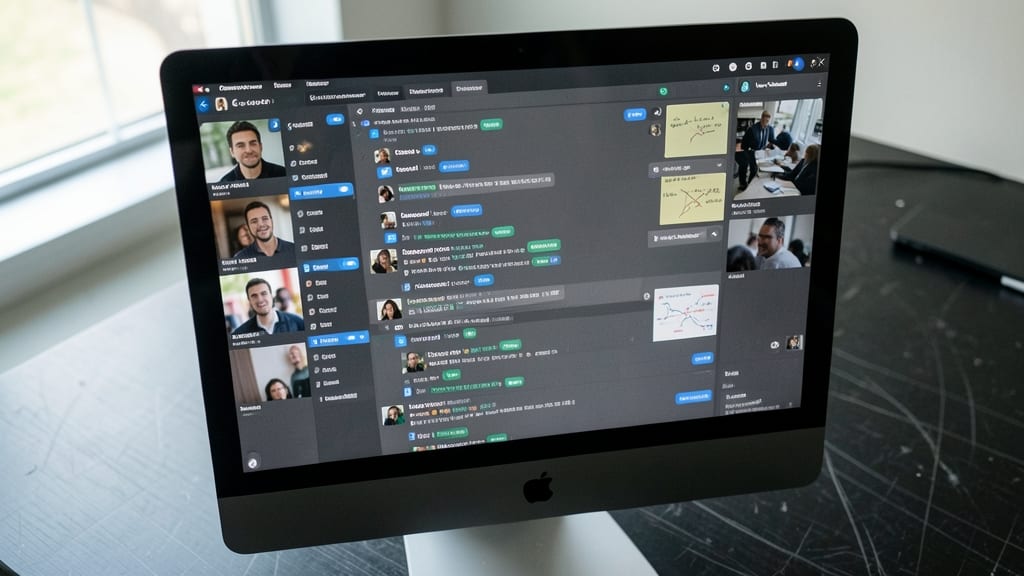
Small teams and startups often drown in their own organization—creating too many channels that slow down communication instead of speeding it up. The solution? Limit active channels to only the essential teams where high-priority discussions happen.
Start by auditing your workspace: If a channel hasn’t seen activity in 30+ days, archive or delete it. Focus on core teams (e.g., #product, #marketing, #support) and avoid the temptation to create channels for every minor task. Microsoft Teams lets you mute inactive channels with one click, keeping your feed clean while preserving access to old discussions. For startups, this means fewer distractions and more focus on what truly moves the needle.
This approach works best for early-stage teams or small businesses where over-organization creates more work than it solves. Less noise means faster decisions and clearer communication—exactly what busy teams need. 💪
Use Channel Descriptions for Context
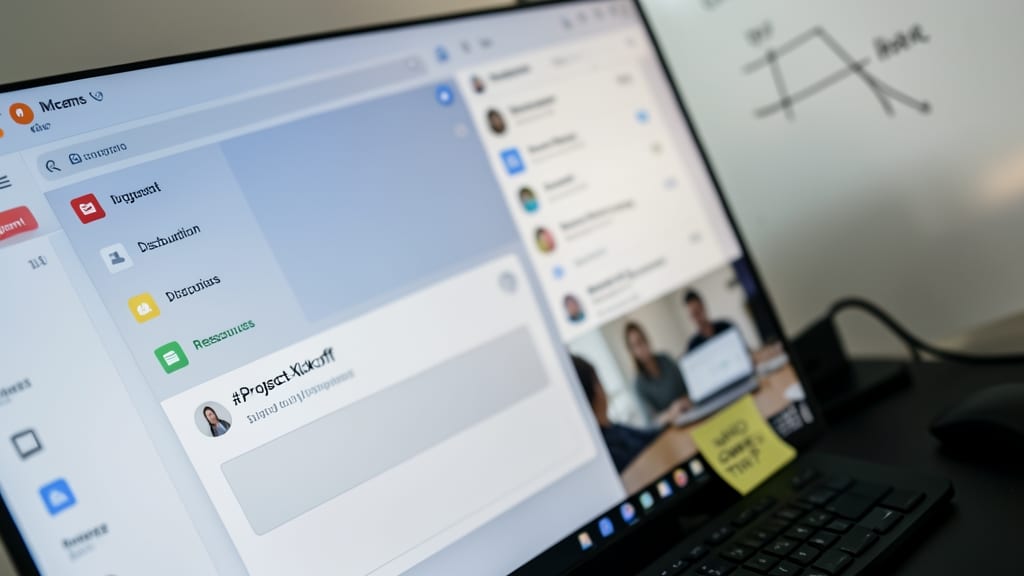
Imagine joining a new project where half the team is remote, and no one remembers who owns which channel—or why it exists. A well-crafted channel description in Microsoft Teams solves this instantly by acting as a living manual for context, ownership, and key topics.
Add a clear, concise description when creating a channel (e.g., "#marketing-campaign-2024: Managed by Sarah K. for Q3 social media ads. Key topics: budget tracking, asset approvals, and performance metrics."). This ensures new hires, contractors, or rotating team members instantly grasp the channel’s purpose without asking. For remote teams, it’s the difference between wasted onboarding time and seamless collaboration.
This practice shines for cross-functional groups (like product teams with devs, designers, and PMs) or seasonal projects where membership changes frequently. A quick glance at the description keeps everyone aligned—no context-switching required. ✨
Organize Files with Tabbed Folders
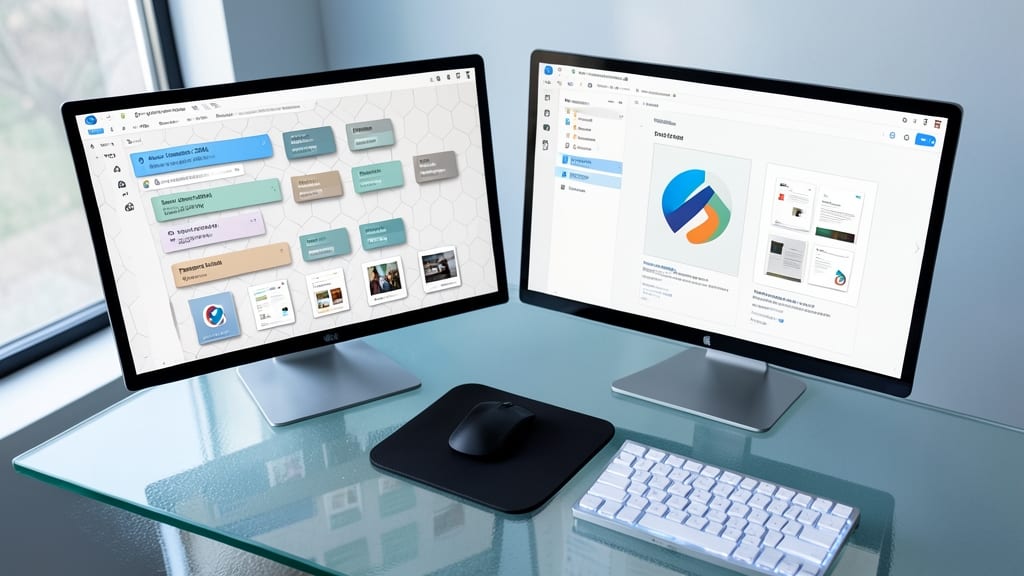
Creative teams drowning in scattered files will love Microsoft Teams’ tabbed folder system—a game-changer for organizing assets, templates, and client deliverables without the usual digital clutter. Unlike traditional file folders, tabs let you group related files visually, reducing the time spent digging through nested directories.
Simply click the "Files" tab in any channel, then add custom tabs (e.g., "Design Assets", "Client Briefs", or "Templates") to categorize files by project or type. Teams automatically syncs these tabs across devices, so your marketing team or design studio stays aligned whether working from laptops or tablets. You can even color-code tabs for quick visual scanning.
This system shines for teams juggling multiple client projects or creative versions—no more lost files or version confusion. Perfect for agencies, studios, or any group where organized chaos is the norm. ✨
Enable Channel Moderation for Focus

Technical teams drowning in off-topic chatter? Channel moderation in Microsoft Teams lets you restrict posting to team owners only, turning chaotic discussions into focused workspaces. This feature is a game-changer for leadership channels or development teams where every message should align with project goals.
To enable it, navigate to your channel settings, select Manage channel, then toggle Allow only owners to post. This instantly cuts down on irrelevant messages while keeping the conversation streamlined. Perfect for engineering teams or executive discussions where clarity and direction matter most.
Ideal for teams that need structured communication without sacrificing collaboration—just the right balance for high-stakes environments. ✨
Leverage Channel Templates for Repetitive Work
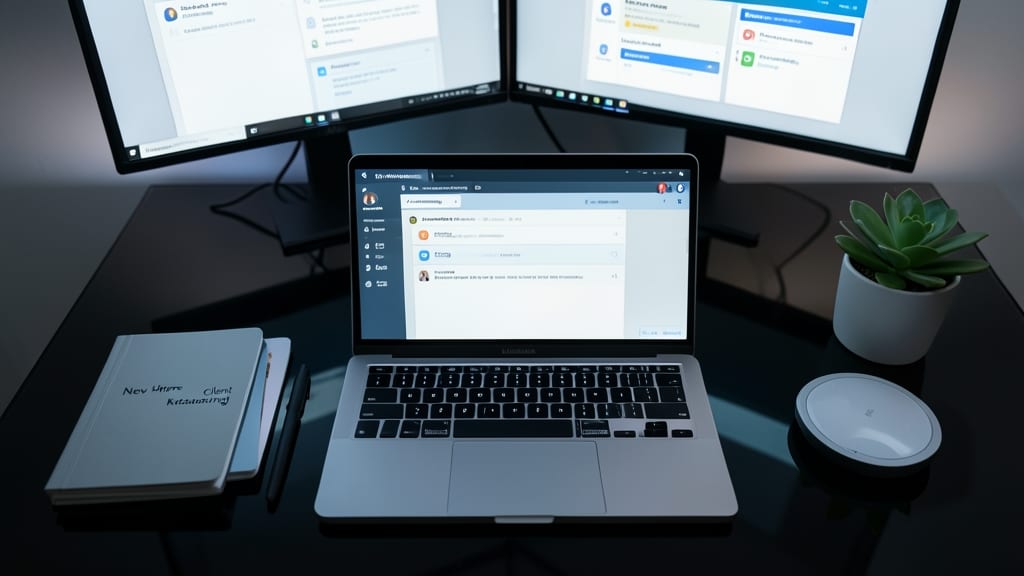
Tired of recreating the wheel every time you onboard a new hire or kick off a client project? Microsoft Teams channel templates cut setup time by 70%—just pick a pre-built structure like #onboarding or #meetings and customize in minutes.
These templates include ready-to-use tabs for files, apps (like Forms or Planner), and even pinned messages with key instructions. For example, the #project-management template bundles Trello integration, deadlines, and a shared drive—no manual configuration needed. Teams with recurring processes (HR, sales, or ops) see the biggest time savings.
Perfect for departments handling repetitive workflows, like onboarding or client kickoffs, where consistency matters. Start with a template, tweak the tabs, and watch your team’s workflows fall into place. ✨
Pin High-Priority Channels for Quick Access
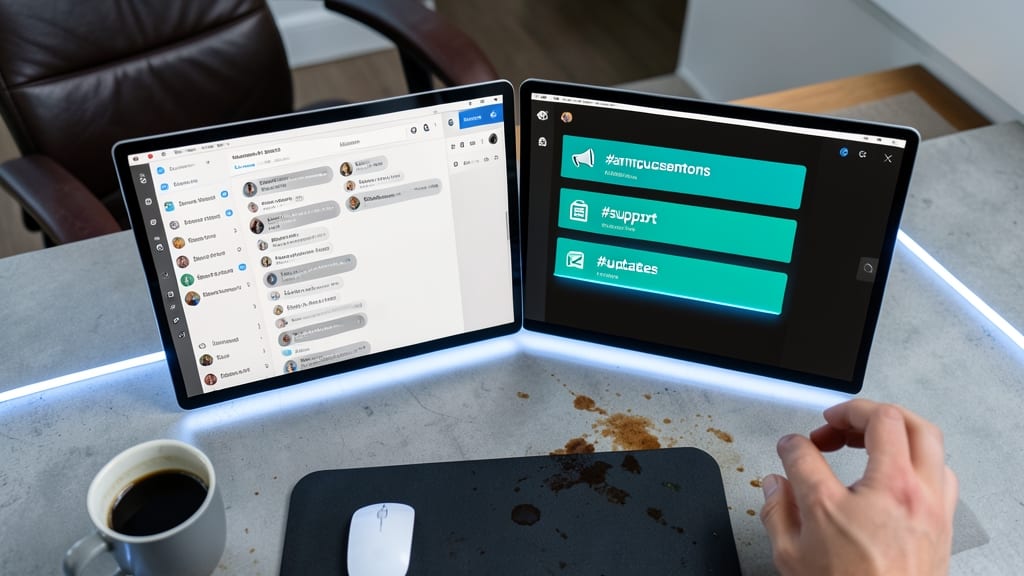
Customer-facing teams and IT support groups know the frustration of buried announcements or urgent requests getting lost in a sea of channels. Pinned channels solve this by keeping #announcements, #support, or #updates visible at all times—no more scrolling or guessing where critical messages landed.
With just a right-click, you can pin up to six channels in Teams, ensuring real-time visibility of high-priority discussions. This feature works seamlessly across desktop, web, and mobile apps, so your team stays aligned whether they’re in the office or field. For example, a #client-alerts channel can display urgent updates instantly, while a #troubleshooting channel keeps IT teams responsive without digging through archives.
This is a game-changer for teams managing client communications, IT support tickets, or time-sensitive updates. ⚡
Archive Inactive Channels Monthly
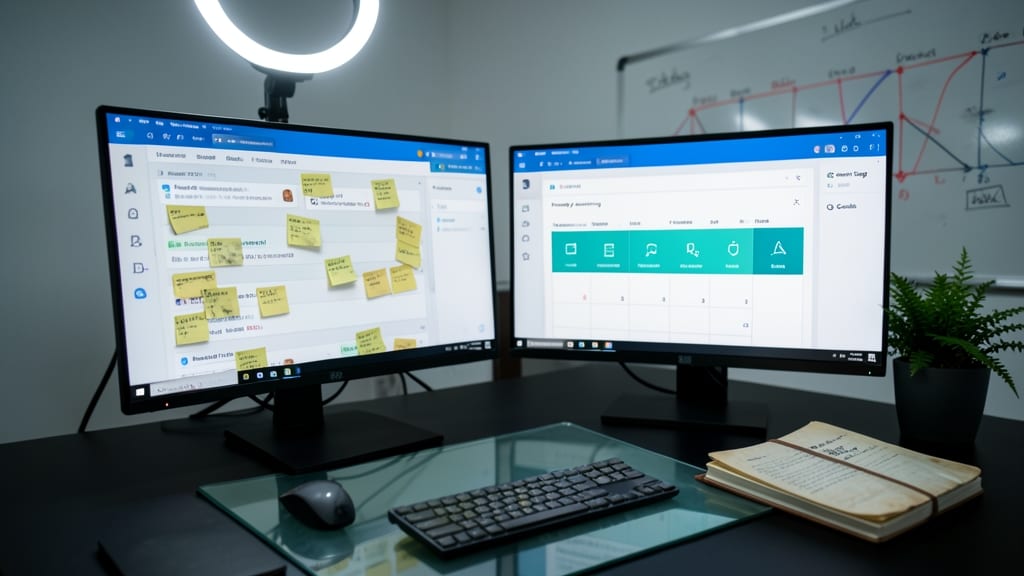
Seasonal projects or long-running initiatives often leave behind a trail of outdated discussions—until you set a monthly archiving schedule. Teams with temporary goals (like event planning) or multi-year initiatives (like product development) accumulate clutter that slows down active work, but a simple archive-and-review process keeps things lean.
Microsoft Teams makes this easy with one-click archiving—just right-click any inactive channel, select "Archive," and preserve all messages and files without disrupting the active workspace. The search function remains intact, so historical context is never lost, while the main feed stays focused on current priorities. For teams juggling multiple phases, this habit prevents the "digital hoarder" syndrome where old threads drown out new ones.
This practice is a game-changer for project managers or event coordinators whose teams dissolve after completion—archiving ensures knowledge isn’t lost while keeping the workspace fresh for future use. ✨
Integrate Third-Party Apps for Workflows
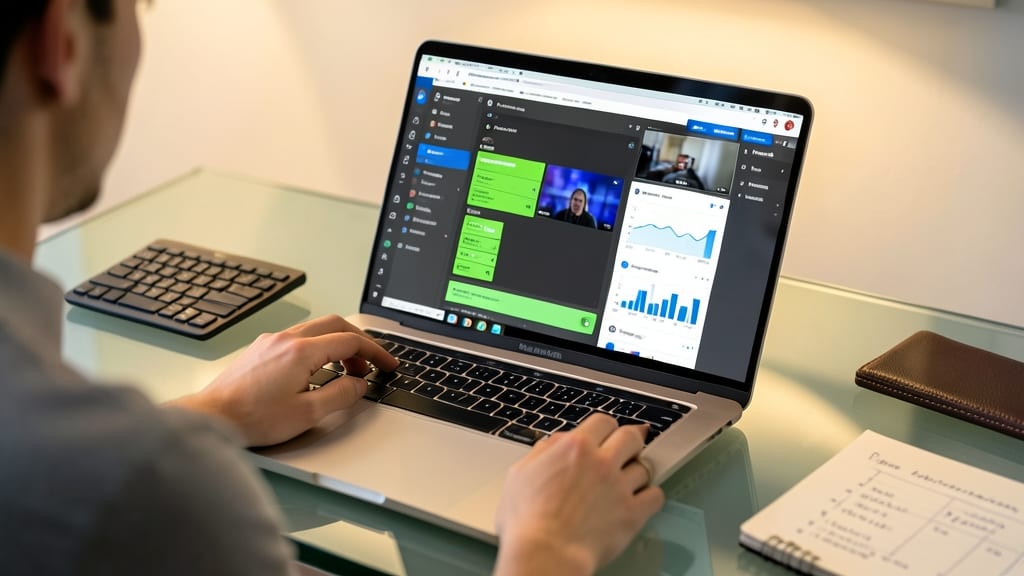
Need to bridge the gap between Teams and your favorite tools? Microsoft Teams’ App Studio and third-party integrations let you embed apps like Trello, Zoom, or Power BI directly into channels—no tab-switching required. This turns Teams into a centralized hub for project management, meetings, and data visualization without leaving your workflow.
Start by adding apps via the Apps tab in Teams, then pin them to your channel for instant access. For example, embed a Trello board to track tasks alongside meeting notes, or use Power BI dashboards to visualize team metrics. The Zoom integration even lets you schedule and join meetings directly from a channel—perfect for hybrid teams juggling multiple tools.
Developers and operations teams will love how these integrations streamline cross-tool collaboration, while hybrid workforces benefit from unified access. ⚡
Schedule Regular Channel Audits
When your team’s channels grow faster than your workflows can keep up, quarterly audits become your secret weapon. Think of them as a digital spring cleaning—identifying unused channels, redundant discussions, or misplaced files before they become a productivity black hole.
Start by reviewing channel activity metrics in Teams Admin Center to spot inactive channels (no posts in 90+ days). Then, archive or delete them to reclaim focus—this alone can cut notification clutter by 30%. For active channels, check if discussions have drifted from their original purpose (e.g., a #marketing channel now used for random memes) and either repurpose or merge them. Pro tip: Use Teams’ built-in analytics to track file access—if a folder hasn’t been opened in 6 months, it’s time to reorganize or delete it.
This practice is a game-changer for scaling teams or departments with shifting priorities, like product teams launching new features or marketing teams handling seasonal campaigns. A little audit now prevents chaos later. ✨