
Tip & Trick
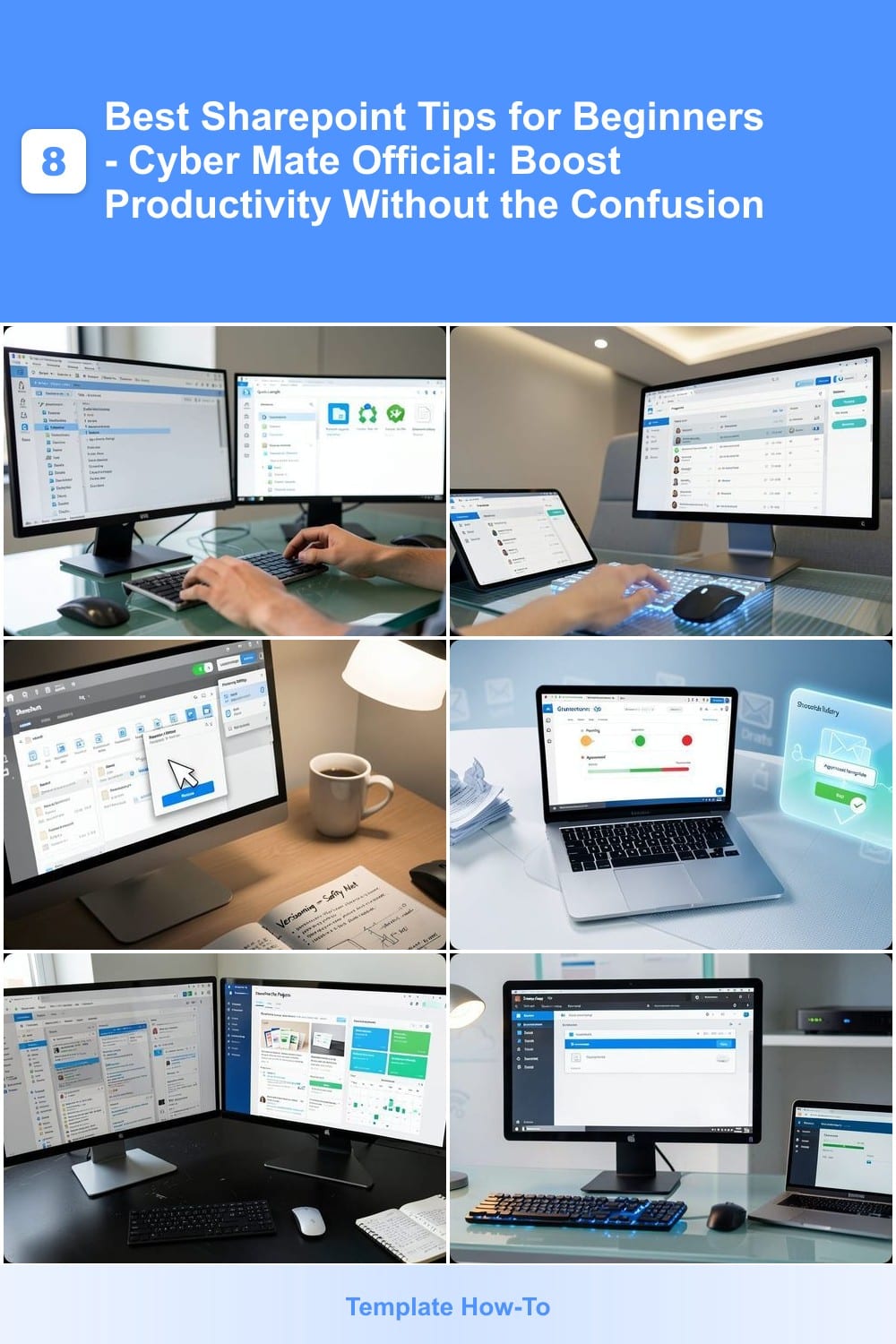
Microsoft SharePoint can feel overwhelming for new users, but mastering these essential tips will transform you from confused beginner to efficient collaborator in no time. These practical strategies cut through the complexity to help you organize, automate, and streamline workflows like a pro.
Master SharePoint Navigation with Quick Launch
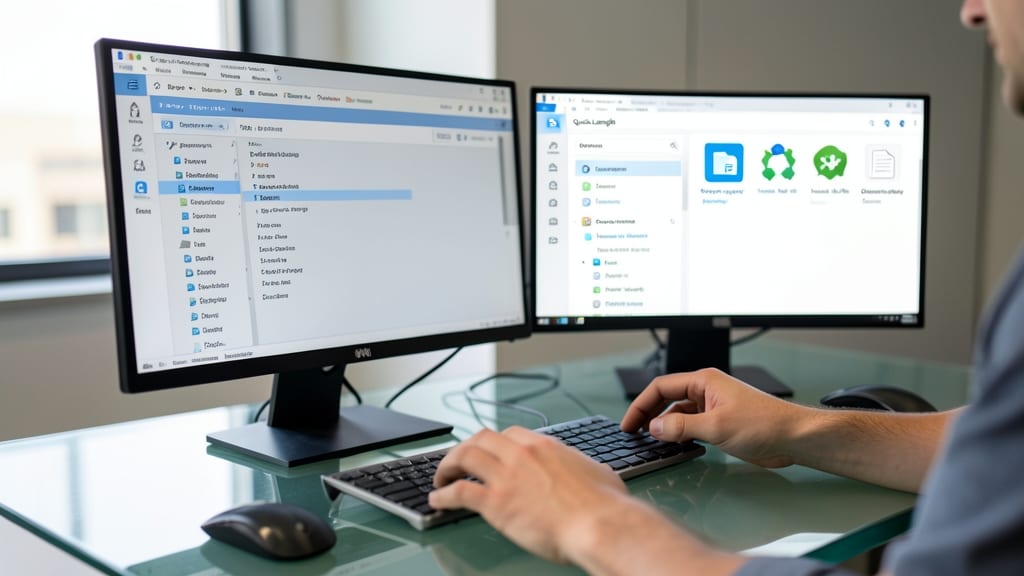
Tired of wasting time hunting through SharePoint’s endless menus? The Quick Launch feature is your secret weapon for instant access to the sites and libraries you use most.
With just a few clicks, you can pin frequently visited sites (like project folders or team hubs) to the left navigation bar. This turns SharePoint from a maze into a one-click dashboard—no more scrolling through submenus. You can also reorder items or add headers to group related links, keeping your workflows tidy. Best of all, these changes sync across devices, so your shortcuts follow you everywhere.
This trick is perfect for team leads, project managers, or anyone juggling multiple SharePoint sites daily. Spend less time searching and more time getting work done. ✨
Create Document Libraries with Smart Columns

Tired of scrolling through endless files in SharePoint to find what you need? Smart columns turn your document libraries into organized powerhouses by adding metadata like status, owner, or department—so you can filter and sort instantly.
Start by adding columns like Project Type (dropdown), Status (color-coded flags), or Owner (person field). These let you refine searches to show only "Approved" documents from "Marketing" in one click. SharePoint even auto-populates fields from filenames or user profiles, saving you manual entry.
Perfect for teams drowning in files—project managers, HR, or legal teams will love how smart columns cut search time from minutes to seconds. ⚡
Use Versioning to Recover Lost Changes
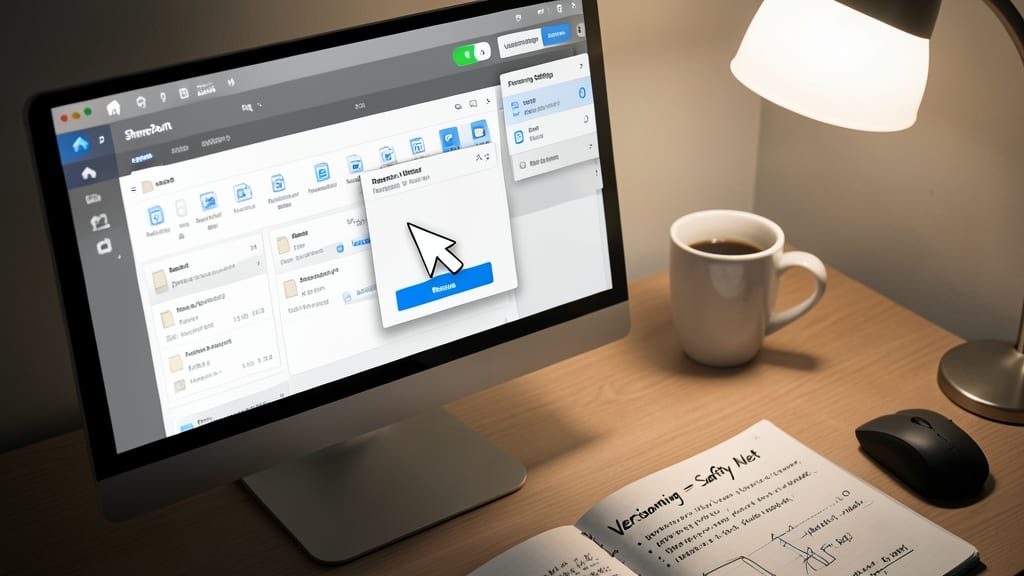
Accidentally overwrite a file or hit "Delete" too quickly? SharePoint's versioning feature acts as your digital safety net, automatically preserving previous versions of documents so you can restore them in seconds—no panic required.
To enable it, navigate to your document library settings and toggle versioning for major/minor updates. You can set limits like 50 major versions (full saves) or unlimited minor versions (auto-saves). Once active, the Version History tab becomes your undo button—compare changes side-by-side or restore any past iteration with a single click.
This is a game-changer for project managers tracking drafts or teams collaborating on shared files, ensuring no critical work is lost. ⚡
Automate Approval Workflows with Simple Rules
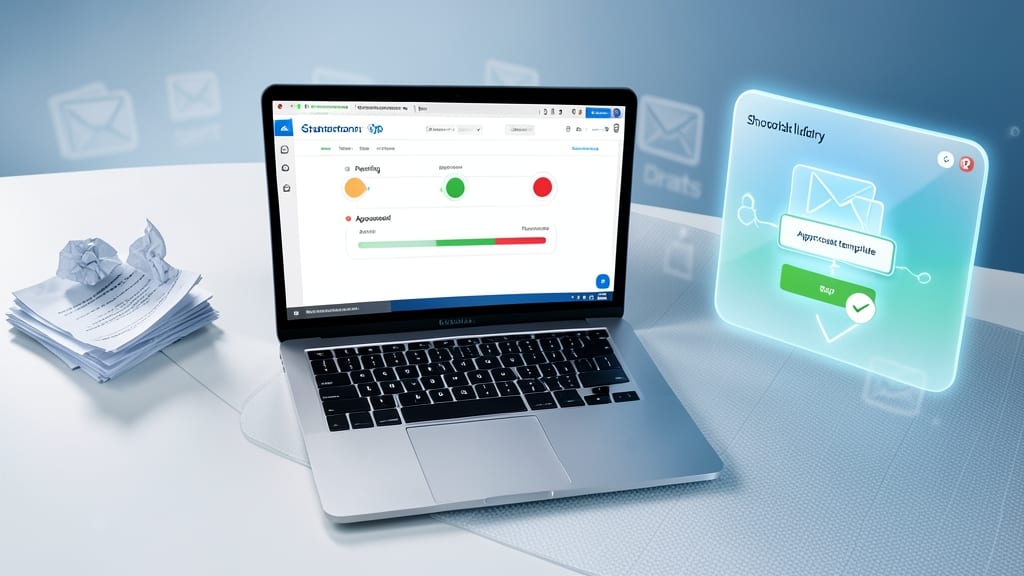
Tired of chasing down approvals through endless email threads and forgotten follow-ups? SharePoint’s built-in approval workflows turn repetitive processes into seamless, automated routines with just a few clicks.
Start by creating a new workflow in your document library (using the Approvals template) to define who needs to review content and when. You can set parallel or sequential approvals, add custom notifications via email, and even require comments before final approval. The best part? No coding required—just drag-and-drop rules in the workflow designer. For example, a contract approval process can automatically route to a manager, then HR, with real-time status updates.
This is perfect for teams handling expense reports, purchase orders, or content submissions—any process where delays cost time and money. Say goodbye to manual tracking and hello to zero-config automation. ✨
Organize Content with Site Pages
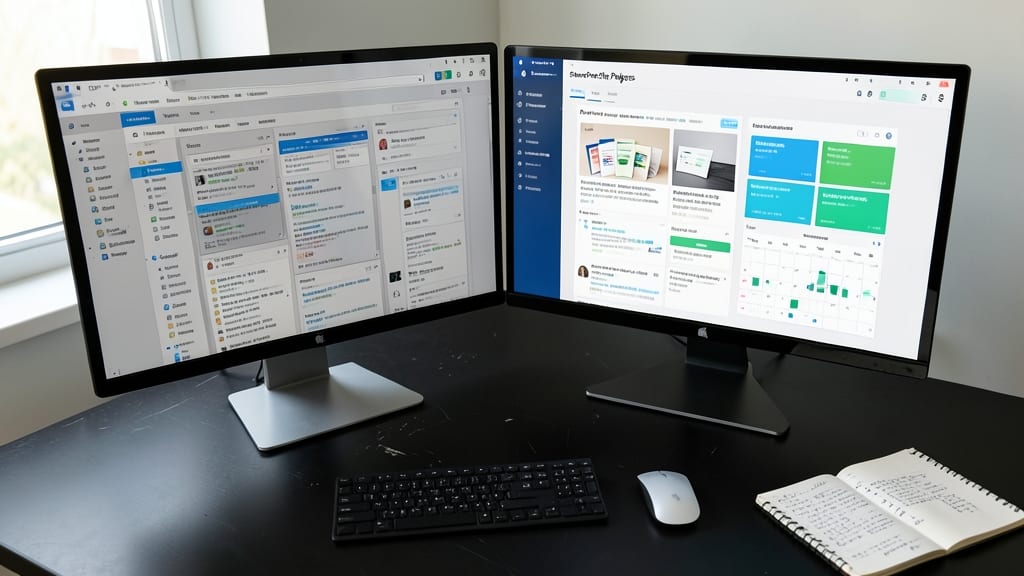
Tired of digging through endless subsites to find the right documents or updates? SharePoint Site Pages replace that chaos with sleek, customizable hubs that combine everything your team needs in one place.
These modern pages let you embed documents, news feeds, and web parts (like calendars or task lists) directly into a single view. With drag-and-drop editing, you can rearrange sections in seconds—no coding required. The responsive design works seamlessly on desktops and mobile devices, so remote teams stay aligned without switching tools.
Perfect for project managers tracking deadlines alongside files or HR departments sharing policies with updates, Site Pages turn static sites into dynamic collaboration centers. Give your team a cleaner, faster way to access everything they need—all in one spot. ✨
Leverage OneDrive Sync for Offline Access
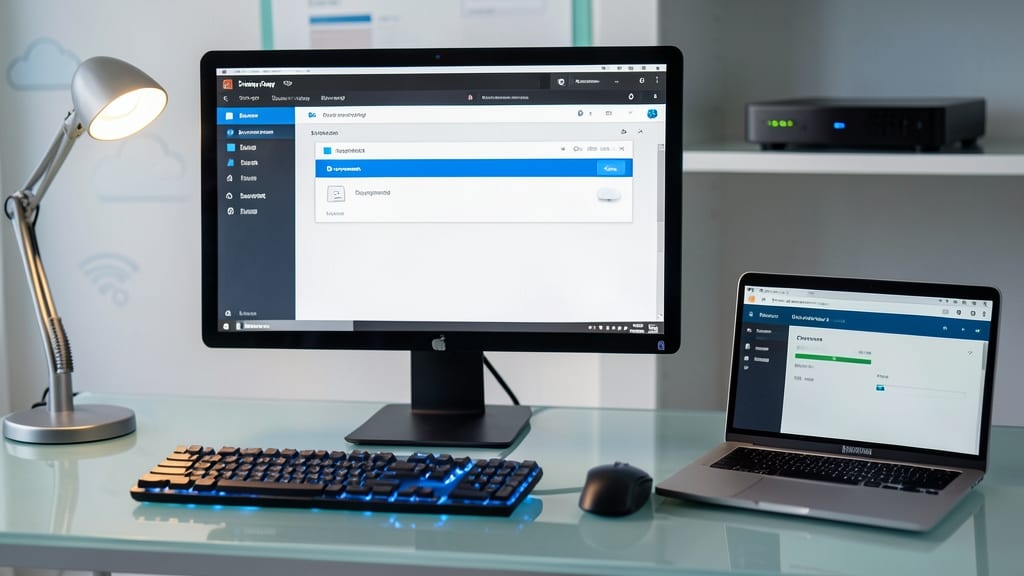
Struggling to work on SharePoint files when your Wi-Fi cuts out? OneDrive Sync bridges that gap by syncing your critical SharePoint libraries to your computer—so you can edit documents offline and see updates instantly when you reconnect.
Just select the library in SharePoint, click Sync in the ribbon, and choose a local folder. Your files appear in File Explorer like any other document, while OneDrive handles version conflicts automatically. The best part? Changes sync seamlessly when you’re back online, eliminating manual uploads or version mismatches.
This tip is a game-changer for remote workers or anyone who needs to draft proposals, review spreadsheets, or collaborate on presentations without waiting for an internet connection. 💻
Search Smarter with Keyword Refinement
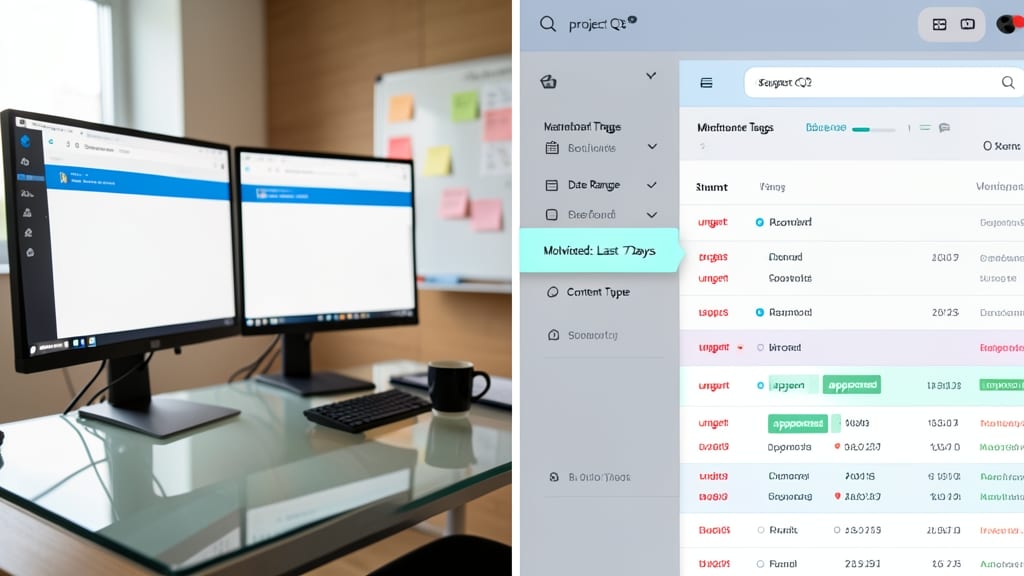
Tired of scrolling through endless SharePoint search results? The keyword refinement panel is your secret weapon for instant precision—no advanced queries required. Simply type your search, then use the filters on the left to narrow by metadata tags, dates, or content type in seconds.
For example, searching "Q3 report" becomes effortless when you refine by department or file type (PDF/Excel). This feature works seamlessly across SharePoint Online and modern intranets, making it ideal for teams drowning in unstructured data. No more digging through folders or asking colleagues for files!
Perfect for project managers or HR teams juggling multiple document types, this tip cuts search time from minutes to seconds. Give it a try—your future self will thank you. ✨
Customize Your SharePoint Homepage
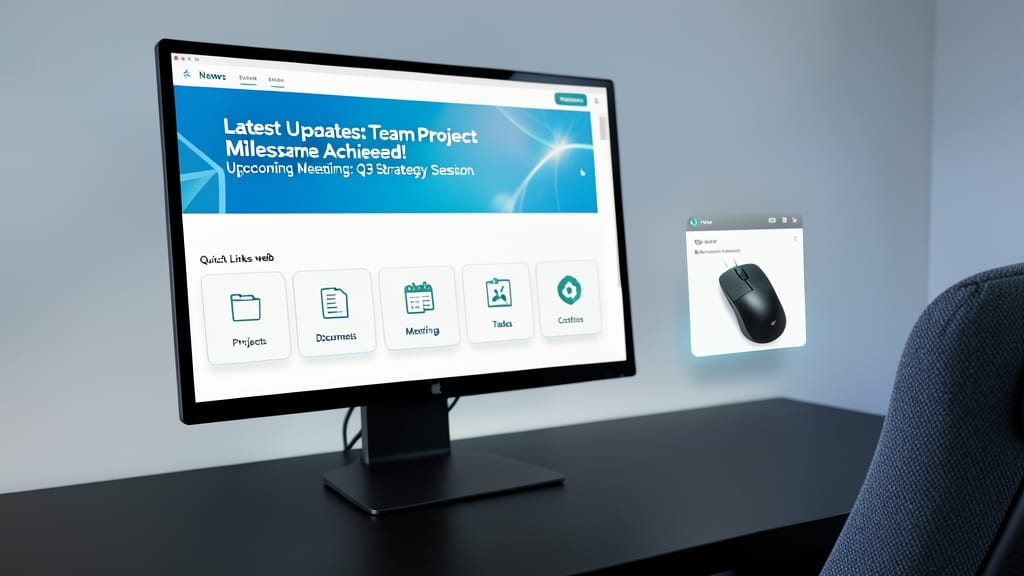
Tired of digging through SharePoint’s default homepage to find what you need? A customized dashboard can cut your daily workflow time by 30%—just by dragging and dropping the right web parts.
Start with the News web part to highlight team updates, then add Quick Links for your most-used sites. Need real-time access? The Documents and Tasks web parts let you see recent files and pending approvals at a glance. Pro tip: Use the Search Box web part to embed quick searches without leaving your homepage.
This is perfect for project managers tracking deadlines or team leads who need a consolidated view of documents and announcements. A few clicks turn chaos into clarity! ✨