
Tip & Trick
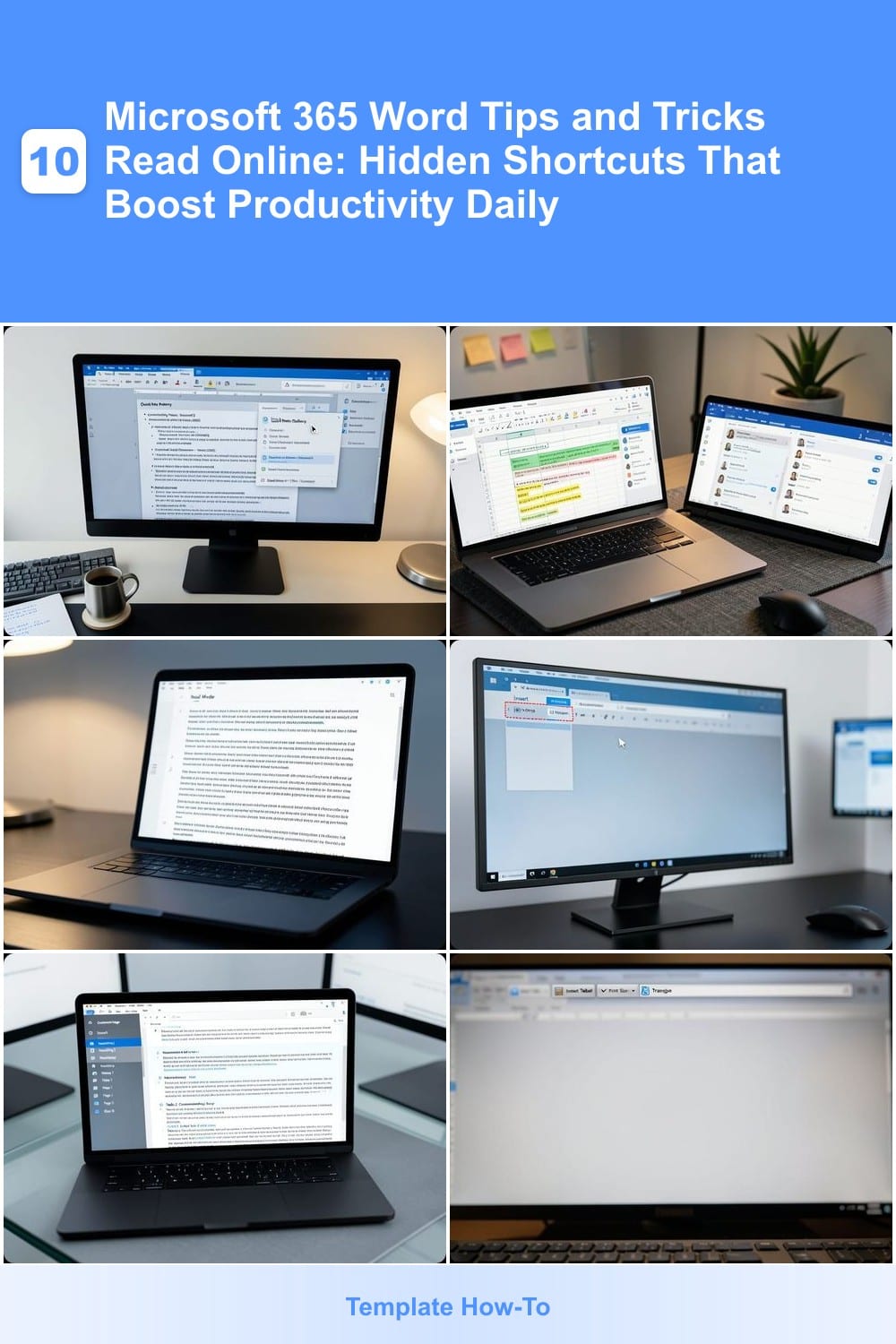
Microsoft Word is a powerhouse for productivity, but most users only scratch the surface. These seven hidden Microsoft 365 Word tips and tricks will transform how you work—saving hours weekly with features you never knew existed.
Quick Parts Gallery for Repeated Text
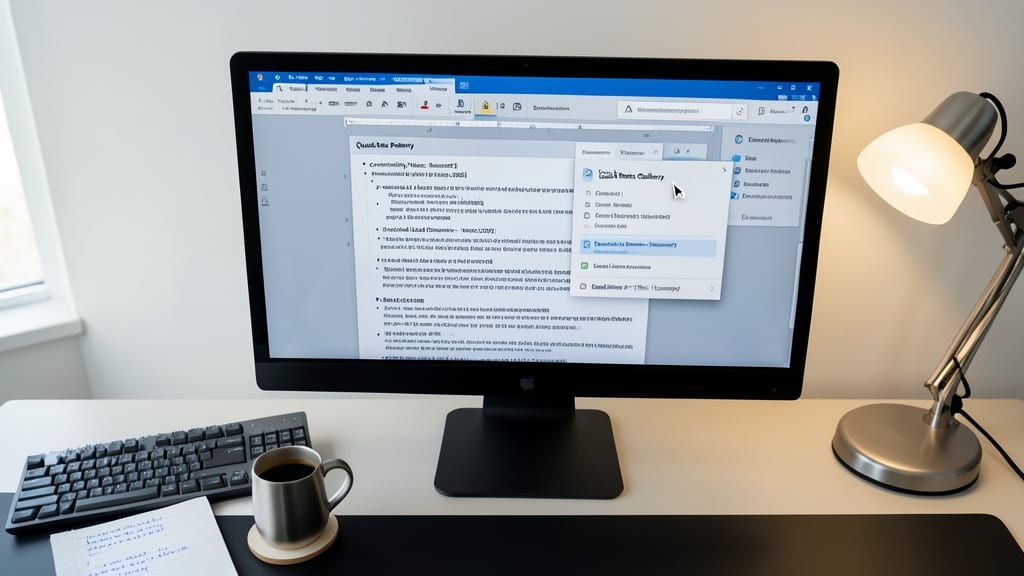
Tired of retyping the same disclaimers, signatures, or legal clauses in every document? The Quick Parts Gallery in Microsoft Word lets you store and reuse text snippets with a single click, cutting repetitive work by 50% or more. Whether it’s your standard email signature, a confidentiality notice, or a project boilerplate, this feature keeps your workflow seamless.
To get started, highlight the text you want to save, then click Insert > Quick Parts > Save Selection to Quick Parts Gallery. Your snippet appears in the dropdown menu for instant insertion. Pro tip: Organize entries into custom categories (like "Legal" or "Client Templates") to keep things tidy. For teams, this also ensures consistent branding across all documents.
Perfect for lawyers drafting contracts, marketing teams sending proposals, or students writing research papers—this tool turns repetitive text into a one-click solution. ⚡
Track Changes with Comments and Highlights
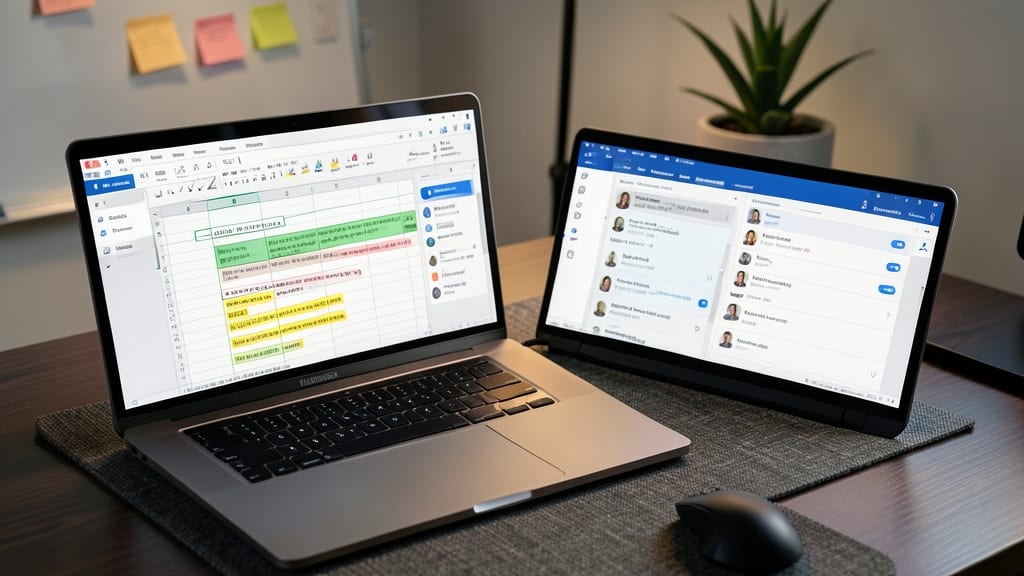
Collaborative editing doesn’t have to mean a messy trail of red-strikeout chaos. With Track Changes, you can take feedback to the next level by combining comments (for detailed notes) with conditional formatting (like highlighting key edits in green or yellow) to visually organize suggestions without clutter.
Start by enabling Track Changes (Review tab), then right-click any edit to add a comment—perfect for explaining complex revisions. For visual clarity, use conditional formatting (Home tab) to mark approved edits in one color and pending changes in another. This system keeps discussions organized while making it crystal clear which edits are finalized. The Reviewing Pane lets you view all comments and changes in a sidebar for streamlined navigation.
This method is a game-changer for legal teams reviewing contracts, editors polishing manuscripts, or project managers aligning on proposals. Say goodbye to confusing redlines and hello to a structured, visual workflow. 💡
Navigate Documents with Read Mode
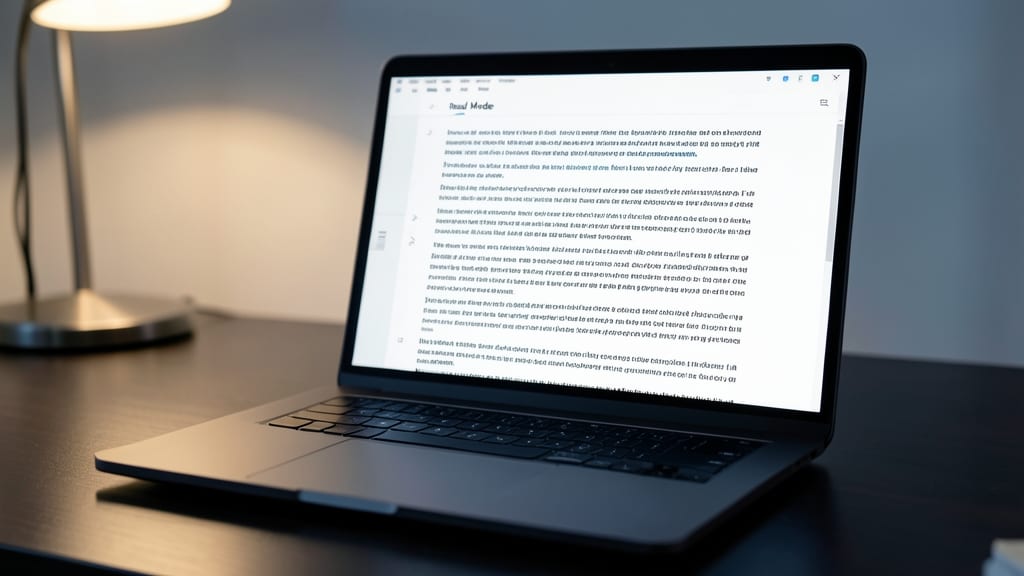
Drowning in formatting menus while trying to focus on your writing? Read Mode in Microsoft 365 Word transforms your document into a sleek, distraction-free e-reader layout—ideal for deep work sessions.
With just one click, you hide the ribbon toolbar, side panels, and even page numbers, leaving only high-contrast, single-column text that mimics an e-book. The dark mode option reduces eye strain, while the page-turning animation (on touch devices) mimics physical book navigation—perfect for research papers or long reports.
Students, researchers, and writers will love this for immersive reading, while professionals editing dense documents benefit from the clutter-free workspace. Try it next time you’re knee-deep in a 50-page brief—your focus (and eyes) will thank you. ✨
Insert Screenshots from Any Window
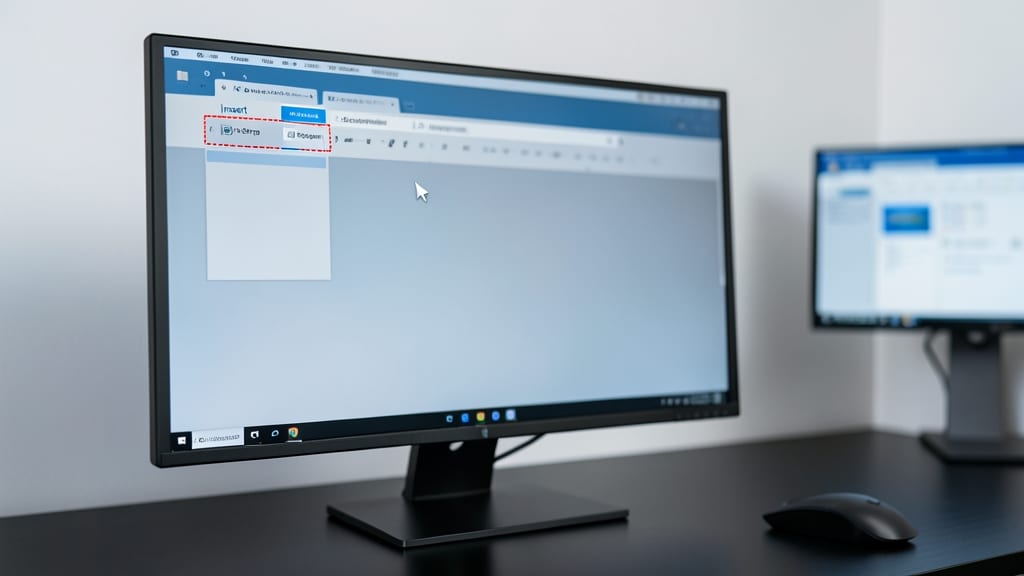
Tired of alt-tabbing to a screenshot tool just to document a process? Microsoft Word’s built-in screenshot feature lets you capture any window—full screen, active window, or even a specific region—directly from the ribbon. No third-party apps or clunky workflows required.
Simply click Insert > Screenshot, hover over your screen to preview windows, and snap the exact frame you need. The captured image embeds instantly with zero config, and you can even crop or annotate it before placing it in your document. Perfect for embedding error messages, UI walkthroughs, or data visualizations without leaving Word.
This trick is a lifesaver for tech writers, trainers, and anyone creating step-by-step guides. Say goodbye to messy screenshots and hello to seamless documentation. ✨
Use the Navigation Pane for Large Documents
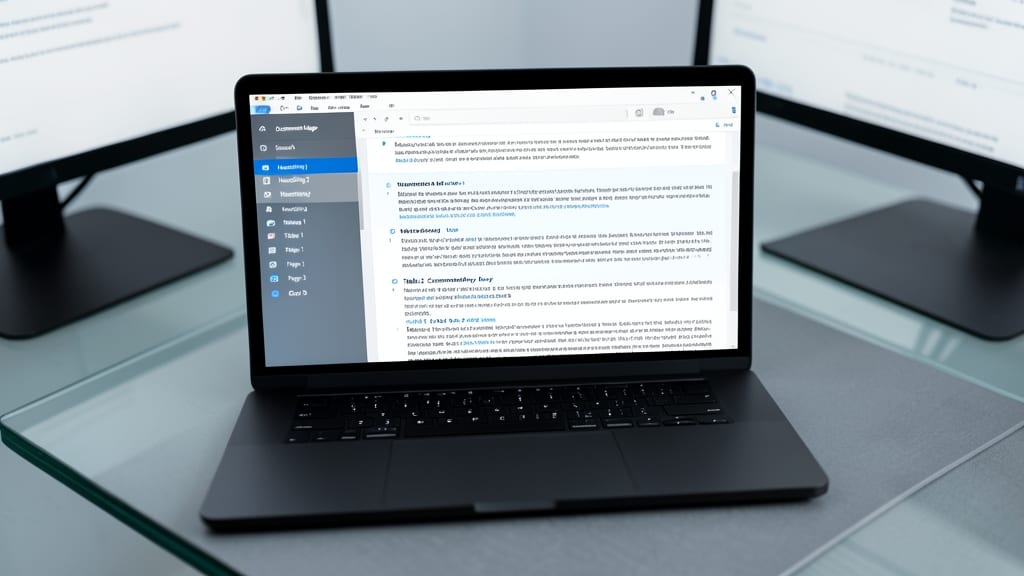
Tired of losing minutes—or even hours—scrolling through dense, multi-page documents? The Navigation Pane in Microsoft 365 Word turns this frustration into a one-click solution. Accessible via View > Navigation Pane, it displays a live, searchable list of all headings, pages, and even tables of contents, letting you jump directly to the section you need.
With just a few keystrokes, you can pinpoint specific headings (like "Methodology" or "Appendix A") or browse page thumbnails for visual context. The search bar further refines navigation, while collapsible headings help organize complex documents—ideal for technical writers drafting manuals or researchers analyzing lengthy studies.
This feature is a game-changer for anyone drowning in 50+ page reports, ensuring you spend less time searching and more time analyzing. ⚡
Customize Quick Access Toolbar Shortcuts
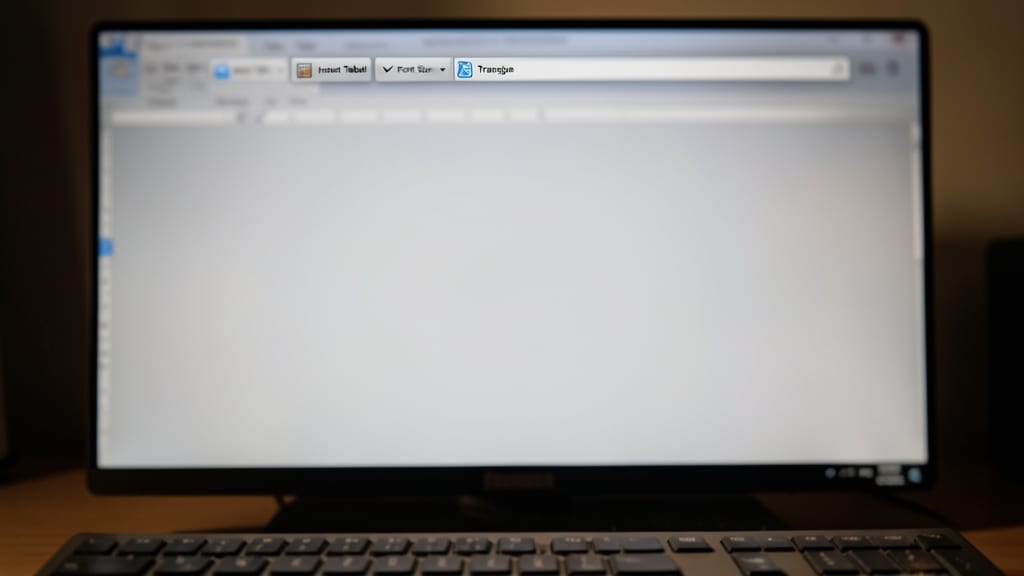
Tired of hunting through menus for the same commands every time? The Quick Access Toolbar lets you pin your most-used actions—like Insert Table, Font Size, or Translate—right where you need them, just a click away.
Right-click the toolbar to customize it: add commands from the dropdown menu or browse the full list of available options. Need to adjust case formatting or insert citations instantly? Drag those icons to the toolbar in seconds. This tweak turns repetitive tasks into one-tap actions, cutting workflow friction for data-heavy reports or creative writing projects.
Perfect for professionals who juggle multiple document types—legal drafts, marketing copy, or technical manuals—this toolbar becomes your personal productivity shortcut hub. ⚡
Convert Text to Speech for Proofreading
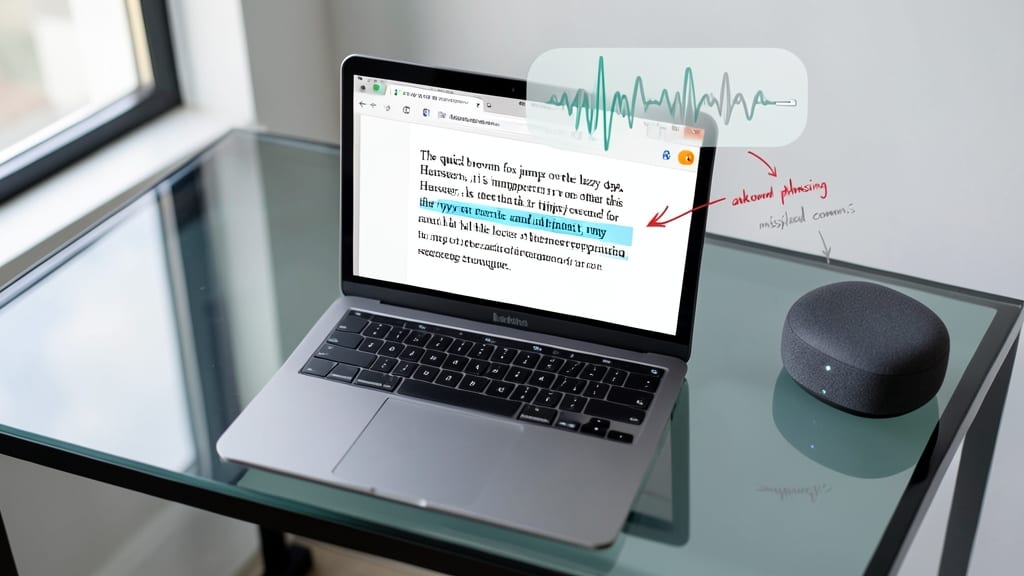
Ever stare at the same paragraph for minutes, convinced it’s perfect—only to realize it sounds clunky when spoken aloud? Word’s built-in text-to-speech (TTS) tool lets you hear your writing as it would sound to others, catching awkward phrasing, misplaced commas, or even readability gaps in seconds.
To use it, simply select your text, click Review > Read Aloud, and choose from 11 natural-sounding voices (including British, American, and Spanish accents). Pause, rewind, or adjust speed to pinpoint issues. For non-native speakers, this is a grammar and fluency game-changer—your ears catch what your eyes might miss. The feature even works on mobile apps, so you can proofread on the go.
Perfect for students revising essays, professionals polishing reports, or anyone who benefits from auditory feedback—like dyslexic users or multilingual writers. Give your words the final check they deserve. ✨