
Tip & Trick
Mastering Microsoft Word shortcuts can cut hours off your weekly workload. These 10 time-saving tricks—used by professionals daily—transform repetitive tasks into effortless workflows, from document formatting to advanced editing.
Quick Parts Gallery for Repeated Text
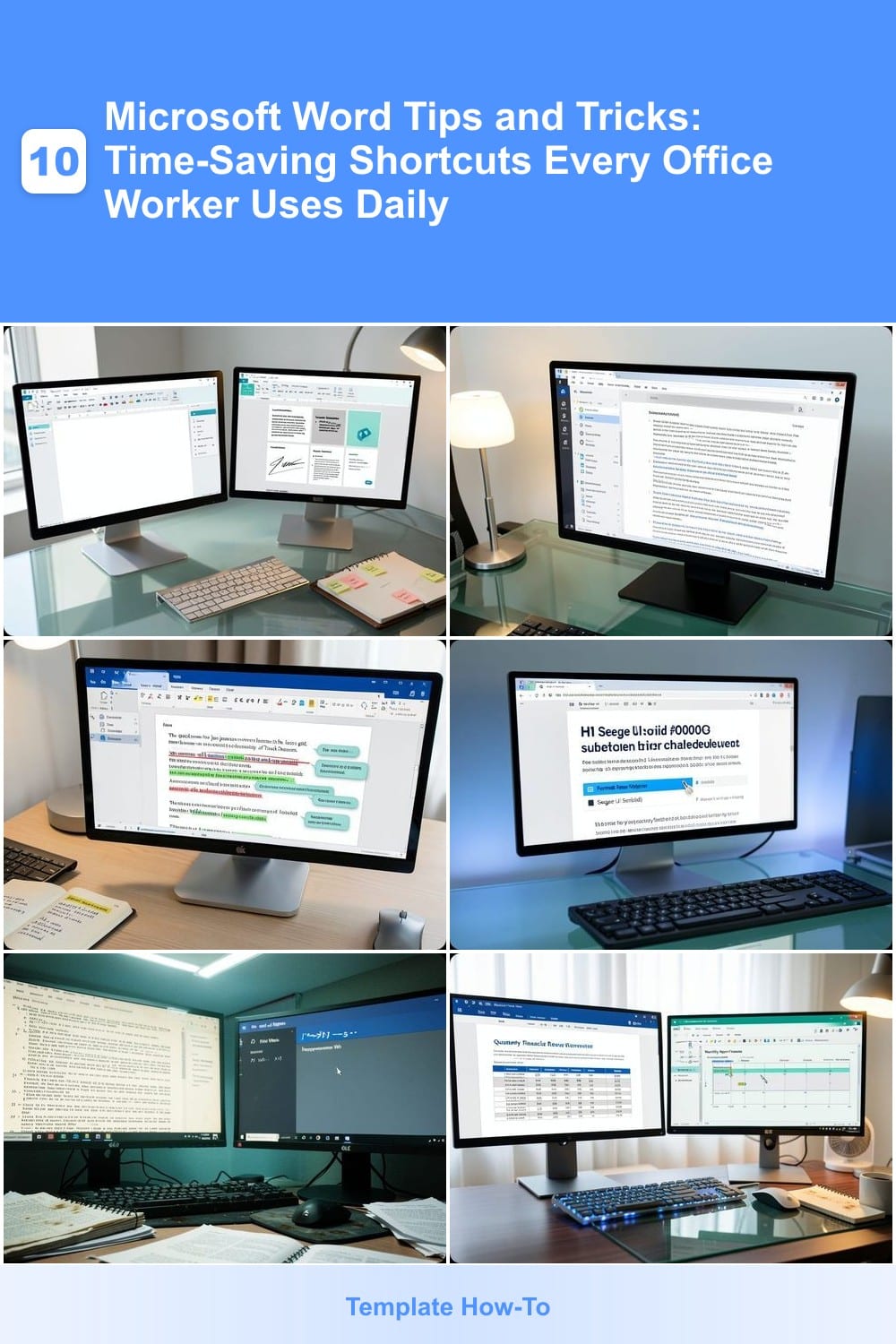
Tired of retyping the same disclaimers, signatures, or legal boilerplate in every document? The Quick Parts Gallery in Microsoft Word lets you save frequently used text snippets—like email signatures, confidentiality statements, or project templates—and insert them with a single click. This hidden feature is a lifesaver for legal teams, HR professionals, or customer service reps who deal with repetitive text daily.
To use it, type your phrase, then go to the Insert tab and click Quick Parts > Save Selection to Quick Part Gallery. Name it (e.g., "Legal Disclaimer") and it’ll appear in the dropdown for instant reuse. You can even categorize snippets by document type (e.g., "Contracts," "Emails") for faster access. Pro tip: Use fields (like dates or names) to auto-fill dynamic content, such as "© [Year] Company Name"—Word will update it automatically.
This trick is perfect for anyone drowning in repetitive text—cut typing time by 70% and eliminate errors from manual re-entry. Try it today and reclaim minutes that add up to hours over a week. ⚡
Navigation Pane for Large Documents
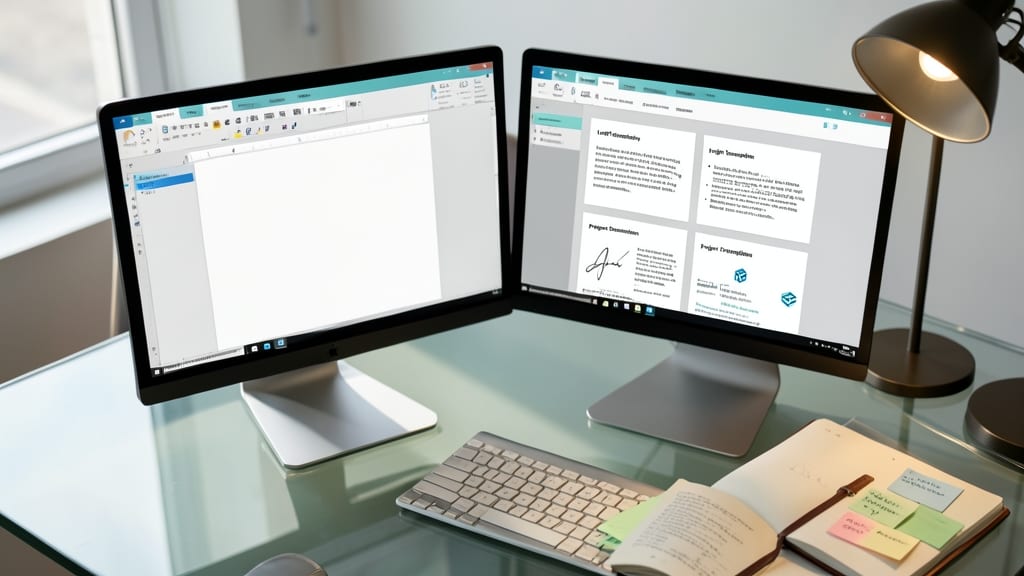
Struggling to find your way through a 50-page report or 200-page manual without losing track? Microsoft Word’s Navigation Pane turns document navigation from a chore into a breeze—letting you jump directly to headings, pages, or even tables of contents with a single click.
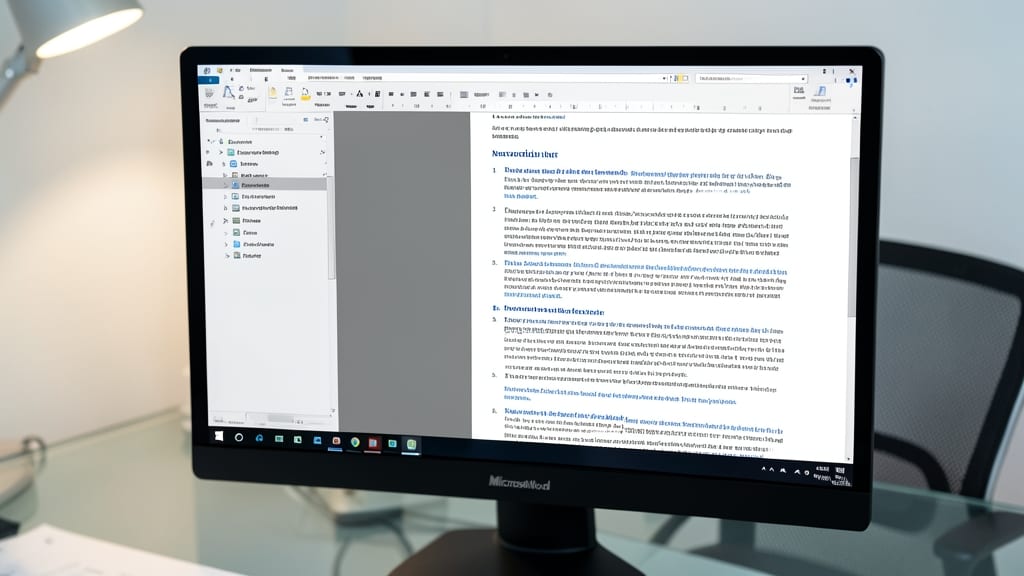
Access it via View > Navigation Pane (or press Alt + Shift + N), where you’ll see a structured outline of your document. Click any heading to instantly scroll there, or use the search bar to pinpoint specific terms. The Pages tab lets you flip through your document like a digital bookmark, while the Results tab filters by headings, tables, or even comments. This tool is a game-changer for academic papers, legal briefs, or technical manuals where precision matters.
Researchers, lawyers, and technical writers will love this—it cuts navigation time by 80% and eliminates the frustration of endless scrolling. Try it next time you’re drowning in a dense document! ⚡
Track Changes with Comments
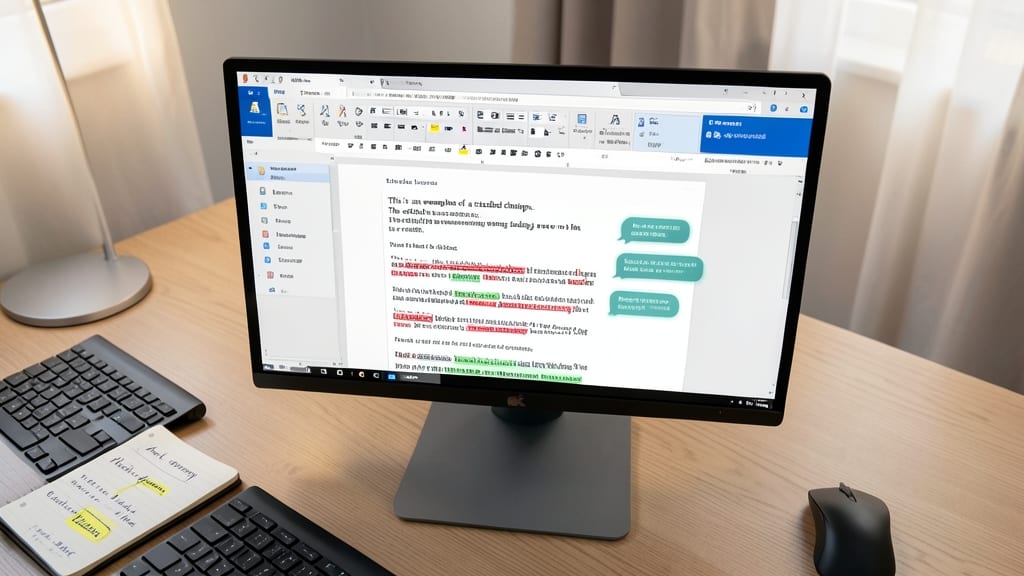
Ever spent hours juggling email threads just to finalize a single document? Track Changes with Comments in Word merges edits and feedback into one streamlined workspace—no more lost revisions or scattered notes.
Enable it via Review > Track Changes, then add threaded comments directly alongside edits. The balloon view keeps discussions tied to specific text, while finalizing changes lets you accept/reject edits in bulk. Perfect for legal teams, academic papers, or client proposals where precision matters.
Lawyers, professors, and project managers will love this—it turns messy feedback loops into a collaborative, version-controlled workflow. ✨
Format Painter for Consistent Styling
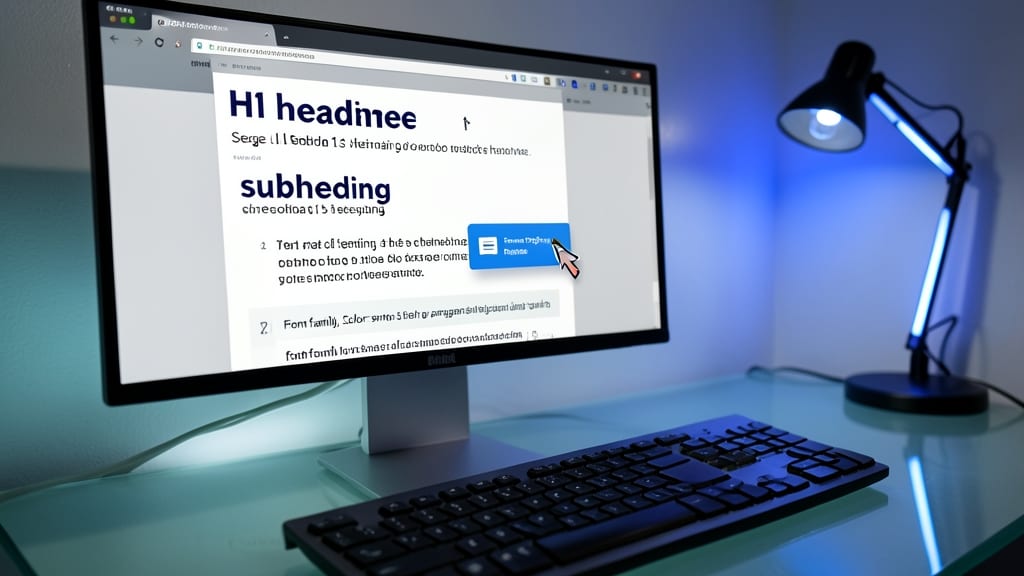
Tired of manually reformatting every headline or subheading in your documents? The Format Painter in Microsoft Word lets you copy and apply entire style sets—fonts, colors, spacing, and more—in just two clicks. This hidden gem is a lifesaver for designers, marketers, or anyone who needs pixel-perfect consistency across newsletters, reports, or presentations.
Here’s how it works: First, highlight text with the exact formatting you want (e.g., a bold Arial 14pt blue header), then click the Format Painter icon (looks like a paintbrush) in the Home tab. Hover over any other text, and the style applies instantly—no more hunting through menus. For multiple sections, double-click the icon to activate "paint mode," letting you format entire paragraphs with a single pass. Pro tip: Use it with styles (like Heading 1 or Subtitle) for even faster brand-aligned formatting.
This trick is a game-changer for newsletter creators or marketing teams who need to maintain brand consistency across documents. Spend less time tweaking and more time perfecting your content. ✨
Find and Replace with Wildcards

Legacy documents are a formatting nightmare—until you unlock wildcard searches in Word’s Find and Replace tool. This hidden feature lets you hunt down and fix inconsistent spaces, mismatched hyphens, or stray punctuation across entire documents with surgical precision, saving hours of manual cleanup.
Use special characters like ^t (tab), ^p (paragraph), or ? (any character) to target patterns. For example, search for ^t^t to replace all double spaces with single spaces, or ^132 to catch random non-breaking spaces. The wildcard syntax works in Word 2013 and later, and even handles complex cases like finding phone numbers or email addresses buried in text.
Editors, publishers, and anyone wrestling with messy legacy files will love this trick—it’s like a magic eraser for formatting inconsistencies. ⚡
Macros for Repetitive Tasks
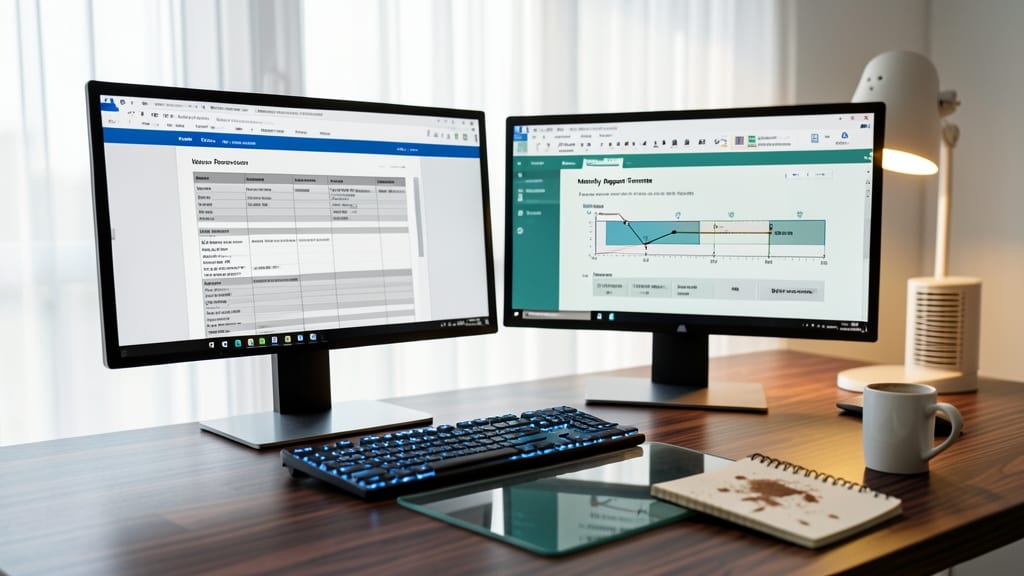
Tired of spending hours formatting the same reports or tables every month? Macros in Microsoft Word can turn those repetitive tasks into a one-click process—saving you time and reducing errors. With the Macro Recorder, you can record every step of your workflow, from inserting headers to applying styles, and replay it instantly.
To get started, enable the Developer tab (File > Options > Customize Ribbon), then click Record Macro to capture your actions. Once saved, assign it a keyboard shortcut for even faster access. For example, a financial analyst could automate monthly expense report formatting, while a data analyst might use macros to clean and format raw data tables before analysis.
Macros are a game-changer for anyone drowning in manual work—just be sure to trust the document source to avoid security risks. Perfect for power users who want to eliminate mindless repetition. ✨
Split Screen for Side-by-Side Editing
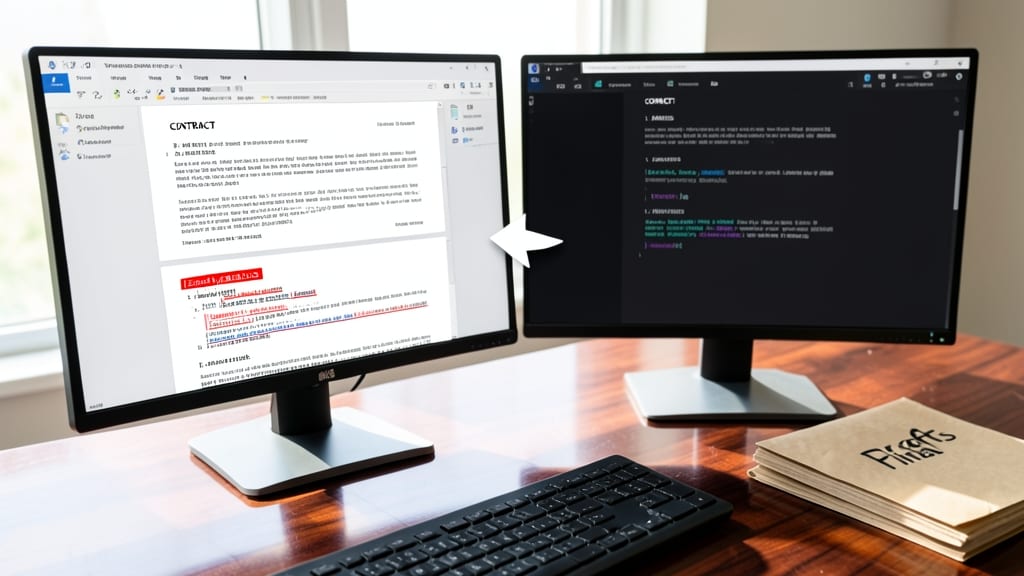
Ever wasted minutes toggling between windows to compare two versions of a document? Word’s split-screen view lets you edit side-by-side—ideal for legal pros or technical writers reviewing contracts or manuals.
Open two files simultaneously by dragging a document into the View tab, selecting View Side by Side, or using the shortcut Alt + W, V, S. The scroll sync feature keeps both documents aligned, while comparison tools highlight differences in real time. Perfect for tracking edits or cross-referencing clauses without losing context.
This trick is a lifesaver for anyone working with multiple drafts or version control—no more squinting at two separate screens. ✨
Text to Speech for Proofreading
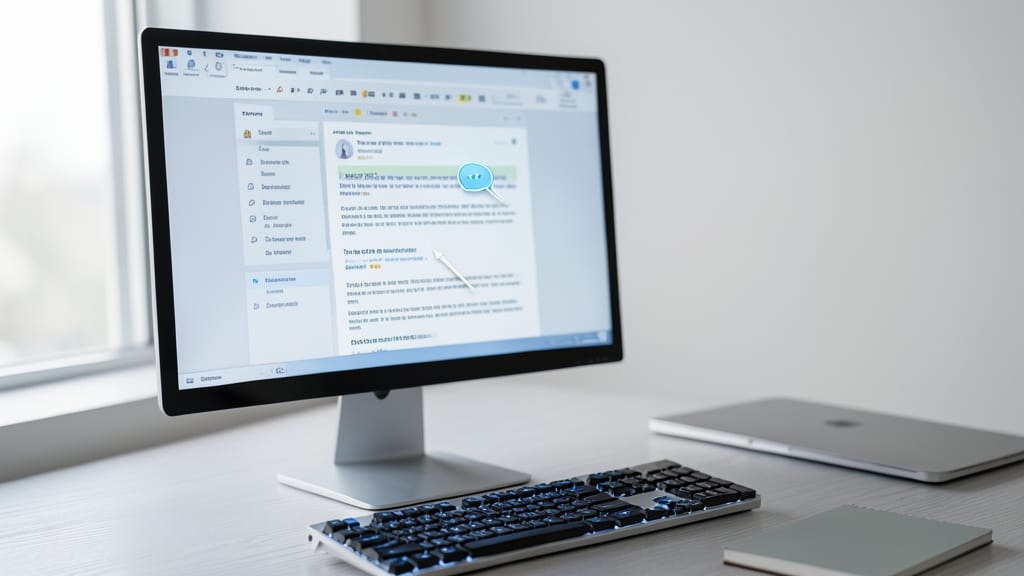
Struggling to spot awkward phrasing or grammar mistakes in your writing? Microsoft Word’s built-in Text to Speech (TTS) feature reads your document aloud, letting your ears catch what your eyes might miss—especially helpful for non-native English speakers or those with dyslexia.
Simply highlight your text, click the Dictate button (or press Alt + Shift + F10), and choose a voice like George (neutral) or Zira (calm). The feature supports 20+ languages and adjusts speed (from 80 to 320 words per minute) to match your workflow. Pause, rewind, or skip sections effortlessly with keyboard shortcuts.
This trick is a lifesaver for students, writers, and professionals who want to polish their work before sharing it. Give your brain a break and let Word’s voice do the heavy lifting! ✨
Linked Tables for Dynamic Data
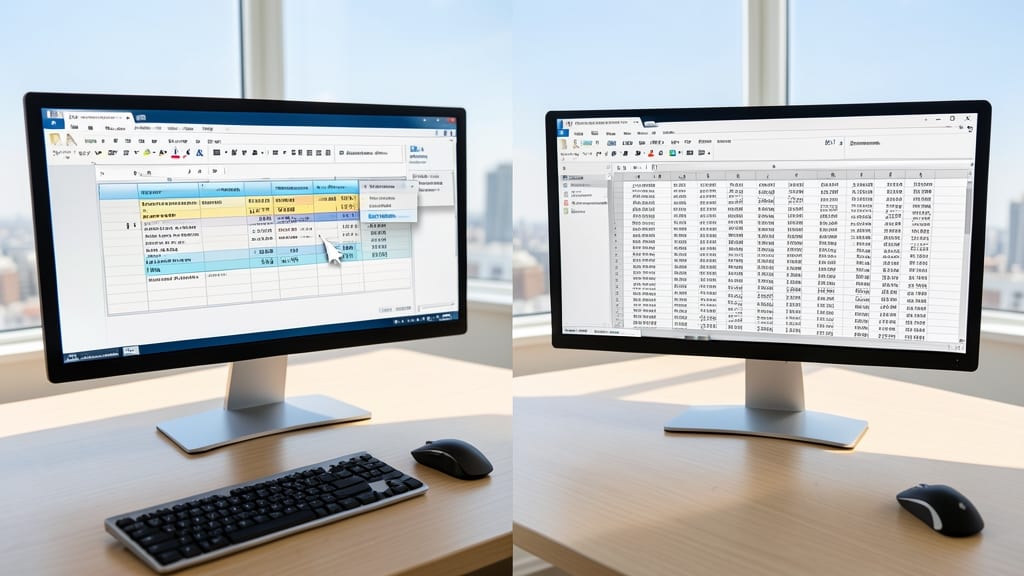
Tired of manually updating tables in Word every time your data changes? Linked Tables bridge the gap between Word and Excel, letting you pull live data directly into your documents—no copy-pasting required.
To set it up, create your table in Word, then right-click and select Link to Excel File. Your Word table will now mirror the Excel source, updating automatically when the spreadsheet changes. This is a game-changer for sales reports, inventory lists, or any scenario where data must stay current. No more version conflicts or forgotten updates!
Perfect for analysts, managers, or anyone juggling multiple data sources—this trick keeps your documents accurate without extra effort. ✨
Custom Quick Access Toolbar
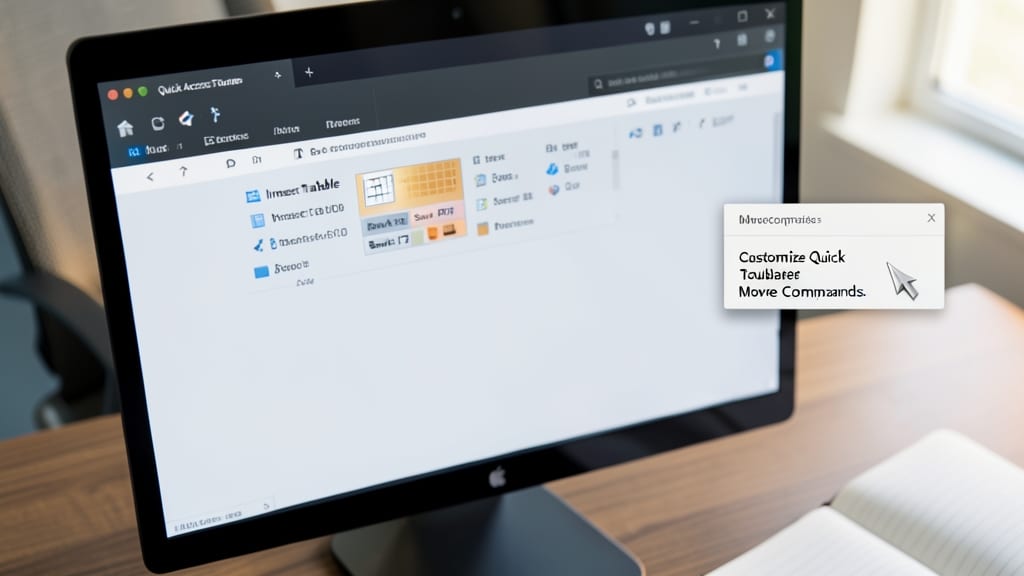
Tired of hunting through menus every time you need to insert a table or save as a PDF? The Custom Quick Access Toolbar puts your most-used commands just one click away—no more digging through ribbons or memorizing shortcuts.
Right-click the toolbar to add favorites like 'Insert Table,' 'Save As PDF,' or 'Track Changes'—or even custom macros. It syncs across devices (Windows/Mac) and stays visible whether you're in Print Layout or Draft View. For power users, this cuts 10+ clicks daily—ideal for legal docs, reports, or any workflow where speed matters.
Perfect for freelancers, lawyers, or marketers who juggle multiple document types. Try it today and reclaim minutes that add up to hours over a week. ✨