
Software
Managing SharePoint document library permissions effectively balances security with accessibility—without overwhelming IT teams. These seven best practices help streamline access control while minimizing administrative overhead and reducing risks.
Use SharePoint Permission Levels for Granular Control
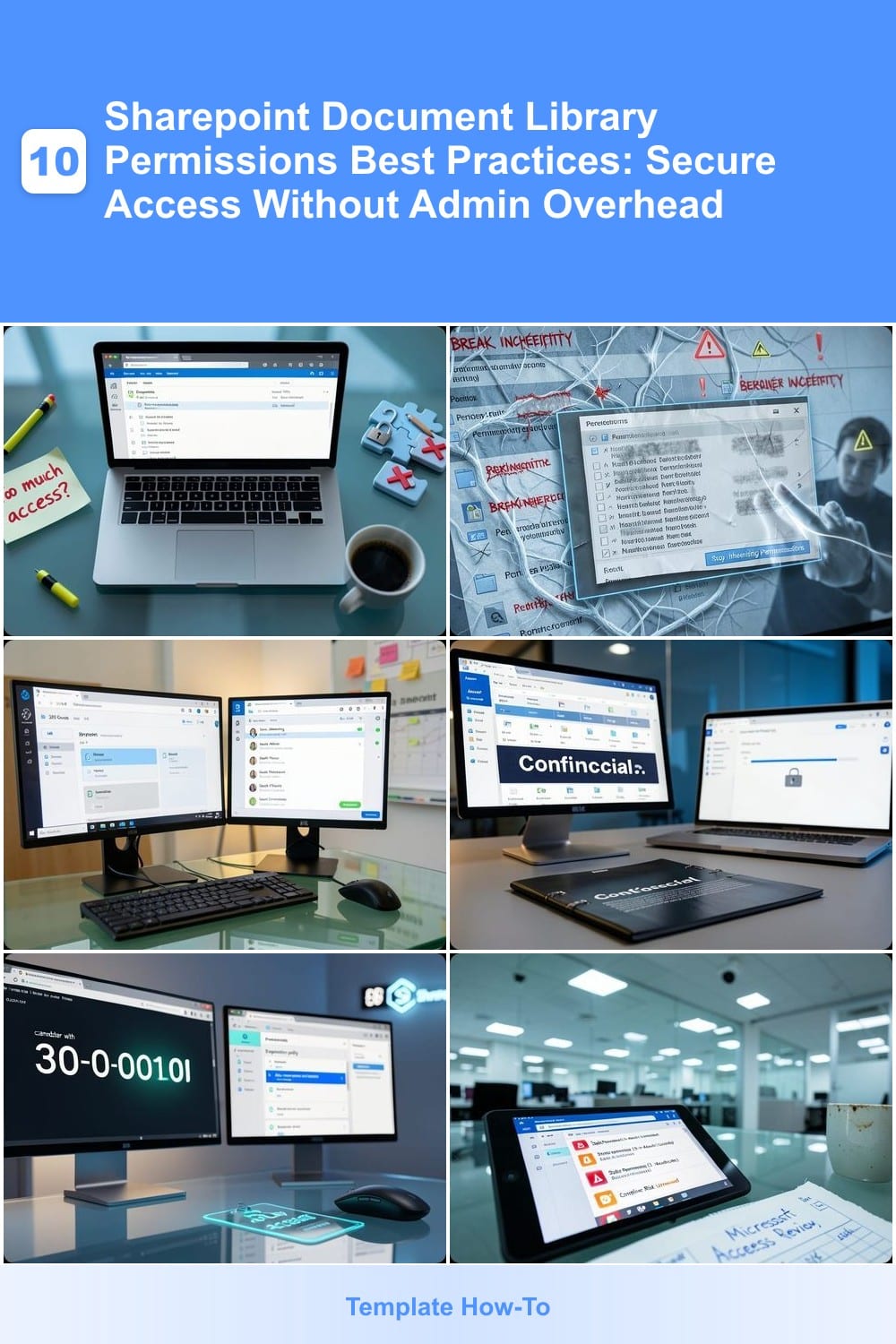
Frustrated with users who have more access than they need? SharePoint’s custom permission levels let you fine-tune exactly who can view, edit, or delete files—without the guesswork of default settings.
Instead of assigning the Full Control level to everyone, create roles like "View-Only Contributor" (read access) or "Edit-Only Approver" (edit but no delete). SharePoint’s built-in levels (e.g., Limited Access, Design) let you restrict actions like deleting or publishing, while still allowing collaboration. For example, a marketing team might need edit access but never delete permissions—custom levels make this effortless.
This is ideal for IT admins managing sensitive libraries (HR, legal) or department heads tired of over-permissioned users. With granular control, you’ll slash security risks while keeping workflows smooth. 💡
Apply Unique Permissions Only When Necessary

Struggling with a SharePoint library where permissions feel like a tangled web? Breaking inheritance can seem like the quick fix, but it often backfires—creating a maintenance nightmare for libraries with hundreds of files. Every time you manually adjust permissions, you risk permission sprawl, where outdated or conflicting rules pile up, making audits a chore.
Instead, preserve inheritance unless you absolutely need unique permissions. SharePoint’s default inheritance ensures consistency across folders, so changes at the parent level automatically apply to subfolders. For example, if your HR department needs view-only access to a library, apply it once at the root—no need to replicate it across every subfolder. Only break inheritance when specific teams (like legal or finance) require custom rules, and document why in the library settings. This keeps your setup clean, auditable, and scalable.
This approach works best for IT admins managing enterprise libraries or department heads overseeing shared drives. By minimizing manual overrides, you’ll save hours on future permission audits and reduce security gaps. 💪
Leverage Microsoft 365 Groups for Department-Specific Access
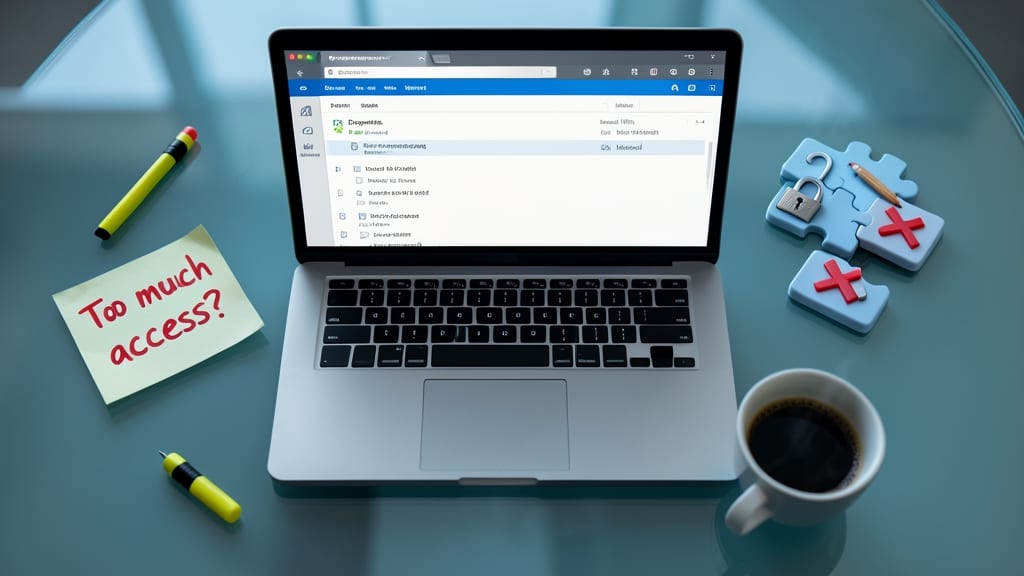
Tired of manually assigning permissions for every new team member? Microsoft 365 Groups syncs automatically with SharePoint libraries, so HR or finance folders only show up for the right people—no admin headaches.
Linking a document library to a M365 Group grants access instantly to all members while revoking it for departed users. The zero-configuration setup works seamlessly with Teams, Outlook, and SharePoint, and admins can manage permissions in one place. For departments like project teams or legal, this cuts permission management time by up to 70%.
This is ideal for departments where turnover or collaboration changes frequently. Teams stay secure while IT avoids the permission sprawl that plagues many organizations. ✨
Implement Sensitivity Labels for Automated Classification
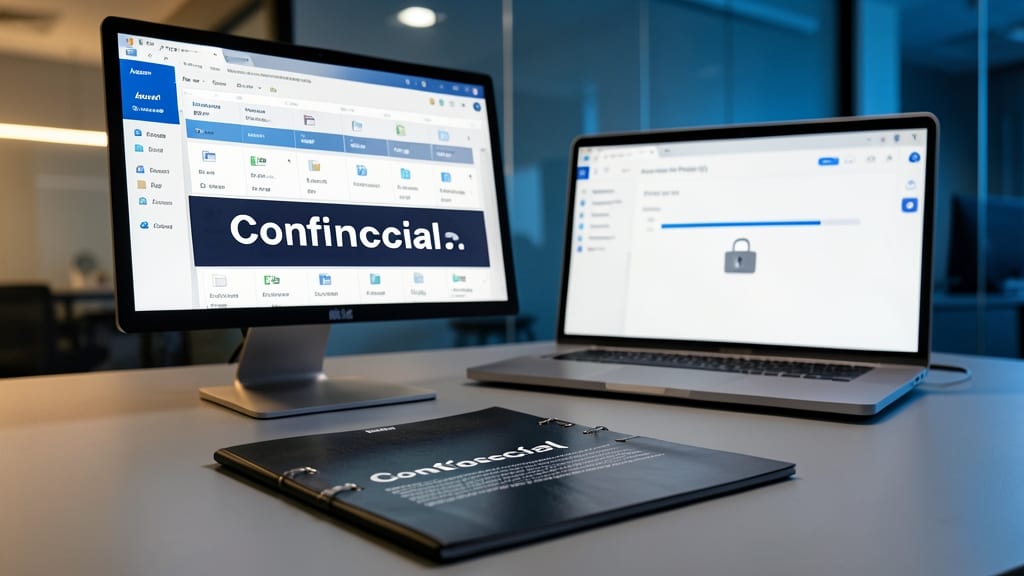
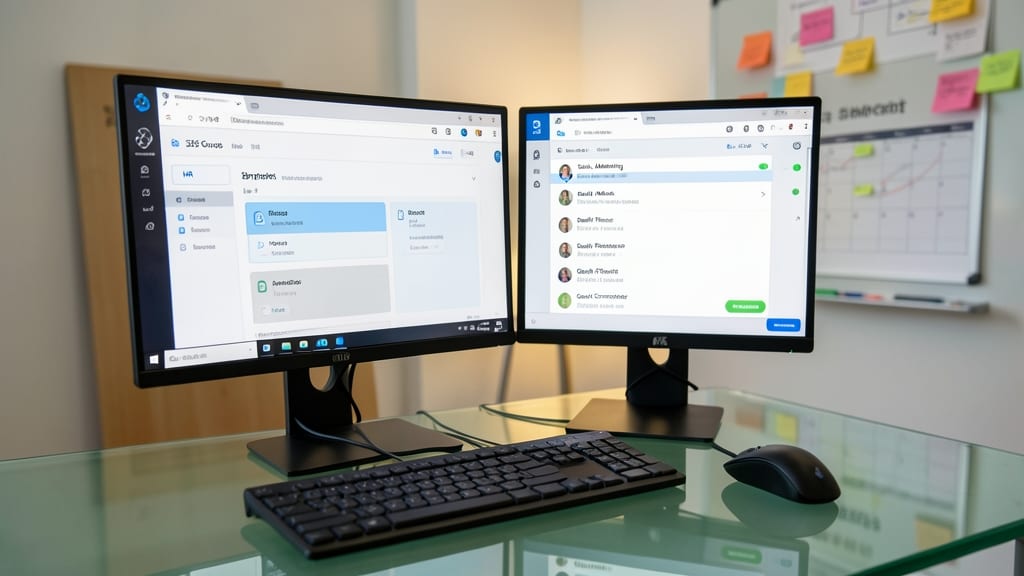
Tired of manually reviewing permissions every time a sensitive document lands in your SharePoint library? Azure Information Protection (AIP) labels automate classification and enforce rules—like marking a contract as "Confidential" and restricting access to approved users—without lifting a finger.
With AIP, you can apply predefined labels (e.g., "Internal," "Public," or "Highly Confidential") to documents, which then trigger automated encryption and access controls. The labels sync across SharePoint, Outlook, and Teams, ensuring consistent security. Best of all, you can set rules like "Block downloads for 'Internal' files unless the user is in the Finance group," cutting manual permission checks by 70%.
This is a game-changer for compliance-heavy teams like legal or HR, where documents change classification frequently. No more chasing down admins—just label, classify, and let the system handle the rest. ✨
Set Up Expiration Policies for Temporary Access

For contractors or temporary team members who only need access for a set period—like a 30-day project deadline—manually revoking permissions after the fact is a security nightmare. SharePoint’s expiration policies solve this by automatically revoking access when the deadline hits, without lifting a finger.
When granting access, simply set an expiration date in the permission settings (e.g., "30 days from today"). SharePoint will then silently revoke the access on the due date, eliminating stale permissions that often linger in libraries. You can also configure email notifications to alert users before their access expires, giving them time to save or transfer critical files.
This is a game-changer for freelancers, interns, or third-party vendors—no more forgotten access requests or security gaps from overlooked manual revocations. Just set it and forget it. ✨
Audit Permissions Regularly with Access Reviews

Forget setting permissions and forgetting about them—proactive audits are the key to keeping your SharePoint libraries secure without constant manual checks. Many organizations leave stale permissions unchecked for months, creating hidden security risks and compliance gaps.
Microsoft’s Access Reviews feature lets you schedule quarterly automated reviews to flag inactive users or accounts with excessive permissions. You can customize review frequency (e.g., 90-day cycles) and set approval workflows to streamline cleanup. This reduces your attack surface by removing unused access while ensuring compliance with frameworks like GDPR or HIPAA.
Ideal for IT admins managing sensitive libraries (HR, finance, legal) or compliance teams needing audit trails, this approach cuts overhead while tightening security—no guesswork required. ✨
Train Users on Permission Best Practices

Tired of helpdesk tickets flooding in every time someone can’t access a document? The solution isn’t just better permissions—it’s empowered users. A well-trained team knows how to request access properly, spots phishing emails disguised as permission requests, and reports suspicious activity before it becomes a breach.
Start with a SharePoint permission request template that guides users to specify exactly what they need (view-only, edit, etc.) and why. Add a short phishing awareness module showing real examples of fake permission emails—like urgent "access denied" messages with malicious links. For reporting, create a one-click "Report Suspicious Activity" button in SharePoint that logs concerns directly to your security team.
This approach works best for non-technical teams like HR, marketing, or finance, where permission requests are frequent but security awareness is often low. With the right training, you’ll cut helpdesk noise by 30-50% while tightening security. ✨