
Outlook
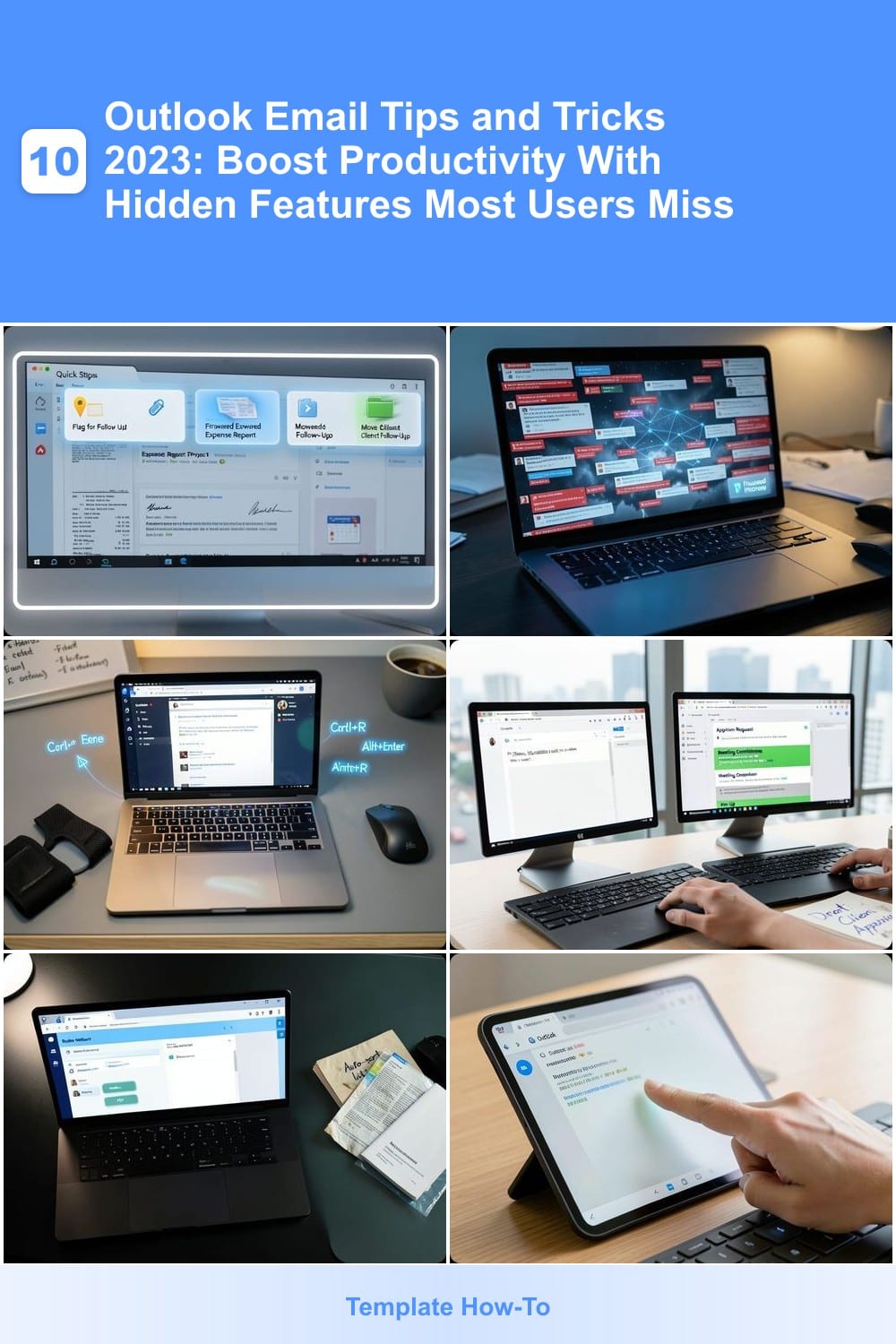
Microsoft Outlook remains one of the most powerful email tools—but most users only scratch the surface. These 10 lesser-known Outlook email tips and tricks will transform how you manage inboxes, automate workflows, and reclaim hours weekly. Master these features to work smarter, not harder, in 2023.
Quick Steps for One-Click Email Actions
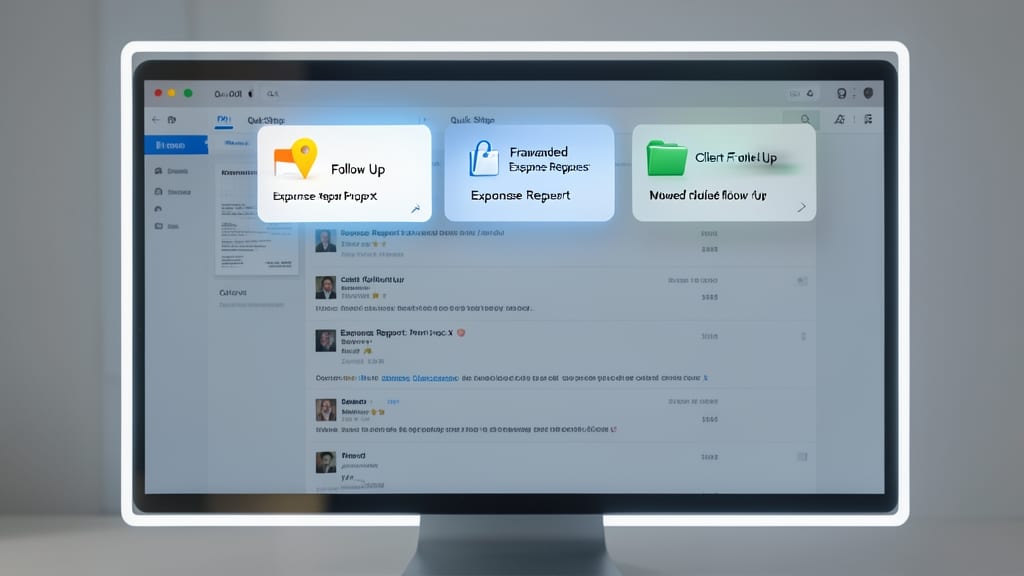
If you spend hours daily handling repetitive email tasks—like filing expense reports or flagging client follow-ups—Outlook’s Quick Steps feature is your productivity lifesaver. This underrated tool lets you create custom one-click actions that combine multiple steps (flagging, forwarding, moving to folders) into a single button press, cutting manual work by 80% for power users.
To set it up, go to the Home tab in Outlook Desktop and click Quick Steps > Create New. Name your action (e.g., "Flag & Archive Client Emails") and assign triggers like flagging, forwarding, or moving to a folder. For example, create a step to flag emails from "clients@company.com" and move them to a "Follow-Up" folder—all with one click. You can even nest multiple actions (e.g., forward + CC + archive) for complex workflows. The best part? These steps sync across Outlook Desktop, Web, and Mobile, so your automation travels with you.
Perfect for freelancers tracking invoices, managers handling client updates, or anyone drowning in repetitive inbox tasks, Quick Steps turns Outlook into a personal email assistant. Try it today and reclaim 10+ minutes daily—without writing a single line of code. ⚡
Focused Inbox with AI-Powered Prioritization
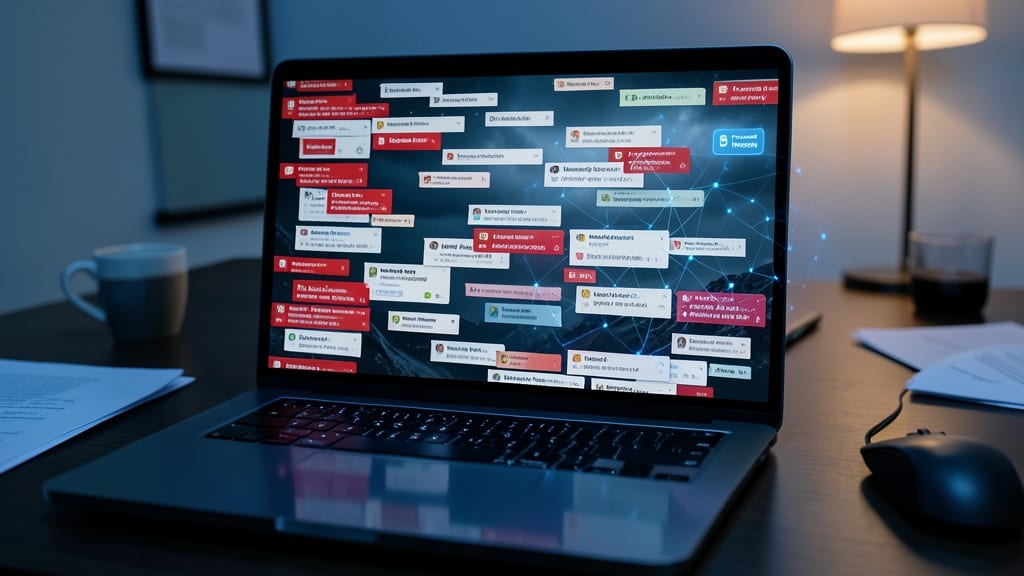
Drowning in a sea of notifications while critical emails get buried? Outlook’s Focused Inbox uses AI-powered prioritization to surface only the most relevant messages—no manual sorting required. Powered by Microsoft’s machine learning, this feature learns from your habits, flagging emails from key contacts or containing urgent keywords while tucking away promotional clutter.
Enable it by clicking the Focused Inbox toggle in the navigation pane, then customize rules to refine what counts as "important." Want to ensure all emails from your manager appear first? Train the AI by marking a few as high-priority. For teams, this cuts inbox overload by 60%, letting you focus on what truly demands attention. The best part? It syncs across Outlook Desktop, Web, and Mobile, so your priorities travel with you.
Ideal for executives, project managers, or anyone juggling multiple priorities daily, this AI assistant does the heavy lifting—so you don’t have to. ⚡
Keyboard Shortcuts for Speed Typing
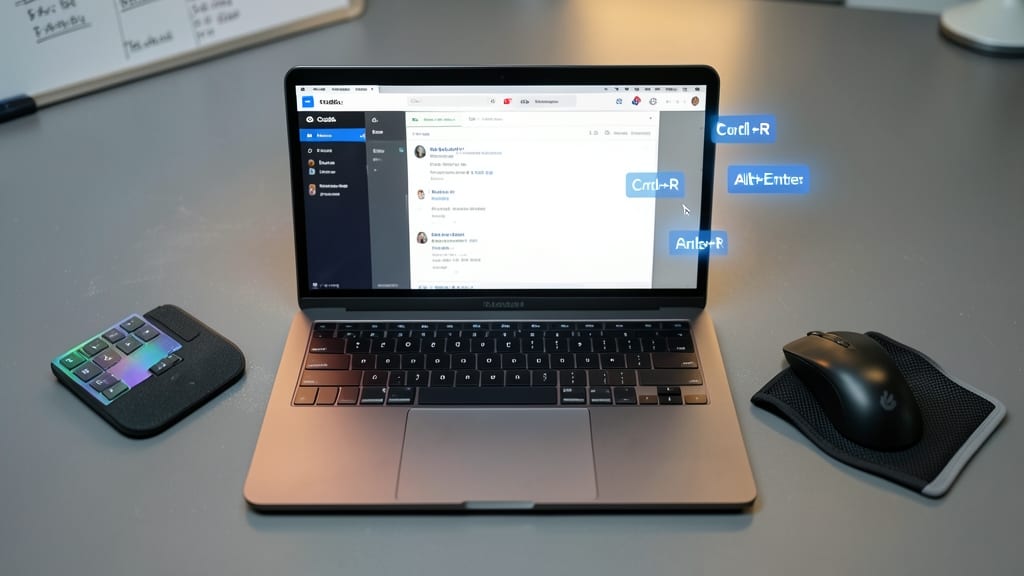
If your wrists ache by midday from constant mouse clicks, Outlook’s keyboard shortcuts are your secret weapon. These 20+ commands let you compose, reply, and navigate emails at lightning speed—no mouse required. For developers debugging code or writers drafting responses, this cuts time wasted reaching for the mouse by 30% or more.
Master Ctrl+Shift+A to compose a new email instantly, Ctrl+Enter to send without leaving the compose window, and Ctrl+Shift+R to reply-all. Need to jump between emails? Ctrl+Down Arrow skips past read messages, while Ctrl+Shift+I opens the Instant Search bar. Pro tip: Customize your Quick Access Toolbar with shortcuts like Ctrl+Shift+K to flag emails—perfect for tracking action items. ⚡
Email Templates to Save Time Repeating Messages
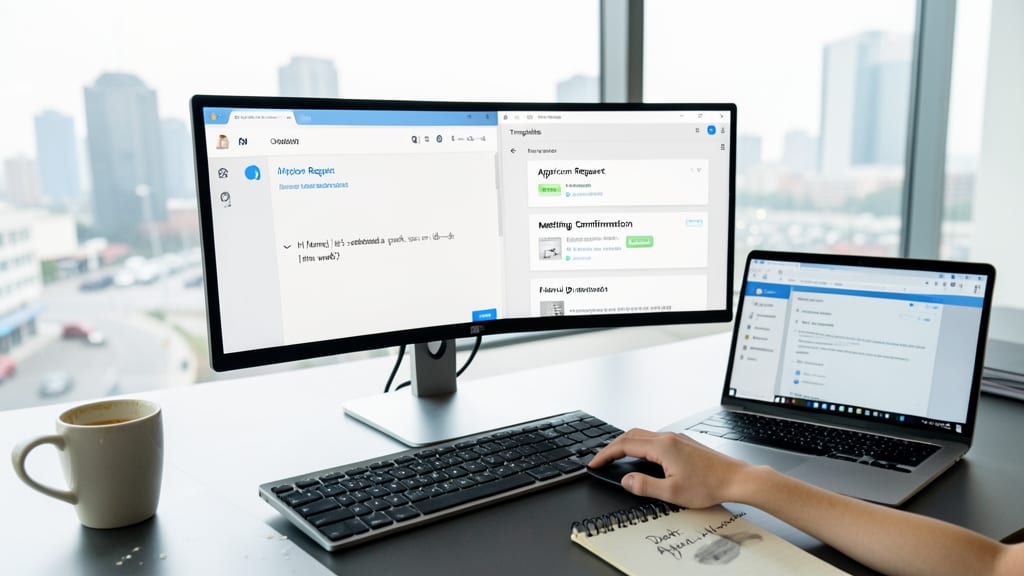
Tired of typing the same meeting requests or approval emails over and over? Outlook’s email templates let you pre-write responses for common inquiries—then insert them in seconds with a few clicks. This isn’t just about saving time; it’s about maintaining consistency in your communication while reducing mental fatigue from repetitive tasks.
To get started, click New Email, then select More Templates from the dropdown. Create templates for meeting confirmations, vacation responses, or HR-related requests—anything you send repeatedly. Once saved, these templates appear in your compose window for instant access. Pro tip: Use placeholders like [Name] or [Date] to personalize each message without rewriting everything. For teams, share templates via Outlook’s shared folders to ensure everyone uses the same professional language.
This trick is a game-changer for customer support teams, managers, or anyone drowning in repetitive correspondence. Spend less time typing and more time focusing on what matters. ✨
Rules to Auto-Organize Incoming Emails
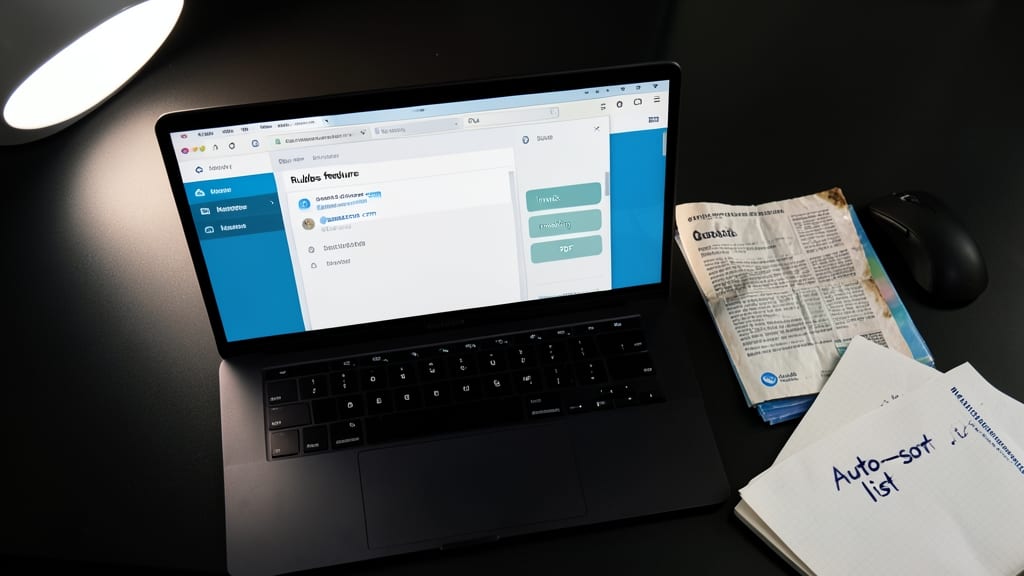
Tired of spending 10+ minutes daily sorting emails into folders? Outlook’s Rules feature automates this with precision—letting you focus on what matters. Create rules based on sender domains, keywords (like "invoice" or "meeting"), or even attachment types (PDFs, Excel files) to auto-file emails instantly.
Set up a rule to move all emails from clients@yourcompany.com to a dedicated folder, or flag emails containing "urgent" in the subject line. You can even stop junk mail before it clutters your inbox by creating a rule to delete emails from known spam senders. For freelancers juggling multiple clients or teams sharing inboxes, this cuts manual sorting by 90%—freeing up mental space for actual work.
Perfect for small business owners, project managers, or anyone drowning in shared inboxes, these rules work across Outlook Desktop, Web, and Mobile. Spend less time organizing and more time executing. 💻
Swipe Gestures for Touchscreen Users
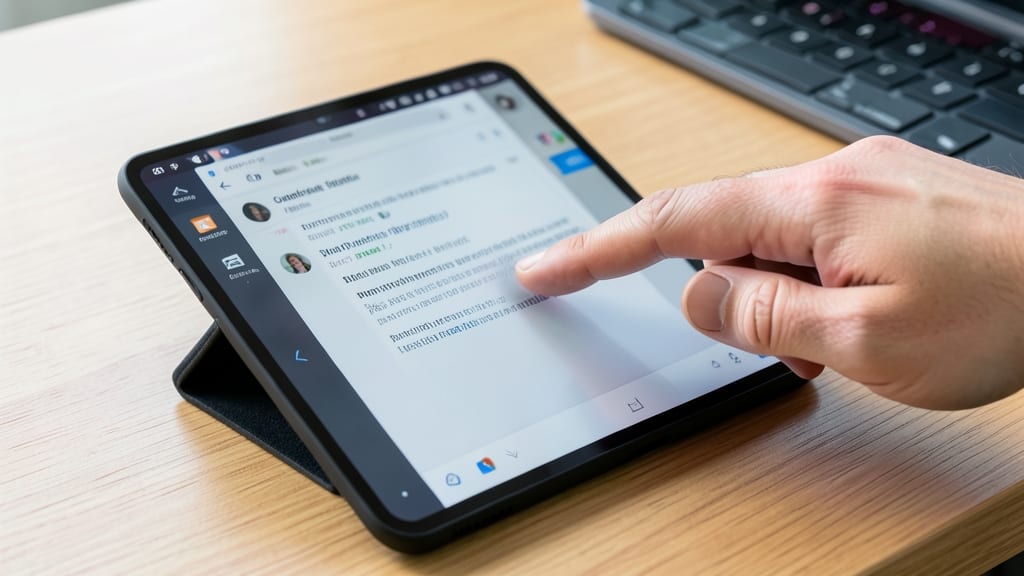
If you’re typing emails on a Surface Pro, Surface Laptop, or touchscreen laptop, Outlook’s swipe gestures turn your screen into a productivity powerhouse. No more fumbling for the mouse—just natural, finger-driven navigation that feels like second nature after a few minutes.
Swipe left or right to move between emails in your inbox, up or down to scroll through conversations, and swipe down from the top to open the Focused Inbox or Search bar. On Surface devices, you can even swipe left on an email to mark it as read or swipe right to archive it instantly. These gestures sync seamlessly with Windows Ink for quick annotations or signatures on touchscreen replies.
This trick is a game-changer for field sales reps, designers, or anyone who spends hours on the go. Say goodbye to mouse fatigue and hello to a smoother, more intuitive email experience. 💻
Track Email Opens and Replies
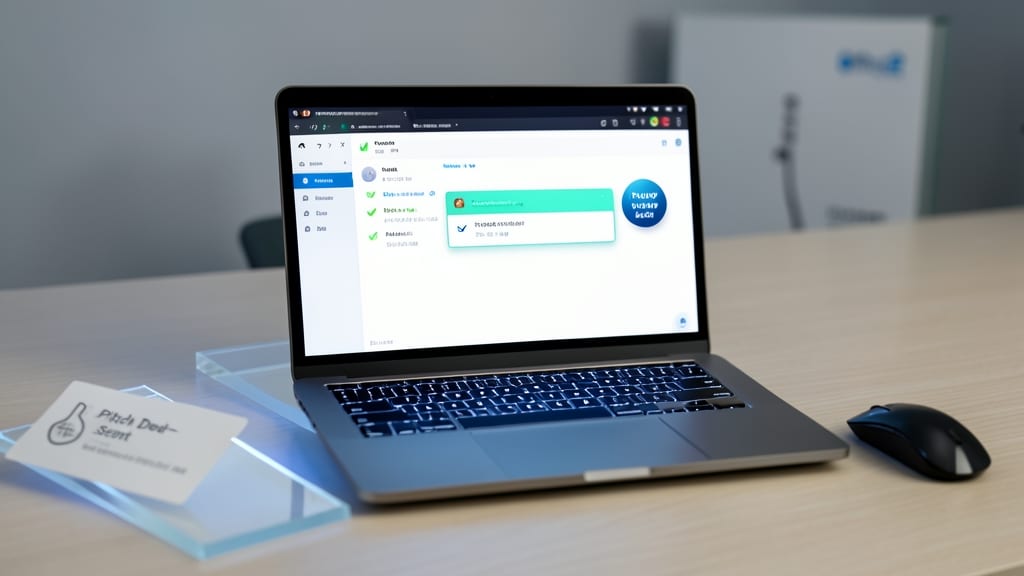
Need to know if your pitch email got opened—or if a candidate clicked your interview invite? Outlook’s read receipts and follow-up tools turn your inbox into a real-time engagement dashboard. This isn’t just a feature; it’s a sales and recruiting game-changer that works automatically with Office 365 subscriptions.
Enable read receipts by checking the box in the email’s options before sending, then watch for green checkmarks next to recipients’ names. For follow-ups, use the Follow Up feature to set reminders (e.g., "Remind me in 3 days")—perfect for time-sensitive replies. The Tracking tab in the Send menu even shows when emails are opened, though note this requires recipient cooperation.
This trick is a must for sales teams, recruiters, or anyone managing time-sensitive communications. No more guessing whether your email landed—just data-driven follow-ups. 💻
Search Emails Using Natural Language
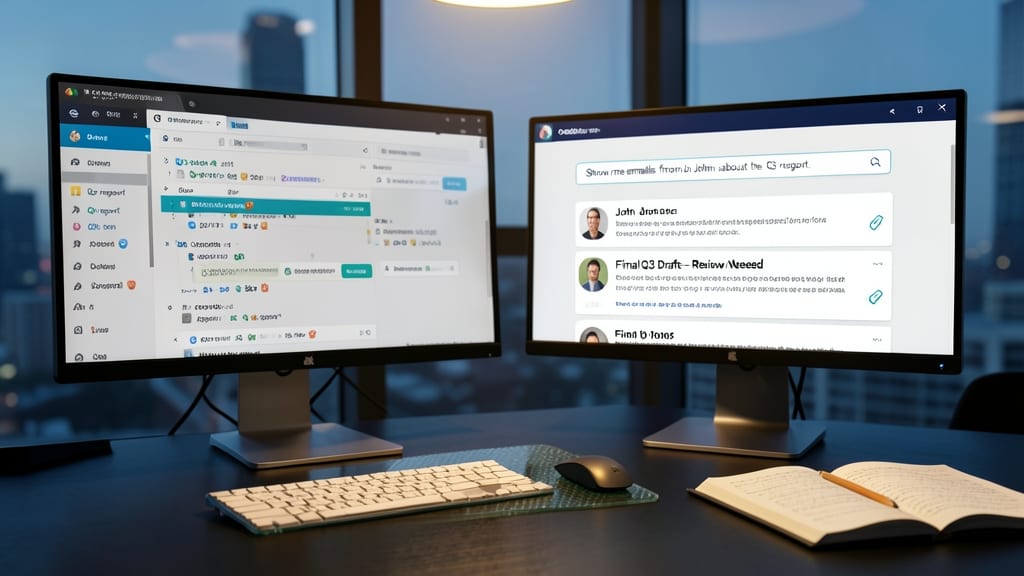
Tired of digging through years of saved emails with clunky keyword searches? Outlook’s natural language search lets you find messages using full sentences—no jargon required. Type queries like "Show me emails from John about the Q3 report" and watch it pull up exact matches in seconds, including attachments and threads.
This feature works across Outlook Desktop, Web, and Mobile, parsing context like sender names, project keywords, and even dates ("Find all emails from last week"). It’s powered by Microsoft’s AI-driven search engine, which learns from your habits to refine results over time. No more sifting through folders—just type what you need, and let Outlook do the heavy lifting.
Perfect for legal professionals reviewing case files, project managers tracking client updates, or anyone buried under years of saved messages. ⚡
Schedule Emails to Send Later
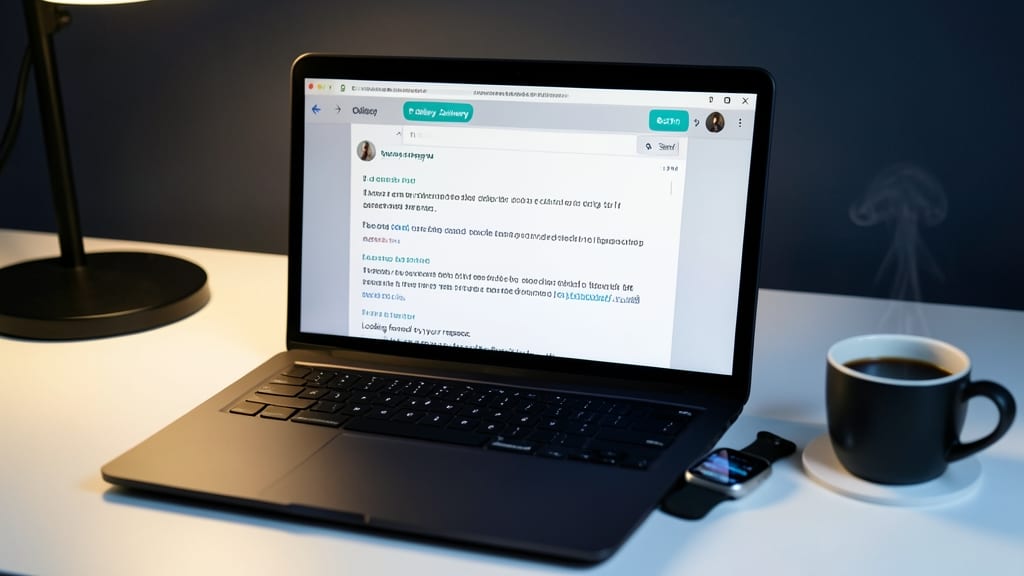
Ever drafted a perfect email at midnight, only to realize it’s too late to send? Outlook’s delay delivery feature lets you compose messages now and schedule them for later—no more rushed replies or awkward time zone surprises. This hidden gem is a game-changer for global teams or anyone juggling multiple time zones.
To use it, open your draft in Outlook and click Options in the ribbon. Under More Options, select Delay Delivery and set a date/time. Your email will sit safely in your Outbox until the scheduled time, ensuring it arrives when your recipient is most likely to see it. Works across Outlook Desktop, Web, and Mobile—just check the Sent Items folder to confirm delivery.
Perfect for customer support teams handling late-night inquiries, sales professionals coordinating across time zones, or parents sending birthday reminders without last-minute stress. Never miss a send window again! ⚡
Clean Up Conversation Threads Instantly
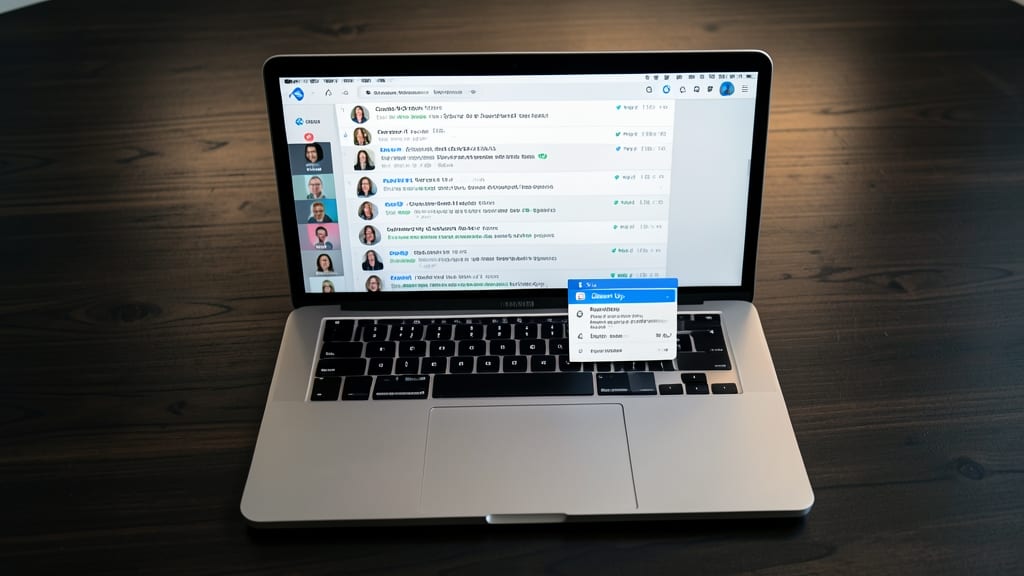
Drowning in email chains that stretch for pages? Outlook’s Clean Up feature is your secret weapon—collapsing long threads into a single, digestible message in seconds. No more scrolling through endless replies or hunting for the most recent update.
Simply right-click any email in a thread, select Clean Up, and watch Outlook hide all but the latest message while preserving key details like subject and sender. It works across Outlook Desktop, Web, and Mobile, making it perfect for teams buried under Slack-like email discussions. The feature even preserves attachments and keeps the original sender intact—no data loss, just clarity.
This trick is a game-changer for project managers, customer support teams, or anyone juggling multiple conversations daily. Spend less time untangling threads and more time focusing on actionable tasks. ✨