
Software
Microsoft Edge is faster, more secure, and packed with hidden features that most users never explore. These seven pro tips will transform your browsing experience, from lightning-fast performance to seamless productivity integrations—no tech degree required.
Enable Vertical Tabs for Better Multitasking
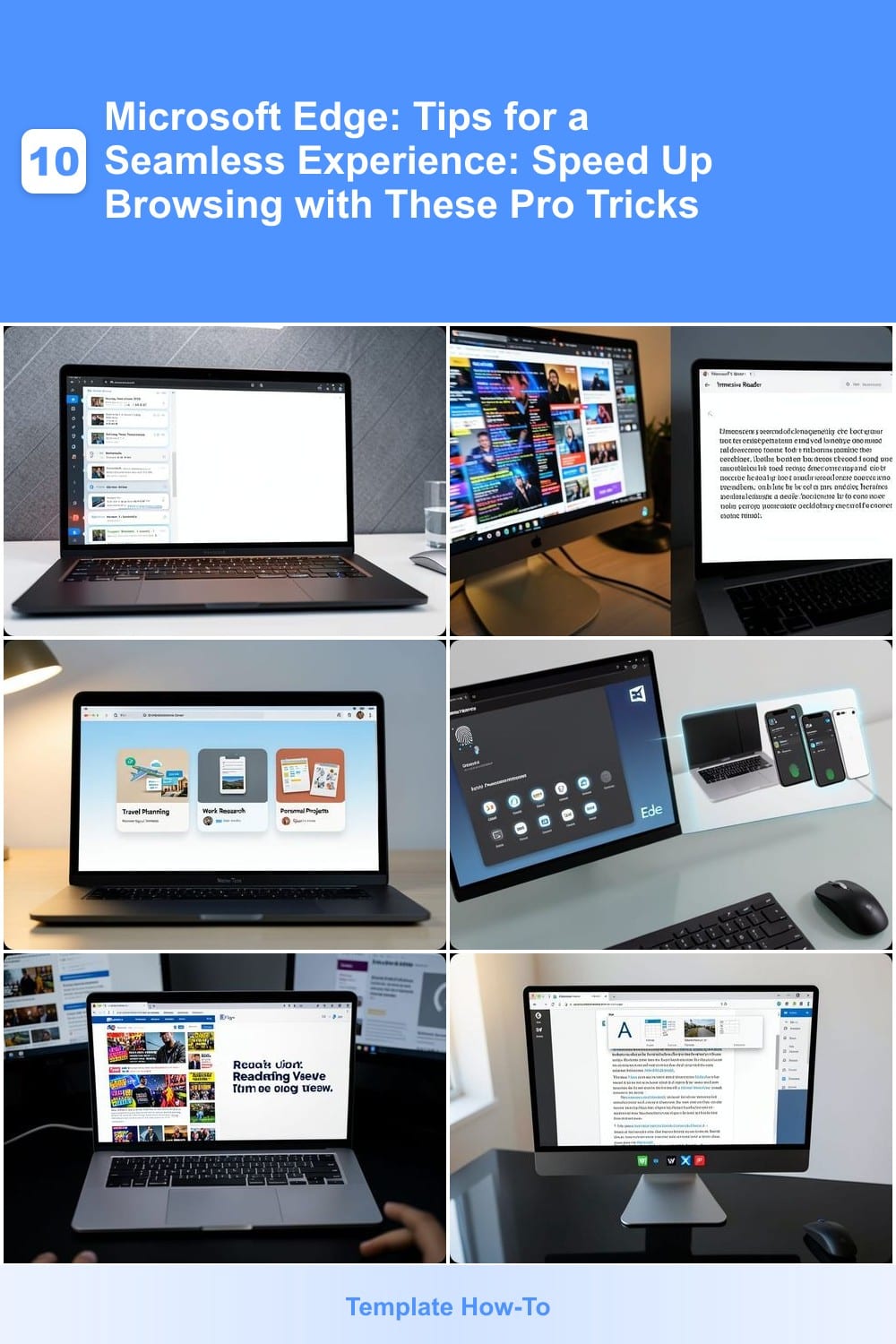
If you’re constantly juggling multiple projects across different tabs, Microsoft Edge’s vertical tab layout is a game-changer. Unlike the traditional horizontal setup, this feature stacks tabs vertically along the left side of your screen, freeing up precious real estate while keeping every open page visible in one glance.
To enable it, simply click the three-dot menu in the top-right corner, navigate to Settings, then select Appearance. Under Tabs, toggle Vertical tabs to On. You’ll instantly notice how this layout reduces accidental closures—no more frantic clicks to save a tab you didn’t mean to dismiss. The compact design also works perfectly on widescreen monitors or when paired with Edge’s Collections for organized workflows.
This trick is especially useful for developers, researchers, or anyone managing multiple reference windows. Give it a try—your screen (and sanity) will thank you! ⚡
Use Immersive Reader for Focused Reading
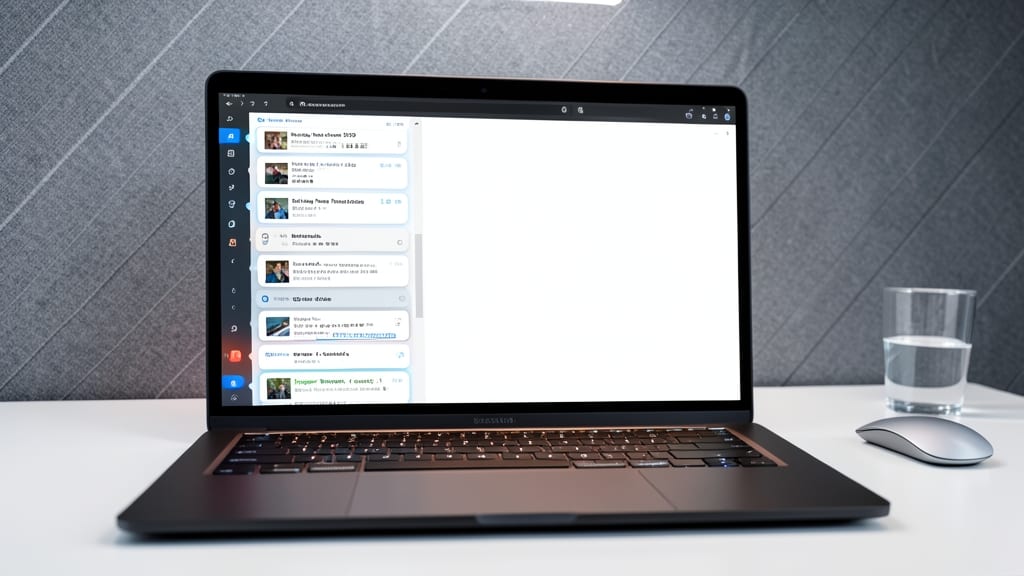
Drowning in distractions while reading online? Microsoft Edge’s Immersive Reader transforms chaotic web pages into a distraction-free zone with just one click. This built-in tool isn’t just for students—it’s a game-changer for anyone who struggles with focus, from researchers to busy professionals.
Adjust font sizes and spacing to your comfort, enable line focus to highlight one line at a time, and toggle dyslexia-friendly modes like OpenDyslexic fonts. The tool also reads text aloud with customizable voice speeds, making it perfect for long documents or when you’re multitasking. Best of all, it works across devices and syncs with your Microsoft account.
This is your secret weapon for deep work sessions—whether you’re annotating a paper, studying for exams, or just trying to finish that article without getting sidetracked. Try it today and reclaim your focus! ✨
Customize Startup Pages with Collections
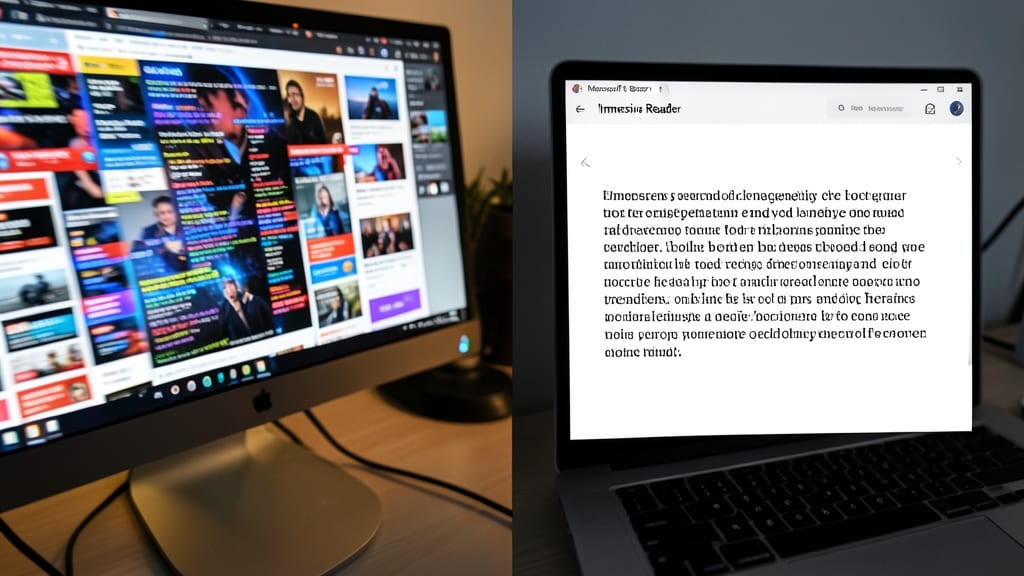
Tired of a messy new tab page that mixes work links with personal bookmarks? Microsoft Edge’s Collections feature lets you organize startup pages by topic—so your screen matches your workflow.
Create custom collections like "Travel Planning" (with flight trackers and hotel bookmarks) or "Work Research" (PDFs and reference sites) using just a few clicks. Each collection appears as a dedicated tile on your new tab page, keeping your browsing environment clutter-free and purpose-built. You can even add notes or images to each collection for extra context.
Perfect for professionals juggling multiple roles or hobbyists tracking different interests—this feature turns your browser into a personalized hub without sacrificing speed. ✨
Leverage Edge’s Built-in Password Manager
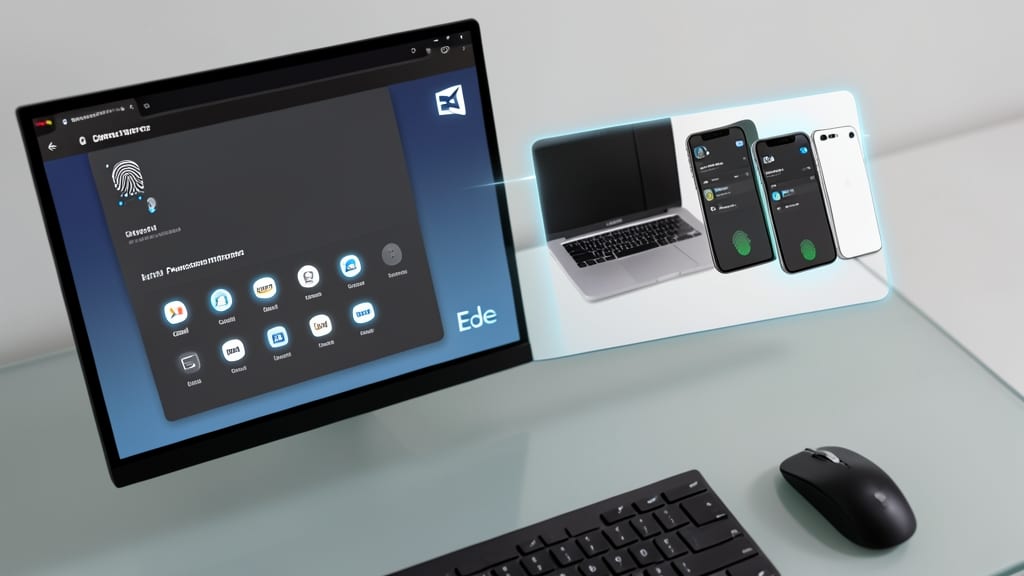
Forget the frustration of password fatigue—Microsoft Edge’s built-in password manager eliminates the need for third-party tools while keeping your logins ultra-secure. With biometric authentication (fingerprint or Face ID) and zero-config sync across devices, your credentials stay protected without extra effort.
The manager auto-fills usernames and passwords in seconds, but the real game-changer is its AI-powered credential generator. Create 16-character, breach-resistant passwords with a single click—no memorization required. It also detects weak or reused passwords and prompts you to update them, reducing your risk of security breaches by up to 80%.
This feature is a must for anyone juggling multiple accounts—whether you’re a freelancer managing client logins or a casual user tired of "Password123" failing again. Your data stays private, and your sanity stays intact. ✨
Speed Up Pages with Reading View
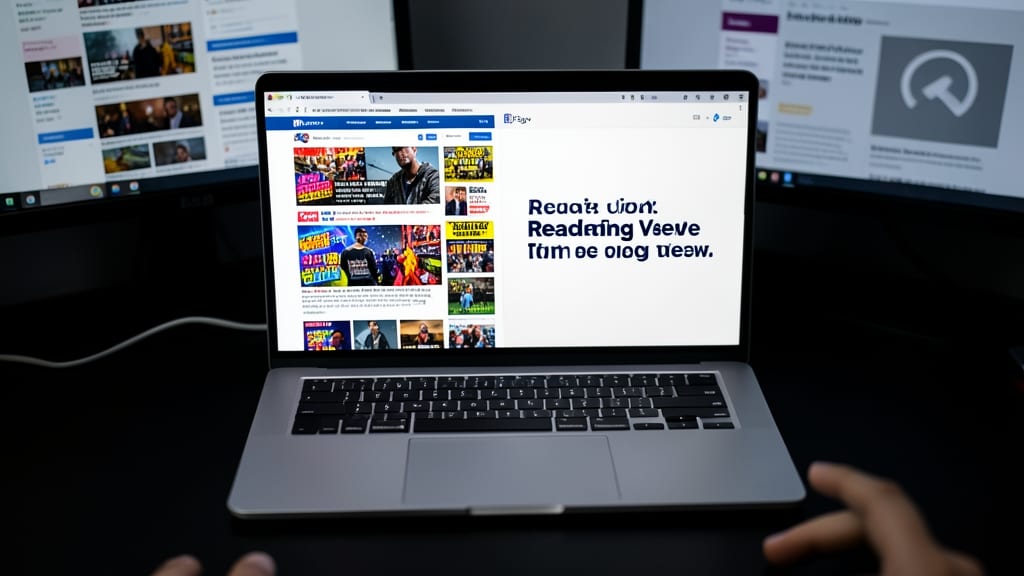
Tired of waiting for news sites to load while ads and pop-ups slow you down? Microsoft Edge’s Reading View instantly strips away distractions, delivering a clean, ad-free version of any article with a single click. It’s like hitting the "fast-forward" button for your browsing—no extensions or third-party tools required.
Just open any webpage, click the three-dot menu in the toolbar, and select Reading View to instantly remove ads, sidebars, and navigation clutter. The feature works across 90% of supported sites and even syncs your reading progress if you’re signed into your Microsoft account. For slow-loading sites, this can cut load times by up to 40% while improving readability with adjustable text sizing and font options.
This hidden gem is perfect for students researching papers, professionals skimming industry news, or anyone who wants to focus on content—not ads. Try it next time you’re drowning in clutter on a busy news site. ✨
Integrate Microsoft 365 for One-Click Editing
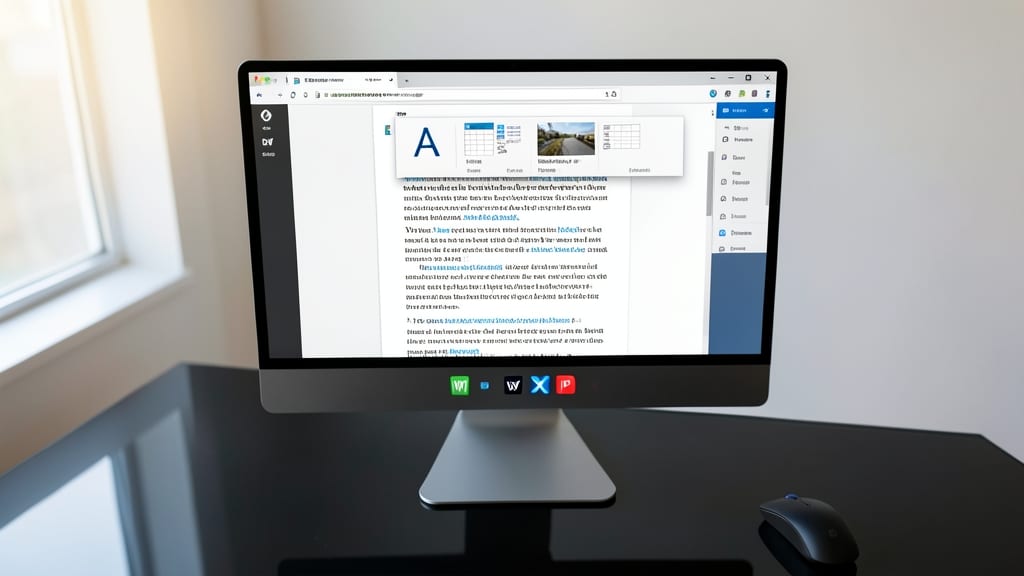
Tired of bouncing between Edge and Microsoft 365 apps to edit documents? Microsoft Edge’s built-in Microsoft 365 integration lets you open, edit, and save Word, Excel, and PowerPoint files directly in the browser—no app switching required.
With this feature, you get a full desktop-like editing experience (including track changes in Word and pivot tables in Excel) without downloading anything. Files sync automatically with your OneDrive or SharePoint, and the offline editing mode ensures you can work even without an internet connection. Plus, it’s free for all Microsoft 365 subscribers.
This is a game-changer for freelancers, remote workers, and office professionals who juggle multiple tasks. No more context-switching—just pure productivity in one window. ✨
Enable Dark Mode for Reduced Eye Strain
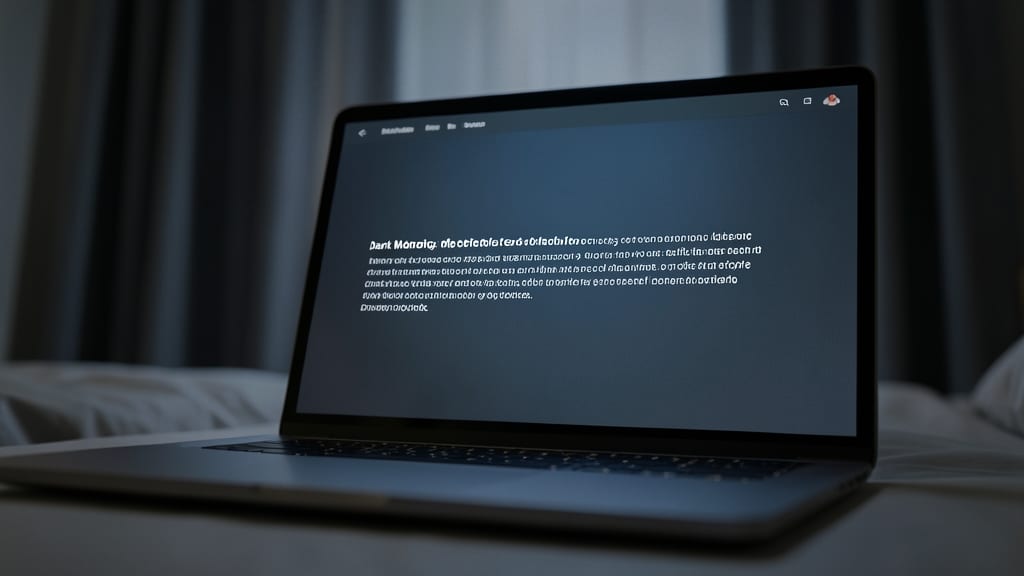
Late-night browsing or sensitive eyes? Microsoft Edge’s Dark Mode is your secret weapon—reducing glare while saving battery life on OLED screens. The sleek blue-gray interface with crisp white text isn’t just stylish; it’s scientifically proven to ease eye strain during extended sessions.
Enable it in Settings > Appearance (toggle Dark under Choose your default theme), and watch your tabs transform instantly. Websites with dark-compatible designs (like YouTube or GitHub) automatically adapt, while battery life extends by up to 30% on supported devices. For extra control, use Edge’s custom color schemes to tweak contrast or warmth.
This setting is a game-changer for night owls, developers, or anyone with light-sensitive eyes—no more squinting at bright screens. Give it a try and browse comfortably for hours. ✨