
PowerPoint
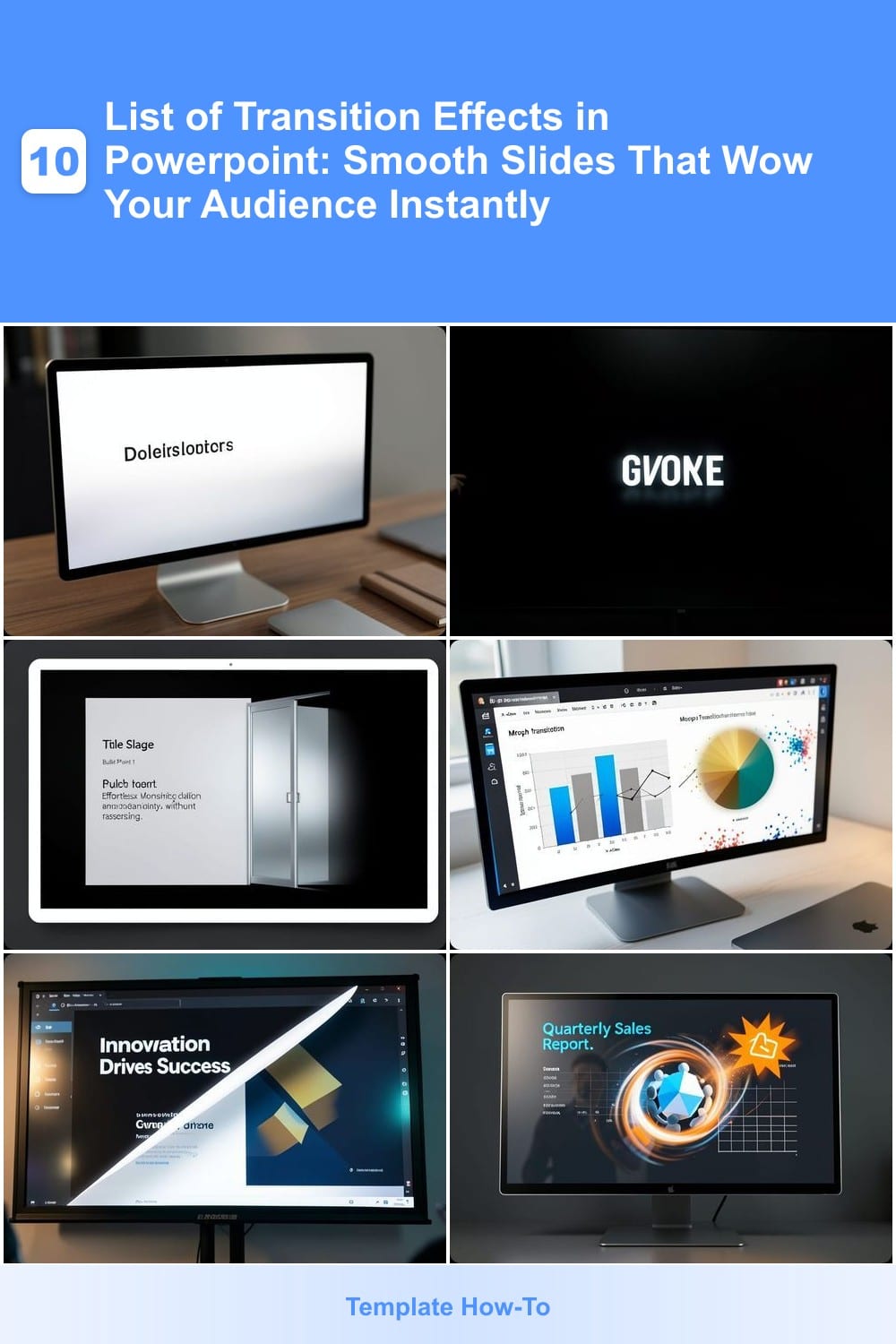
PowerPoint transitions can transform a boring presentation into a dynamic, engaging experience. These seven carefully selected transition effects will elevate your slideshows—whether you're presenting to clients, teaching a class, or delivering a keynote speech.
Fade Slide Transition for Professional Elegance
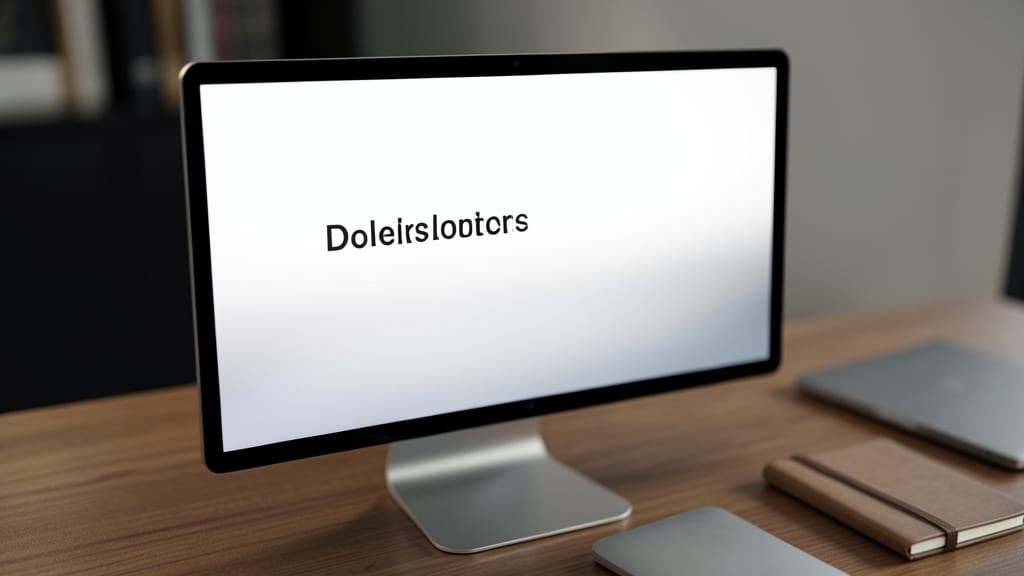
When you need a polished, distraction-free transition that never feels overdone, the Fade effect delivers effortless sophistication. It’s the go-to choice for boardrooms and client meetings, where subtlety speaks louder than flashy animations. This classic transition works seamlessly across PowerPoint 2010, 2013, 2016, 2019, and 365, ensuring universal compatibility without sacrificing quality.
The Fade effect creates a smooth, gradual shift between slides by dissolving one into the next—no abrupt cuts or jarring movements. You can adjust the duration (from 0.5 to 5 seconds) to match your pacing, and it pairs perfectly with minimalist templates or high-contrast designs. Unlike more dynamic transitions, it avoids overwhelming your audience while still adding a touch of professionalism.
Perfect for corporate reports, financial reviews, or executive pitches, this transition keeps the focus on your content. Even tech-savvy audiences appreciate its understated elegance. ⚡
Zoom Slide Transition for Impactful Reveals
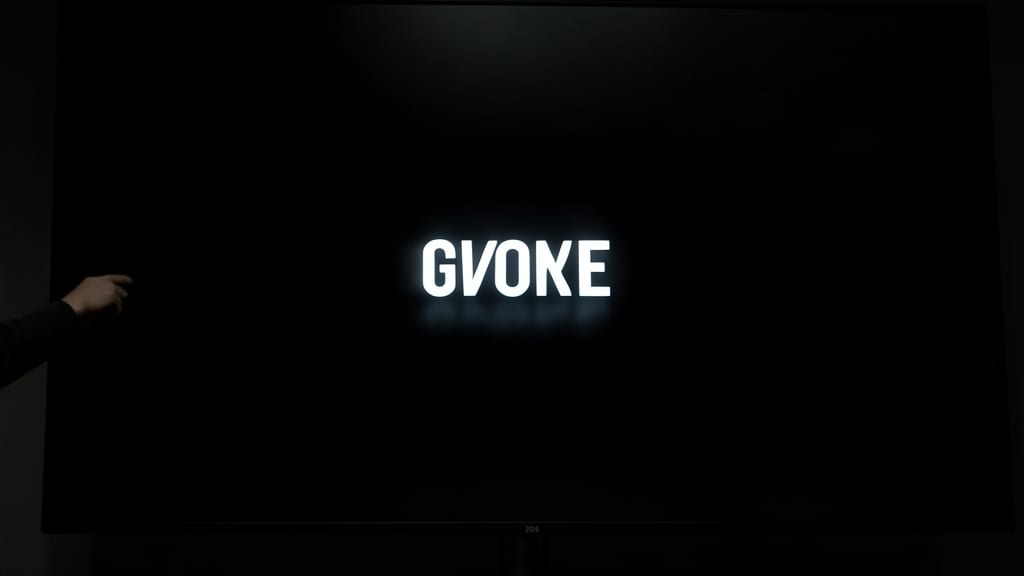
Want to make your product launch or keynote slide feel like a grand reveal? The Zoom transition delivers exactly that—scaling your slide in from a black void to create instant impact. Unlike subtle fades, this effect grabs attention by simulating a camera zoom, perfect for unveiling logos, product shots, or headline messages.
Available in all PowerPoint versions, it’s customizable with speed adjustments (0.1s to 5s) and direction options (zoom in/out). Pair it with a black slide background for maximum drama, or use it sparingly to highlight only your most critical moments. The built-in motion blur adds a cinematic touch without requiring extra software.
Ideal for tech demos, investor pitches, or conference keynotes, this transition ensures your audience stays locked in during those pivotal moments. Just don’t overuse it—or you’ll risk distracting from your content. ✨
Push Slide Transition for Modern Minimalism
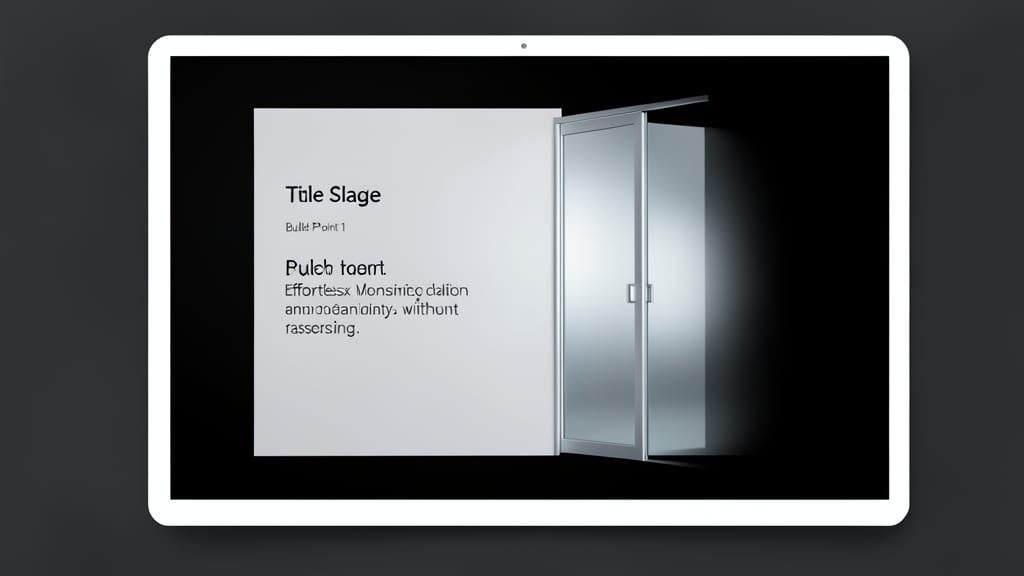
When your presentation needs to feel effortlessly modern without sacrificing clarity, the Push transition delivers. Unlike flashy effects, this subtle slide shift mimics real-world movement—like a sleek door sliding open—perfect for tech demos or creative projects where minimalism reigns.
Available in PowerPoint 2016 and later, this transition offers directional control (left, right, up, or down) and pairs beautifully with flat design templates. The effect is smooth yet intentional, ensuring your audience stays focused on content—not distractions. For tech presentations, it’s the ideal choice to showcase apps or diagrams with a polished, professional touch.
Designers and developers will appreciate how well it complements clean, geometric layouts, while educators can use it to guide students through step-by-step processes. Give it a try for that effortless, high-end feel. ✨
Morph Transition for Seamless Data Visualizations
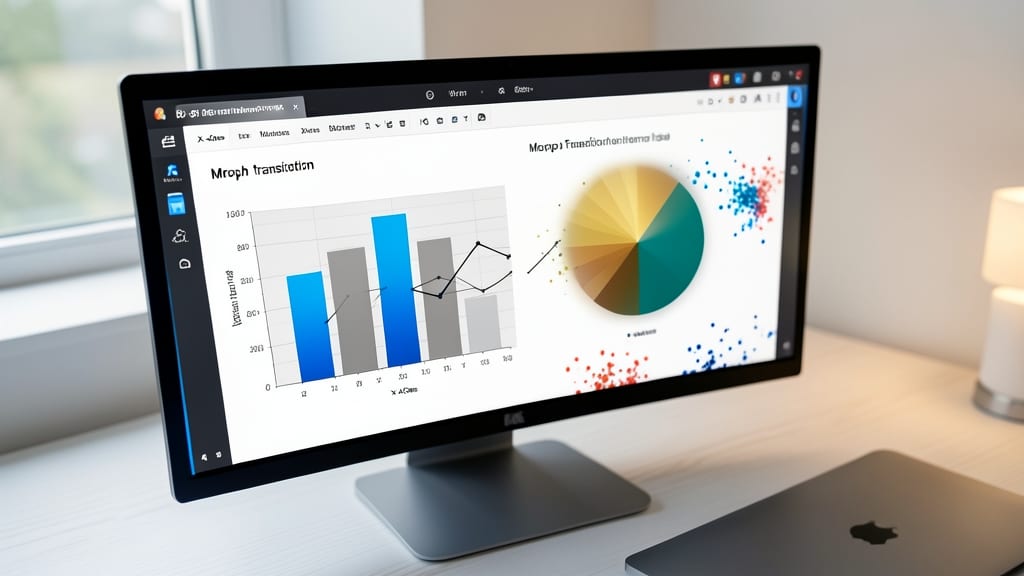
Tired of jarring cuts when your bar charts morph into pie graphs or your line graphs shift to scatter plots? The Morph transition in PowerPoint 365 solves this by seamlessly animating between slides with completely different layouts—no awkward pauses or visual disruption.
This exclusive feature (only available in PowerPoint 365) intelligently aligns elements based on their positions and shapes, making your data transitions look polished and professional. It’s perfect for financial reports, market analysis, or scientific presentations where visual continuity matters. Just ensure your data points are consistently placed for the best results.
Data analysts, marketers, and educators will love this for keeping audiences focused on insights—not the transition itself. ⚡
Wipe Slide Transition for Creative Storytelling
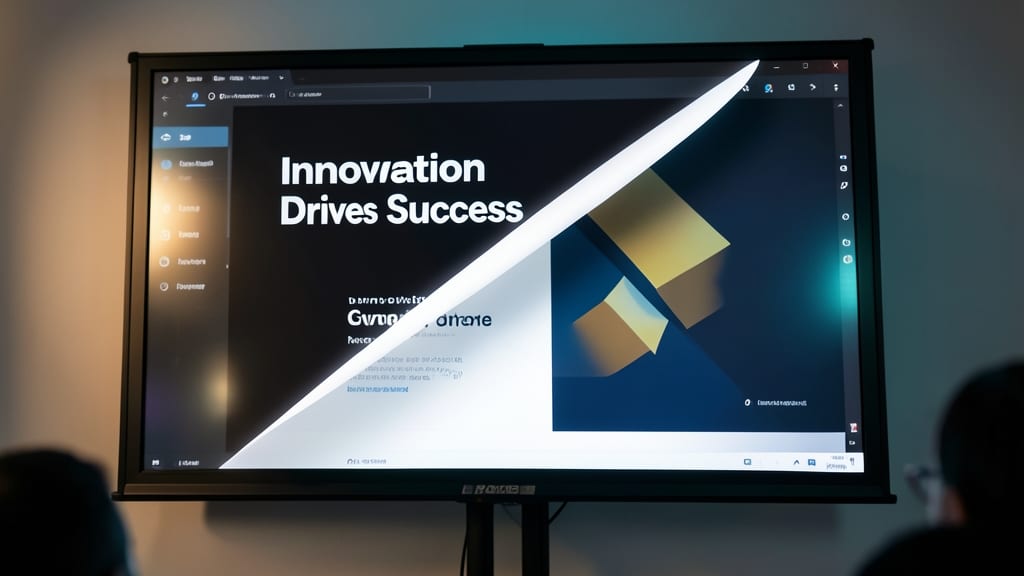
Need to guide your audience’s attention like a director? The wipe slide transition lets you reveal content with a sweeping motion—left, right, up, or down—creating a cinematic flow that feels intentional and engaging.
Unlike static fades or abrupt zooms, wipes let you control the direction of movement, making them perfect for storytelling. For example, wipe left to transition from a problem to its solution, or wipe up to build momentum in a timeline. Available in all PowerPoint versions, it’s also lightweight and won’t slow down your slideshow if used sparingly.
This transition shines in educational content, creative pitches, or storytelling sessions where you want to emphasize progression or focus. Try it for a presentation that feels as dynamic as a movie scene. ✨
Spin Slide Transition for High-Energy Presentations
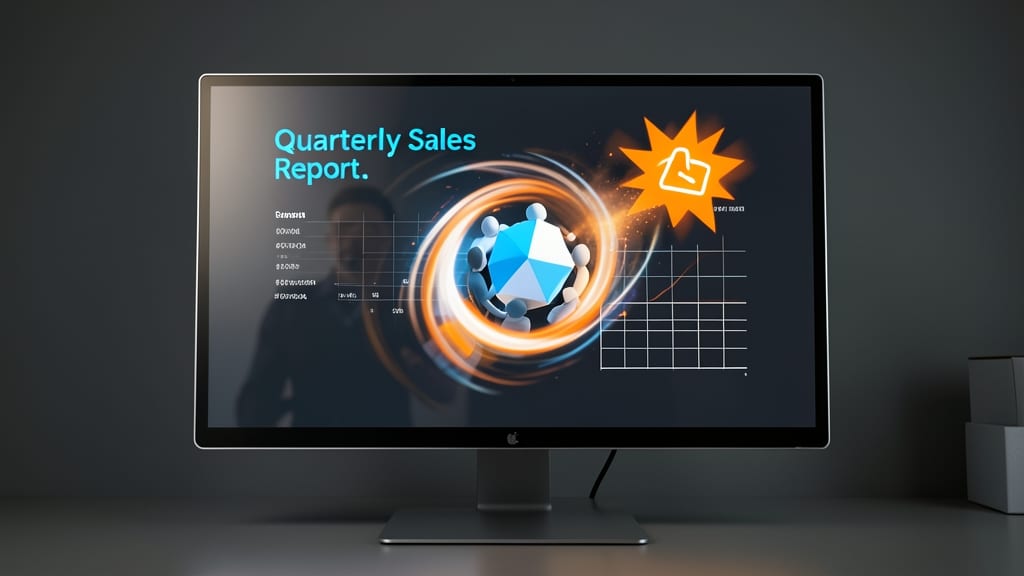
Need to turn a flat presentation into a high-energy experience? The Spin transition adds a playful 360-degree rotation that instantly grabs attention—perfect for breaking up monotony in sales pitches or team huddles. Unlike static transitions, it creates a sense of motion and dynamism that keeps audiences leaning in.
Available in all PowerPoint versions, this transition lets you control the rotation speed and direction (clockwise or counterclockwise) for maximum impact. Pair it with bold colors or animated elements to amplify the effect—just avoid overusing it, as too many spins can distract from your content. The zero-config setup makes it ideal for last-minute energy boosts.
Sales trainers, motivational speakers, and product launch teams will love this transition for its ability to energize the room without sacrificing professionalism. Just don’t spin too fast—your audience will thank you! ✨
Custom Path Transition for Unique Branding
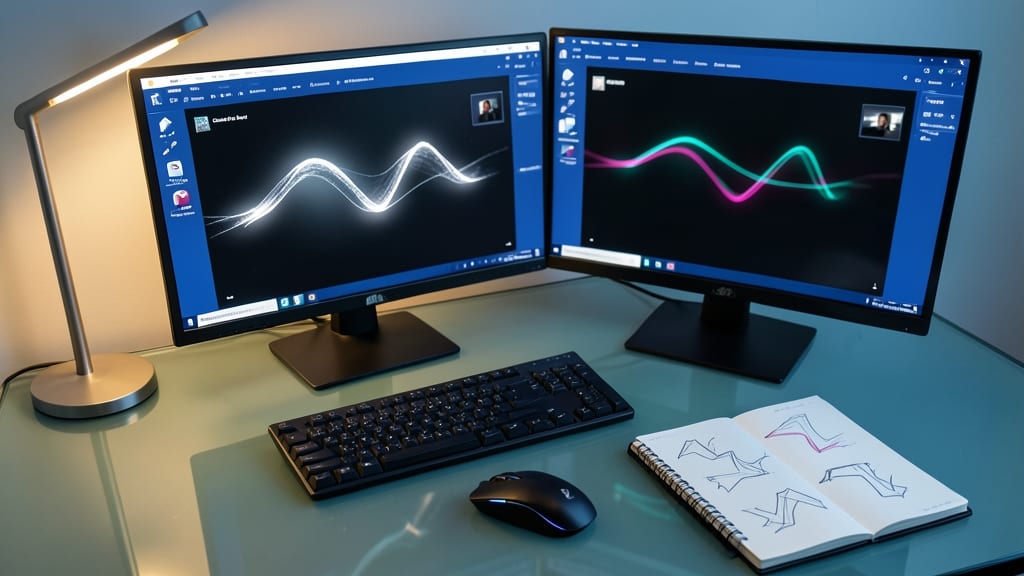
Tired of generic transitions that blend into every other presentation? The Custom Path Transition lets you draw your own movement path—whether it’s a smooth curve, a zigzag, or even your brand’s logo shape—to create a signature slide flow.
Unlike built-in transitions, this feature requires manual setup in PowerPoint 2016+, but the payoff is a one-of-a-kind visual identity. You can animate slides along a custom Bezier curve, sync it with your brand’s color palette, or even embed subtle motion graphics. It’s the ultimate tool for marketing teams crafting pitch decks or designers building portfolio presentations.
Perfect for professionals who want to break the mold—just be sure to test timing to avoid distracting delays. ✨