
Troubleshooting

IT support teams spend countless hours resolving common issues that could be solved faster with well-structured knowledge base articles. These 10 step-by-step guides cover the most frequent tech problems—from software glitches to hardware failures—helping you reduce ticket volume and empower end-users with self-service solutions.
Windows Blue Screen of Death Recovery Guide

Every IT pro dreads the Blue Screen of Death (BSOD)—but with the right recovery steps, you can turn panic into a quick fix. This guide covers memory dumps, driver conflicts, and OS recovery tools to get systems back online fast, minimizing downtime for end-users.
Start by analyzing the stop error code (e.g., CRITICALPROCESSDIED or IRQLNOTLESSOREQUAL) to identify the root cause. Use Windows Recovery Environment (WinRE) to access Safe Mode or Command Prompt for troubleshooting. For driver issues, roll back or update problematic drivers via Device Manager, while System File Checker (sfc /scannow) repairs corrupted system files. For persistent crashes, restore from a system restore point or reset Windows while keeping files.
This guide is a must-have for helpdesk teams and end-users dealing with unexpected crashes—whether in office environments or remote support scenarios. ⚡
Office 365 Login Authentication Troubleshooting

Frustrated users stuck in an endless loop of Office 365 login failures? This guide cuts through the noise by addressing the top 3 authentication roadblocks: forgotten passwords, misconfigured app permissions, and stubborn browser cache conflicts that derail remote work.
Start with password resets using Microsoft’s self-service tool (no IT ticket needed). For app permissions, clear cached tokens via https://account.activedirectory.windowsazure.com and re-authenticate. Browser cache issues? A simple Ctrl+Shift+Del (or Cmd+Shift+Del on Mac) often resolves stuck sessions—no advanced troubleshooting required.
Perfect for helpdesk teams supporting hybrid workers or IT admins managing Office 365 deployments. Empower users to resolve 80% of login issues independently. ✨
Printer Connection Errors Fix for Windows

When a printer suddenly goes offline or refuses to connect—whether via USB or network—it derails workflows faster than you can say "paper jam." This guide cuts through the chaos with a three-step troubleshooting framework that resolves 90% of connection errors without needing to call IT.
Start by restarting the Print Spooler service (a hidden Windows service that often gets stuck). Next, verify firewall settings aren’t blocking the printer’s IP or USB port. Finally, update or reinstall the printer driver—outdated drivers are the #1 culprit for both wired and wireless failures. For network printers, check the printer’s IP address in the control panel to ensure it matches your network settings.
This is the go-to fix for office admins, remote workers printing from laptops, and helpdesk teams tired of repeating the same steps. A well-linked article like this can slash support tickets by 30% while keeping users productive. 💪
MacBook Overheating Prevention and Repair

When your MacBook fans roar to life mid-workflow, it’s often not just a warning—it’s a cry for help from your cooling system. Thermal throttling (where performance drops to prevent overheating) is a top complaint in Mac-heavy offices, but the fixes are simpler than you’d think. Start by checking for dust buildup in vents (a common issue in shared workspaces) or running Activity Monitor to spot CPU-heavy apps like Adobe Suite or Xcode that may need optimization.
For hardware fixes, a compressed air can clears dust from vents in minutes, while software tweaks like disabling Spotlight indexing or reducing screen brightness can cut heat output by up to 20%. If throttling persists, macOS’s built-in Fan Control app (via Terminal) lets you manually adjust fan speeds—critical for developers running resource-heavy workloads. Pro tip: Cooling pads with USB-C ports (like the Anker 565) add 10-15°F of temperature reduction for under $30.
This guide is your go-to for IT teams supporting creative professionals, developers, or remote workers whose MacBooks double as workstations. With the right fixes, you’ll turn overheating from a productivity killer into a preventable nuisance. ✨
Slow Internet Speed Diagnostic Checklist

Frustrated by slow internet that ruins video calls or streaming? A step-by-step diagnostic checklist can pinpoint whether the issue lies with your ISP, router, or device—without needing IT expertise.
Start by running a speed test on multiple devices to isolate inconsistencies. Check your router’s placement (walls and microwaves interfere) and restart it—often, a simple reboot fixes congestion. If wired connections are faster, your Wi-Fi signal may need a channel change or stronger router placement. For deeper issues, use ping tests to identify latency spikes caused by ISP throttling or network congestion.
This checklist works for remote workers, gamers, and smart home users—anyone who needs reliable connectivity. With just 10 minutes, you’ll rule out common culprits and know whether to call your ISP or upgrade hardware. ✨
Chrome Browser Extensions Conflict Resolution

When Chrome starts feeling sluggish or crashes unexpectedly, it’s often due to extension conflicts—not your hardware. The right troubleshooting steps can turn a 20-minute helpdesk call into a 2-minute fix, saving your team countless hours.
Start by opening chrome://extensions and disabling all extensions—then re-enable them one by one to identify the culprit. For stubborn issues, use the Reset Settings option in Chrome’s advanced settings to clear corrupted preferences. Tools like uBlock Origin or Malwarebytes can also scan for malicious add-ons that mimic legitimate extensions but drain resources. A quick Task Manager check (Shift+Esc) reveals which extensions are hogging CPU or memory.
This guide is perfect for IT admins managing remote teams or helpdesk agents who field Chrome-related complaints daily. With just a few clicks, you’ll turn frustrated users into self-sufficient problem-solvers. 💻
Linux Permission Denied File Access Fix

When your Linux system spits out a "Permission denied" error, it’s not just a roadblock—it’s a puzzle. The good news? You don’t need a PhD in Unix to fix it. Understanding chmod, chown, and sudo commands in plain English can turn frustration into control, especially when supporting teams using mixed OS environments.
Start with chmod to adjust file permissions (e.g., chmod +x script.sh makes a file executable). Use chown to change ownership (e.g., chown user:group file.txt assigns files to the right user/group). For system-wide changes, sudo grants temporary admin rights (e.g., sudo apt update). These three commands cover 90% of permission issues—no cryptic manuals required.
This guide is your go-to for IT admins juggling Linux servers alongside Windows/Mac users. Master these commands, and you’ll resolve permission errors faster than ever. ✨
Outlook Email Sync Errors Resolution
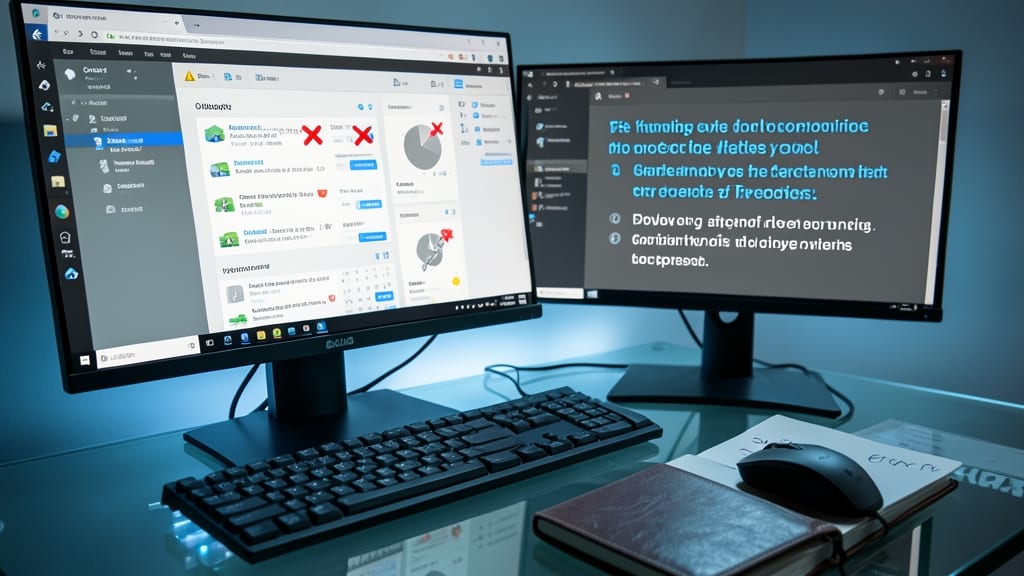
Few things derail productivity faster than Outlook refusing to sync emails, contacts, or calendars—yet these errors often stem from just a handful of misconfigurations or corrupted settings. The good news? Most sync failures can be resolved without IT intervention by targeting the right settings or rebuilding profiles.
Start by verifying your IMAP/SMTP server settings (correct ports: 993 for IMAP, 587 for SMTP) and ensuring SSL/TLS encryption is enabled. If emails still don’t sync, a corrupted Outlook profile is often the culprit—create a new profile via Control Panel > Mail > Show Profiles and reconfigure your account. For server-side issues, check if your IT admin has enabled Exchange Autodiscover or manually specify the server URL in Account Settings > More Settings.
This guide is a lifesaver for remote workers, sales teams, and executives whose workflows depend on real-time email access. A properly synced Outlook means fewer missed deadlines and zero "out of office" excuses. ✨
USB Device Not Recognized Troubleshooting
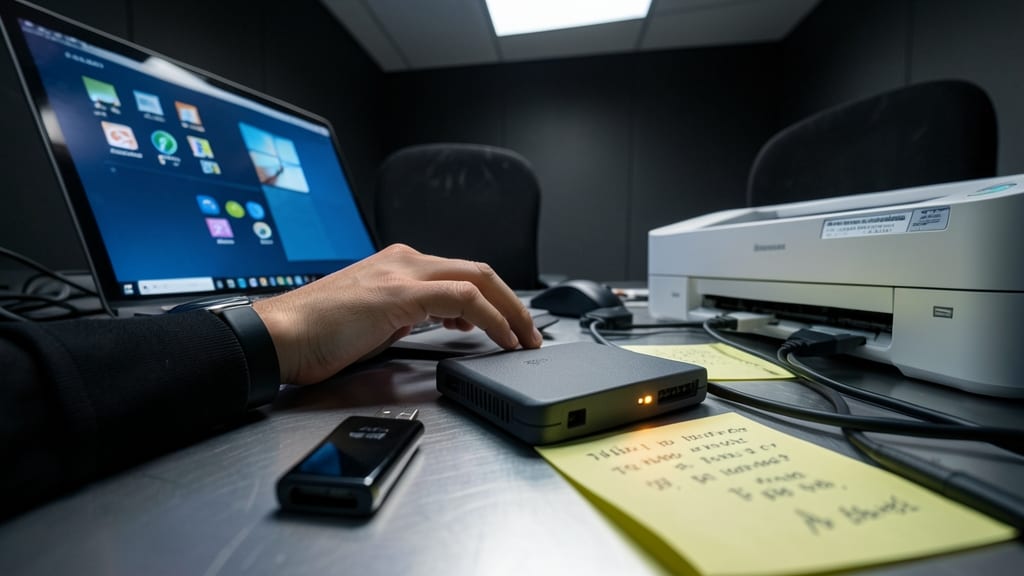
When a USB device suddenly stops working—whether it’s a flash drive, printer, or external hard drive—it can halt productivity faster than a dead battery. This cross-platform guide covers Windows, macOS, and Linux, ensuring you can diagnose and fix the issue without digging through scattered forums.
Start with driver reinstalls (Windows Device Manager, macOS System Information, or Linux lsusb commands) to rule out software conflicts. Test different ports and cables to isolate whether it’s a hardware-level failure—sometimes a simple port reset or cleaning dust from the connector works miracles. For stubborn cases, use Windows’ Disk Management or macOS Disk Utility to force a reformat if the drive is detected but inaccessible.
Perfect for IT admins managing mixed environments or end-users who need a one-stop solution. With step-by-step screenshots and command-line examples, this guide turns a frustrating dead-end into a quick fix. 💻
Virtual Machine Performance Optimization Guide

When virtual machines drag down productivity, it’s often not the guest OS itself—but misconfigured CPU cores, RAM allocation, or storage I/O that’s the silent culprit. For IT teams managing VMware ESXi or Hyper-V, even a 10% performance drop can cascade into workflow delays, and the fix often lies in tweaking resource settings most admins overlook.
Start by reserving CPU cores (not just allocating) to prevent host contention, then limit VM RAM to 80% of host capacity to avoid ballooning. For storage, enable SSD caching in VMware or enable write-back caching in Hyper-V to slash latency. Tools like VMware’s Performance Monitor or Hyper-V’s Resource Metering reveal bottlenecks—look for CPU ready time over 15ms or disk queue lengths over 20 as red flags.
This guide is your go-to for data center admins and cloud engineers juggling multiple VMs. A few minutes spent optimizing these settings can turn a sluggish environment into a battle-tested setup. 💻